AlphaSmart 2000
21
the contents of the file onto the Clipboard and issue a
paste command. If a word processor is open and is the top
window, the contents of the file will be pasted into it.
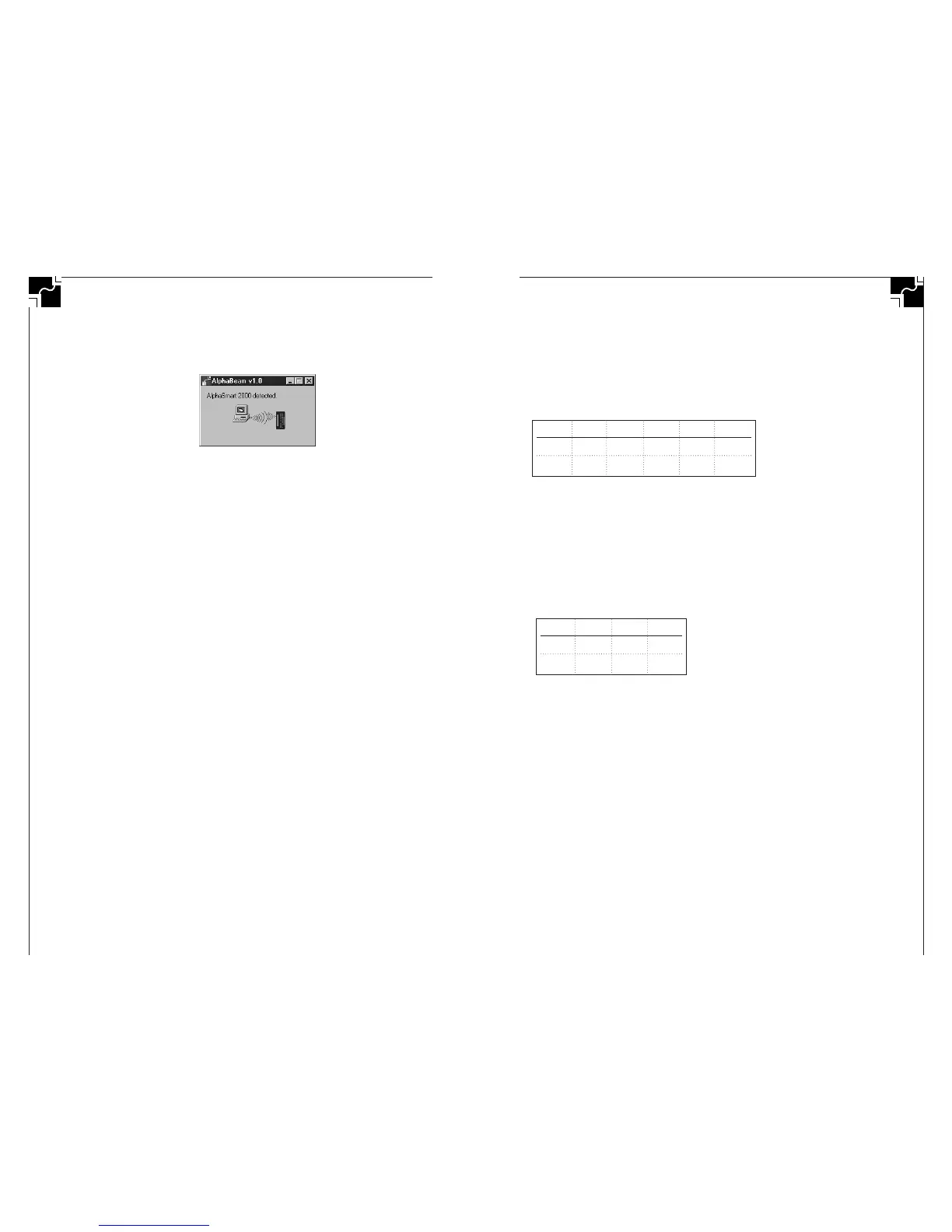
Figure 6. AlphaBeam for PC
6. After the send the AlphaSmart will be disconnected from
the PC. You may then resend the same file by pressing the
Send key again or you may open up a new file and send
it, or bring up another AlphaSmart and send its file.
■ TIPS FOR DOWNLOADING TO
SPREADSHEETS, DATABASES,
MULTIMEDIA, E-MAIL AND OTHER
APPLICATIONS
Because AlphaSmart simply retypes the data from your files,
you may transfer the text in your AlphaSmart to any applica-
tion that you can type into—not just word processing appli-
cations.
Downloading into Applications
When in another application, simply put the cursor where
you want the text to go and press Send. This can be in a
HyperStudio text field, or when using the text tool of a page
layout program, or when using an e-mail program. Wherever
you would normally type in the information, you can easily
download information from your AlphaSmart by placing your
cursor in the new application and pressing Send.
Spreadsheets
If you are using TurboTransfer Software or Infrared, you can
transfer text to a spreadsheet. For some spreadsheets, you
need to do a special trick to get things to work the way you
want. If you want to download the following data that’s
already typed in your AlphaSmart (separated by tabs) into a
spreadsheet program:
20
AlphaSmart 2000
98l46l78k
75l89l100
If you put the cursor in the upper left cell of a new spread-
sheet file and press Send on your AlphaSmart, this is what
your spreadsheet may look like:
The reason for this is that the Return causes most spread-
sheets to drop straight down a row, instead of going back to
the left-most column of the spreadsheet.
An easy trick to fix this is to send your text to a word proces-
sor application first, then copy it and paste it into your
spreadsheet. The paste command will fix the problem and
your spreadsheet will look like this:
Note: If you are using TurboTransfer or Infrared Transfer, there is
no need to use the spreadsheet trick above. Both transfer methods
will paste your text into the spreadsheet correctly.
Databases
The steps below work for transferring text to an AppleWorks
(formerly ClarisWorks) database document on a Macintosh.
Database programs differ substantially, so transferring to
other databases may require experimentation
1. Create your database in AppleWorks if you haven’t already
done so, and set up your fields.
2. Create a tab-delimited record on the AlphaSmart by enter-
ing the data in the tab order of the database, entering a
return at the end of each record. The tabs separate the
fields and the return indicates the end of the previous
ABC
1984678
2 75 89 100
ABCDE
1984678
2 75 89 100


 To Next Page