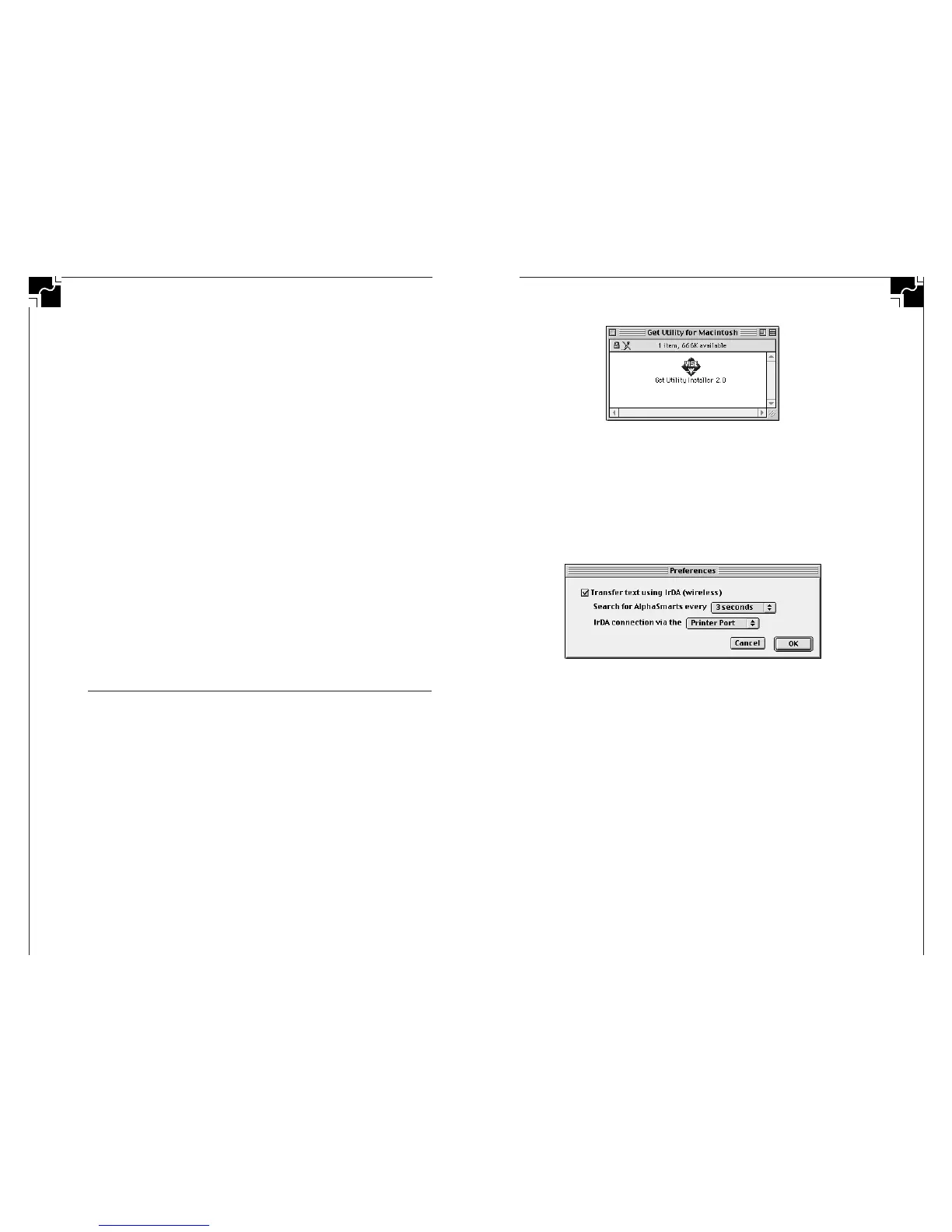
Figure 13. Get Utility Installer icon
2. The Installer will place the program in the folder that you
select.
3. Once the installation is finished, double click on the pro-
gram icon.
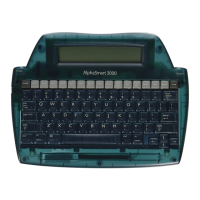
4. The Preferences window will be displayed the first time
that you select the program.
Figure 14. Preferences window
Important Notes:
1. If you are using the iMac, Powerbook or a Mac with an
internal IrDA transceiver select IrDA connection via the
built-in IrDA transceiver.
2. If you are not using wireless infrared transfer press
Cancel.
Installation Instructions for Get Utility for Mac
Using IR Transfers
If your computer has a built-in IrDA transceiver, then go to
Step 3 of the instructions.
1. Plug IR wireless pod for Mac into a serial port (Modem or
Printer) on the Mac.
2. Be sure and note which serial port the wireless pod for
Mac is plugged into.
AlphaSmart 2000
37
As soon as you type the 5th letter of the new password, you
will see the message Your password has been changed for a
second, and then you will return to the file which you were
editing. (Passwords are all lowercase; pressing shift or caps
lock has no effect.)
When password protection is enabled, anytime you change
files you will be asked for that file’s password before being
allowed to edit that file. All individual file passwords can be
overridden by typing the master password.
If, when turning on the AlphaSmart, you are prompted for
the password for a file that isn’t yours, simply press the
appropriate file number to get your own file and enter the
password.
Note: This password system was designed to protect against acci-
dental or casual mischievous data loss and to provide a minimum
level of data privacy. It is NOT designed to prevent concerted
malicious efforts at data destruction. All security systems have
ways of being “broken” if you try hard enough. As the old saying
goes, “Locks are to keep honest people honest.”
■ GET UTILITY SOFTWARE
Get Utility for Mac v2.0
The Get Utility for Mac v2.0 is a software utility program
that allows the user to send text between a Mac and an
AlphaSmart, AlphaSmart Pro, or AlphaSmart 2000.
You can send text to an AlphaSmart from your Mac either by
using an ADB “Y” cable, or by wireless infrared transfer if
your AlphaSmart is equipped with an IR module. You can
download the upgrades (at no cost) from the Support Section
of our home page at http://www.alphasmart.com.
Note: For the sake of simplicity, the term “IR” is used to represent
infrared transfer.
Installation Instructions for Get Utility for Mac
Using Cable Transfers
1. Insert the CD or floppy disk into the drive, and start the
Installer by double clicking on Get Utility Installer.
36
AlphaSmart 2000


 To Next Page