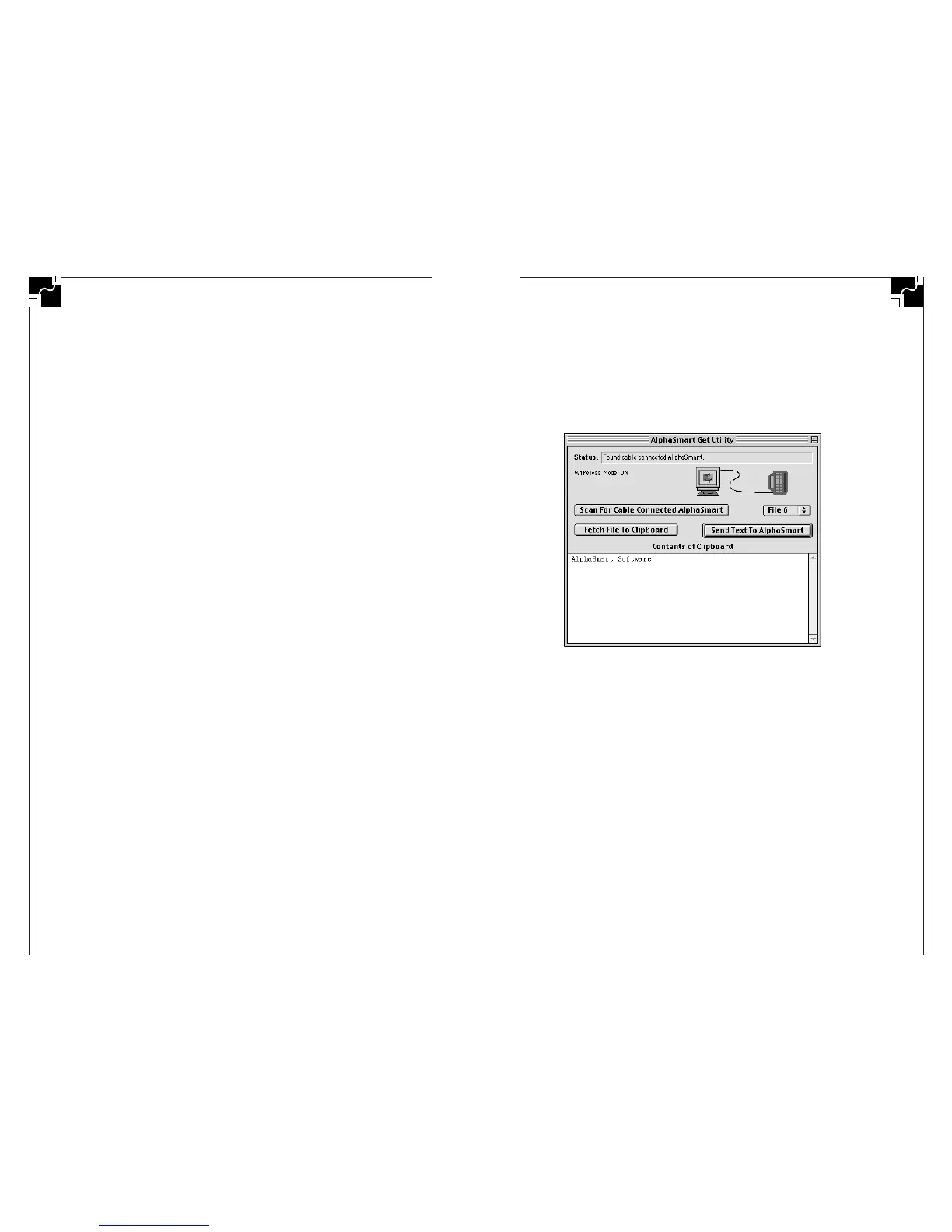
4. Run Get Utility by double clicking on its icon on the Mac.
You should see the text you copied displayed in the “Clip-
board Contents” window.
5. Press the Scan or Scan for Cable Connected
AlphaSmart button so that the Mac verifies that an
AlphaSmart is attached.
Figure 15. Verifying that the AlphaSmart is attached by cable
6. Press the Send Text to AlphaSmart button to send the
text from the Mac to the AlphaSmart. The Clipboard text
is sent to the current file on the AlphaSmart. If you are
using a newer AlphaSmart (AlphaSmart 2000, AlphaSmart
with ROM v1.08 or newer, or an AlphaSmart Pro with
ROM v2.05 or newer), you can change to a new Alpha-
Smart file with a pop-up menu on the computer screen. If
you are downloading to an older AlphaSmart, you will
need to press x-option-F2 to go to File 2, x-option-F3 to
go to File 3, and so forth.
7. Disconnect your AlphaSmart when the transfer is finished.
8. To download to other AlphaSmarts, it is not necessary to
quit Get Utility and rerun it. Simply attach the new
AlphaSmart and press the Scan or Scan for Cable Con-
nected AlphaSmart button before downloading.
AlphaSmart 2000
39
3. Insert the CD or floppy disk into the drive and start the
Installer by double clicking on it.
4. The Installer will place the program in the folder that you
select.
5. Once the installation is finished, double click on the
program icon.
6. The Preferences window will be displayed the first time
that you select the program.
7. In the Preferences dialog, click on the Transfer checkbox
and then select the correct port (modem, printer or
built-in IrDA) that you plugged the IR wireless pod for
Mac into. The frequency at which to look for an IR
AlphaSmart can be adjusted, but the default selection of
3 seconds is adequate. Select OK and then the program
will look for an IR AlphaSmart. These settings will be
saved, so that the next time you start the program you
will not need to go into the Preferences.
Keep in mind that even though you have enabled IR trans-
fers you can still transfer text using the ADB cable connec-
tion. You do not need to turn off IR transfers before using
the Mac “Y” cable.
Sending text to an AlphaSmart using an ADB “Y” Cable
To send text to an AlphaSmart from your Mac via the ADB
Y cable:
1. Open your file or text you wish to send on the Mac, high-
light the text with the mouse and select Copy from the
Edit Menu.
2. Turn on the AlphaSmart and select the file where you
would like the text transferred. There is a pop-up file
menu in Get Utility that can also be used to select the
AlphaSmart file.
3. Attach the AlphaSmart to your Mac via the ADB port
using the ADB Y cable (either plug in the AlphaSmart
instead of your keyboard or attach to the ADB Y cable).
38
AlphaSmart 2000


 To Next Page