To download to other AlphaSmarts, it is not necessary to
quit Get Utility and rerun it. Simply attach the new
AlphaSmart and press the Scan button before downloading.
Sending text to an AlphaSmart from a PC Using IR
1. Copy the text into the PC Clipboard. To do this, open the
file or text you wish to send, highlight it with the mouse,
and select Copy (Ctrl-C) from the Edit menu. (The Clip-
board is a memory buffer that allows you to transfer infor-
mation between different programs. Most Windows appli-
cations support copying to the Clipboard)
2. Run IR Get Utility for PC (double click on its icon). You
should see the text you copied displayed in the “Clipboard
Contents” window. At this point the IR Get Utility will
begin scanning for IR enabled AlphaSmarts. Point the
AlphaSmart at the IR wireless pod or built-in transceiver
and press the Send key. (This allows the pod to recognize
the IR enabled AlphaSmart.)
3. Point the AlphaSmart at the IR wireless pod for PC and
press the Send button. The AlphaSmart will display the
message “Connecting to IR Get Utility. Press esc to exit.
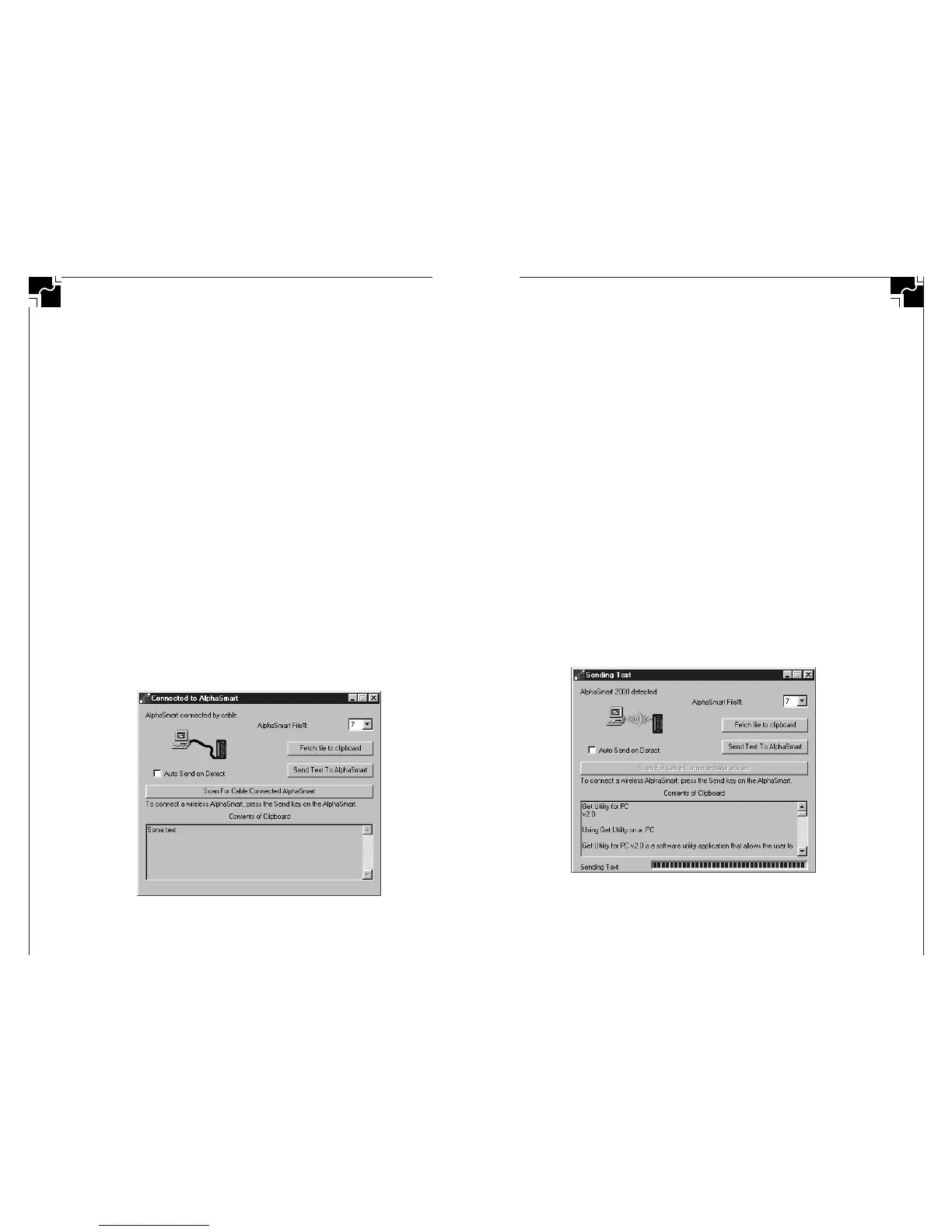
Sending File x”. After a few seconds, the IR Get Utility
will show that an AlphaSmart has been found.
Figure 20. Connecting to IR Get Utility
Sending text to an AlphaSmart from a PC
Using the PC Y or Dual Cable
1. Copy the text into the PC Clipboard. To do this, open the
file or text you wish to send, highlight it with the mouse,
and select Copy (Ctrl-C) from the Edit menu.
2. Attach the AlphaSmart to your PC via the keyboard port.
If using a PC Dual cable, unplug your normal keyboard,
then connect your AlphaSmart. If using the PC Y cable,
you do not need to disconnect your keyboard.
3. Run Get Utility (double click on its icon). You should see
the text you copied displayed in the “Clipboard Contents”
window.
4. Press the Scan button so that the PC verifies that an
AlphaSmart is attached.
5. Press the Send Text To AlphaSmart button to send the
text from the PC to the AlphaSmart. The Clipboard text is
sent to the current file on the AlphaSmart. You may
change the AlphaSmart file by selecting a file on the file
pop-up menu.
6. You may now disconnect your AlphaSmart, and if using
the PC Dual cable then reconnect your normal PC key-
board.
Figure 19. Verification of an AlphaSmart
connected to a PC by cable
44
AlphaSmart 2000 AlphaSmart 2000
45


 To Next Page