44-EN
Display Setup Operation
1
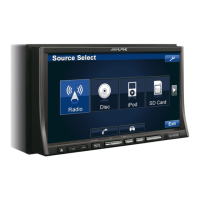
Press SOURCE/ on the unit.
The Source Select screen is displayed.
2
Touch [ ] on the main source screen.
The Setup Select screen is displayed.
3
Touch [ ] of Display Setup.
The Display Setup screen appears.
4
Touch [ ], [ ] or [ ] etc., of the desired item to
change its setting.
Setting items:
Visual EQ / Dimmer / Dimmer Low Level / Function Guide Fade /
Ba
se Color / Screen Alignment / Display
5
Touch [ ] to return to the previous screen.
Touch [Exit] to return to the main source screen that was
displayed before the setup operation was started.
• I
mmediately after changing the settings of Display Mode (While the
system is writing data automatically) do not turn the ignition key
(engine key) to OFF. Otherwise, the settings may not be changed.
The visual setting of Bright, colour, contrast, etc. can be adjusted in this
m
ode.
Setting item: Visual EQ
Further setting items:
Live Contrast*
Visual EQ* Bright Color* Tint*
Contrast Sharp* User Memory*
* The setting is unavailable in navigation mode.
Touch [ ] or [ ] etc., of the desired item to change its
setting.
• The settings are available in the visual source mode only.
• T
he further setting items can be changed by touching [ ]/[ ].
• Onl
y one setting item can be displayed on each page, you can select
the desired brightness, picture tint, etc through the screen displayed.
Adjusting Image Brilliance (Live Contrast)
The over brightness/darkness part of image will be adjusted to a
proper brilliance automatically.
Setting item: Live Contrast
Setting contents: OFF / Low / High
• You can adjust this setting in visual source mode by touching [ ]
directly. (In this case, the “Live Contrast” is displayed as
“
Contrast”.)
Selecting the Visual EQ Mode (Factory’s setting)
You can select a mode suitable for the subject image.
Further setting item: Visual EQ
Setting contents: OFF (Initial setting) / Night M. / Soft / Sharp /
C
ontrast / P-1 / P-2
• To return to the default video settings, set this function to OFF. Any
Visual EQ selection or changes made are reset their initial settings.
• I
f any adjustments are made to the existing Visual EQ selections
(Night M., etc.), “Custom” is displayed.
Adjusting Brightness
Further setting item: Bright
Setting content: -15 ~ +15
You can adjust the brightness between Min (-15) and Max (+15).
When it reaches the minimum or maximum point, the display
shows “Min” or “Max” respectively.
• When any Visual EQ Preset is selected, the brightness is
automatically adjusted according to the car’s interior lighting as
long as Auto is set in “Setting the Brightness of the Backlighting”
(page 45).
Adjusting Colour of Picture
Further setting item: Color
Setting content: -15 ~ +15
You can adjust the colour between Min (-15) and Max (+15).
When it reaches the minimum or maximum point, the display
shows “Min” or “Max” respectively.
• Colour adjustment can be made only in the iPod video, DVD, Video
CD, AUX modes.
Display Setup
The Parking Brake must be engaged to access the Display mode
screen. Attempting to access this screen while driving will display
the warning-Can’t operate while driving.
The following steps 1 to 5 are common operations to each
“Setting item” of Display Setup. Refer to each section for
details.
Visual EQ Setting Operation
OFF: Initial Setting
Night M.: Suitable for movies in which dark scenes
f
requently appear.
Soft: Suitable for CGs and animated films.
Sharp: Suitable for old movies where images are not
c
learly shown.
Contrast: Suitable for recent movies.
P-1: Recalls the Visual EQ mode being stored on
p
reset No.P-1 from “Storing Visual EQ” (page 45).
P-2: Recalls the Visual EQ mode being saved on
p
reset No.P-2 from “Storing Visual EQ” (page 45).


 To Next Page
 Loading...