EasyManua.ls Logo

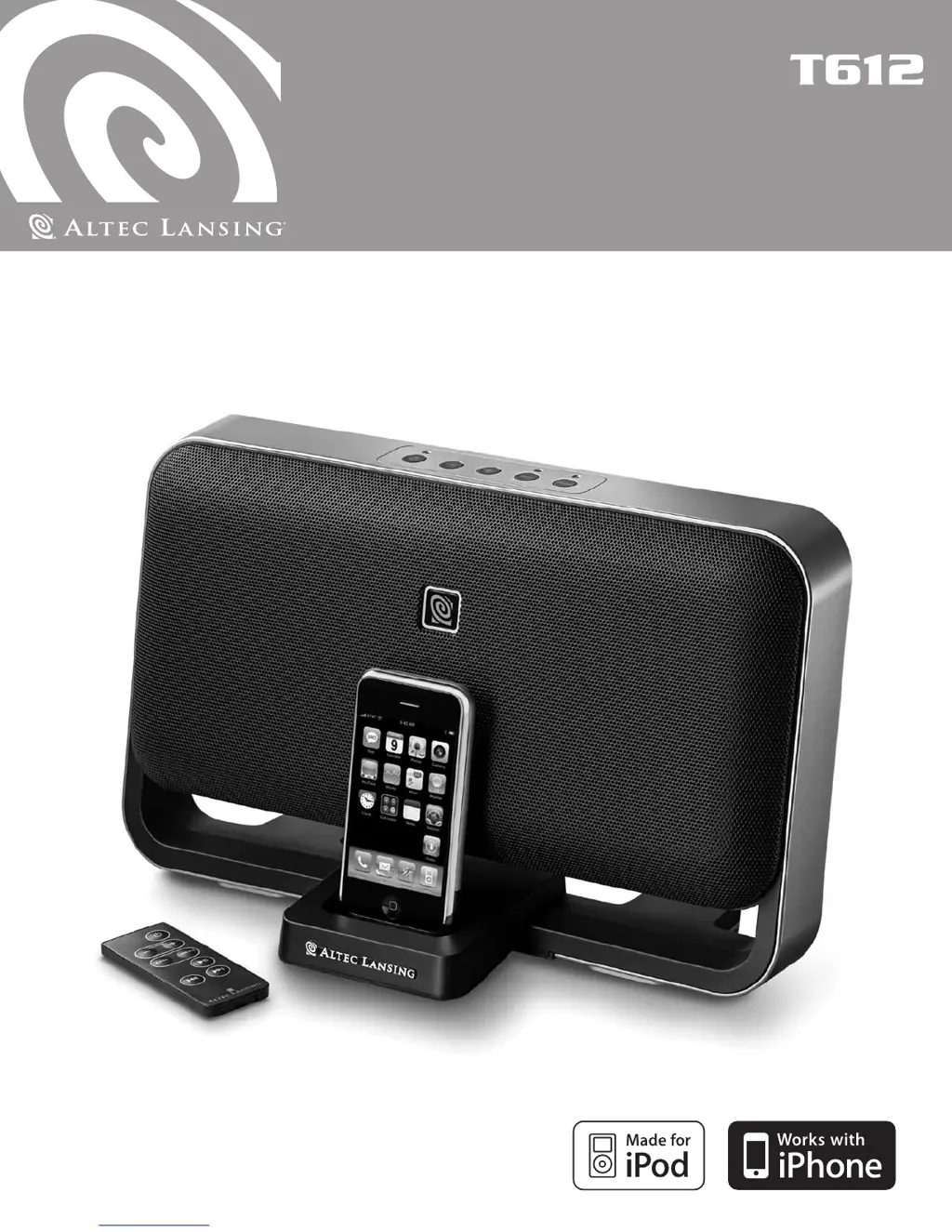
Altec Lansing T612 - User Manual

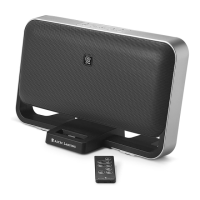
Altec Lansing T612
8 pages
Print Icon
To Next Page IconTo Next Page
Loading...
User’s guide

Other manuals for Altec Lansing T612

Questions and Answers

  • D
    Dustin HayesJul 30, 2025
    How to fix Altec Lansing Docking Speakers when no power LED is lit?
    • M
      Mary JonesJul 30, 2025
      If the Altec Lansing Docking Speakers (T612) show no power LED when operating on AC, ensure the power supply is correctly connected to both the wall outlet and the DC connector on the rear of the system. If you're using a surge protector, verify that it's switched on. Test the wall outlet with another device to confirm it's functioning. Finally, make sure the T612 is turned on by pressing the power button on top; a LED should light up when it is.
  • L
    Lisa AdamsAug 4, 2025
    Why is there no sound coming from my Altec Lansing T612?
    • I
      ijohnsonAug 4, 2025
      If no sound is coming from your Altec Lansing Docking Speakers, first, increase the volume by pressing and holding the “+” button on the top of the T612. If you are using an iPhone or iPod, turn it off, remove it from the docking station, reseat it, and turn it back on. If you're using an alternate audio source, ensure it's properly connected to the T612. You might also try using another sound source to rule out problems with the original source.
  • M
    Michael MatthewsAug 9, 2025
    What to do if Altec Lansing Docking Speakers crackle when connected to PC?
    • M
      Miss Sheri Nichols DDSAug 9, 2025
      If your Altec Lansing Docking Speakers are producing a crackling sound, especially when connected to a PC or laptop, the operating system's volume level might be too high. Check the volume level in your operating system settings and decrease it if necessary.
  • A
    ashleyadamsAug 14, 2025
    Why do my Altec Lansing T612 Docking Speakers have a crackling sound?
    • A
      alejandro83Aug 14, 2025
      If you are experiencing a crackling sound from your Altec Lansing Docking Speakers, and you're using an iPhone or iPod, try turning off the device, removing it from the docking station, reseating it, and then turning it back on. If the issue persists and you are using an alternate audio source, ensure that it is properly connected to the T612. You can also test with another audio source to identify whether the problem lies with the original source.
  • K
    Kelli LeAug 18, 2025
    How to resolve distorted sound on Altec Lansing Docking Speakers?
    • L
      Lisa MaldonadoAug 19, 2025
      If the sound from your Altec Lansing Docking Speakers is distorted, first, reduce the volume by pressing and holding the “–” button on the top of the T612. Also, if you're using an iPhone, iPod, or another audio source, disable the EQ function. Refer to the device's user guide for instructions on how to disable EQ.
  • J
    Joshua SparksAug 25, 2025
    What to do if Altec Lansing Docking Speakers behave unexpectedly?
    • C
      Cheyenne MooreAug 25, 2025
      If your Altec Lansing T612 Docking Speakers are behaving erratically or the controls aren't responding, static electricity, a brief power interruption, or unusual operating conditions may be the cause. Try disconnecting the power supply from the wall outlet and then reconnecting it.

Summary

Safety, Warranty, and Disposal Information

Product Safety Precautions

General safety guidelines and warnings for appliance use, including electrical hazards.

Limited Warranty Details

Explains what the warranty covers, its duration, and exclusions.

Warranty Service Procedures

Outlines how to obtain warranty repair or replacement and necessary information.

Customer Service and Support

Provides contact information and resources for setup and troubleshooting assistance.

International Distribution Information

Guidance for international customers on locating product distributors.

Electronic Equipment Disposal

Instructions for environmentally sound disposal and recycling of the product.

System Setup and Basic Operation

Connecting Your iPhone

Steps for docking and connecting an iPhone to the T612 system.

Connecting Your iPod

Instructions for docking and connecting an iPod using appropriate adapters.

Connecting Alternate Audio Sources

How to connect external devices via the 3.5mm auxiliary input jack.

Powering the T612 On and Off

Explains the procedure for turning the speaker system on and off.

Adjusting the Volume

Details on using the '+' and '-' buttons to control the master volume level.

Advanced Controls and Remote Operation

Treble and Bass Adjustment

How to control treble and bass levels via the unit or remote.

System Reset Functionality

Procedures for resetting the system to original factory settings.

Wireless Remote Control Usage

Instructions for using the remote for power, volume, and playback.

Song Playback Functions

Using the remote for play, pause, track skip, fast-forward, and rewind.

Troubleshooting Common Issues

Power and Indicator Issues

Solutions for when the power LED is not lit or the unit has no power.

No Sound or Low Volume

Diagnosing and resolving issues with no sound or insufficient volume output.

Audio Distortion and Crackling

Addresses problems like distorted sound or crackling from the speakers.

System Control and Behavior

Resolving erratic behavior, unresponsive controls, or distorted sound.

Altec Lansing T612 Specifications

General IconGeneral
ManufacturerAltec Lansing
Product TypeDocking Speakers
Remote ControlYes
ConnectivityDocking Connector
CompatibilityiPod, iPhone
Inputs3.5mm Audio Input

Related product manuals