31
• The Playback Download field allows the user to select where to save playback video downloads to.
Click the Browse button to select a different destination folder.
• The Video Clips field allows the user to select where to save video clips to. Click the Browse button
to select a different destination folder.
To reset to default settings, click the Reset Defaults button. To save the settings, click the Save button.
5.4.2 Network
This menu section allows the user to change network settings for the camera.
5.4.2.1 TCP/IP
The TCP/IP menu item has two tabs: TCP/IP and P2P.
5.4.2.1.1 TCP/IP
TCP/IP stands for Transmission Control Protocol/Internet Protocol and it is the language/protocol that
allows communication between internet connected devices, whether on a local network, or a on the
Internet at large. This screen allows for TCP/IP settings to be modified for the camera to establish a
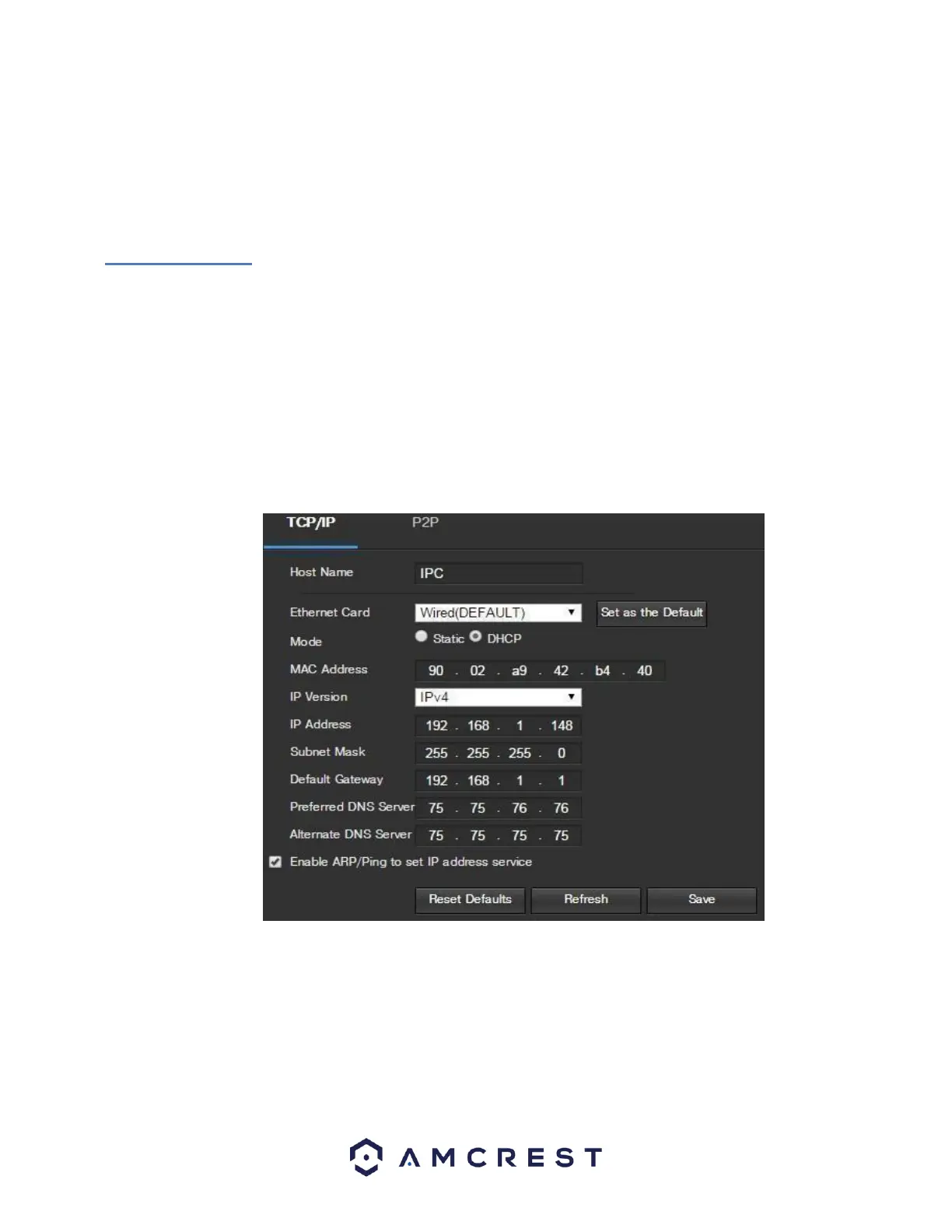
connection to the network. Below is a screenshot of the TCP/IP settings tab:
Below is an explanation of the fields on the TCP/IP settings tab:
• Host Name: This text field allows the user to change the host device name for the camera. This field
supports a maximum of 15 characters.
• Ethernet Card: This dropdown box allows the user to select which internet access device to use. If the
device is connected to a wired connection and a wireless one at the same time, then this box will have
options to pick either of the connections. The Set as Default button allows the user to select one of the
connection methods as the default one.











 To Next Page