32
• Mode: Static vs DHCP: This radio button allows the user to choose between a static IP address, and a
dynamic IP address. DHCP stands for Dynamic Host Configuration Protocol, and this enables the camera
to automatically obtain an IP address from another network device such as a server or more commonly, a
router. When the DHCP function is enabled, the user cannot modify the IP address, Subnet Mask, or
Default Gateway, as these values are obtained from the DHCP function. To view the current IP address,
DHCP needs to be disabled. Note: When PPPoE is enabled, modification of the IP Address, Subnet Mask,
and Gateway becomes prohibited.
• MAC Address: This field shows the camera’s MAC address, which is unique to this device. This number is
read only and is used to access a local area network (LAN).
• IP Version: This dropdown allows the user to select the IP version. The two options are IPV4 and
IPV6.
• IP Address: This field allows the user to enter a custom IP address.
• Subnet Mask: This field allows the user to enter a custom subnet mask.
• Default Gateway: This field allows the user to enter a custom default gateway.
• Preferred DNS Server: This field allows the user to enter the preferred DNS server
IP address.
• Alternate DNS Server: This field allows the user to enter the alternate DNS server IP address.
• Enable ARP/Ping to set IP Address Service: This checkbox allows the user to enable the ARP/Ping service
to change the IP address service. For more information on this feature, click the help button while on the
TCP/IP settings tab.
To reset to default settings, click the Reset Defaults button. To refresh the page, click the Refresh button. To save the settings,
click the Save button.
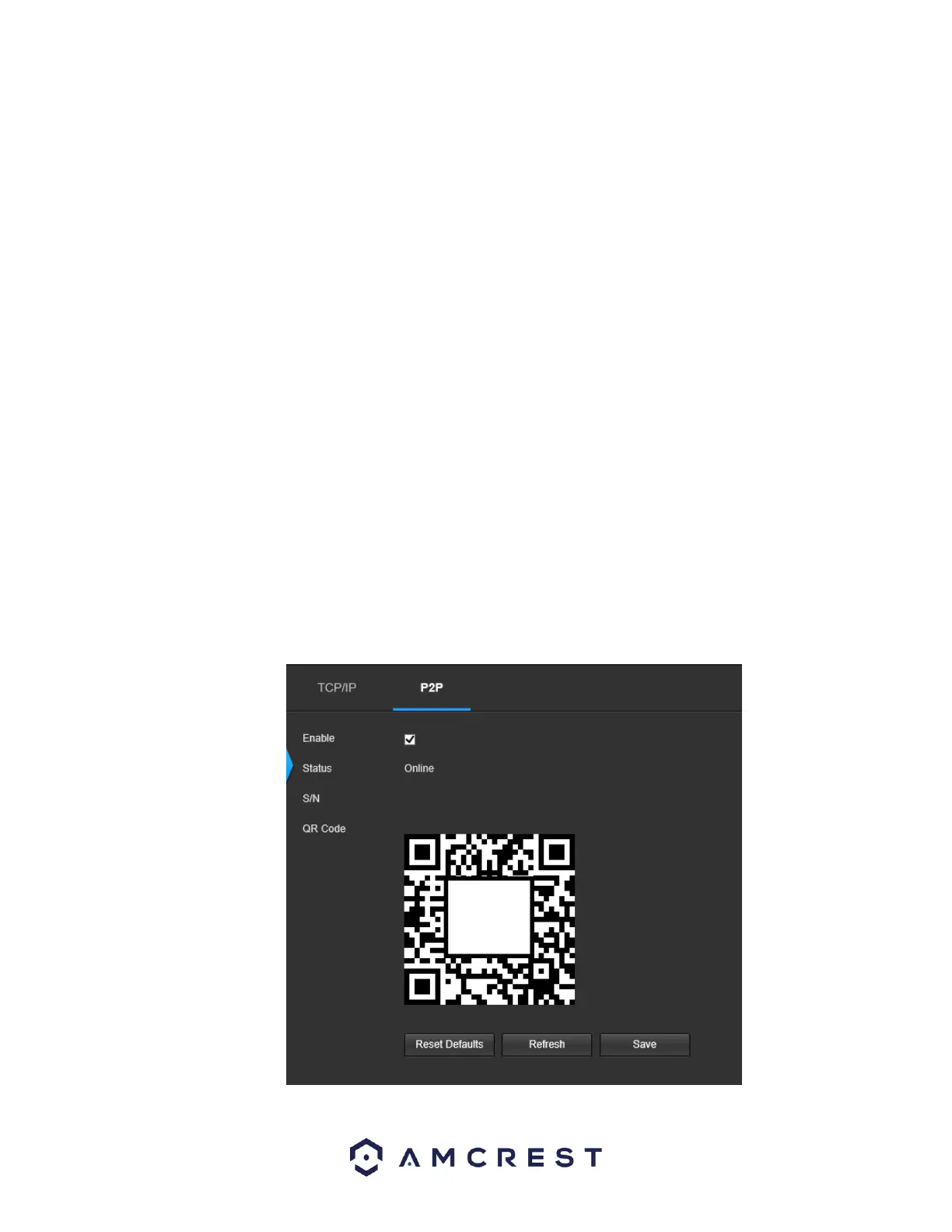
5.4.2.1.2 P2P
The P2P settings screen is where users can use a QR code to connect their smartphone or tablet to the camera. This feature
needs to be enabled for use with the Amcrest View app, Amcrest Cloud, or AmcrestView.com. Below is a screenshot of the P2P
settings tab:











 To Next Page