www.amulethotkey.com | Page 23
Get connecteD
5
5. Set up a PCoIP session
This secon describes how to connect a zero client to a remote
PCoIP host, such as a KVM extender host, or virtual desktop.
5.1 Power up the zero client
Aer you install the zero client, you must then establish a PCoIP
session between the zero client and a remote PCoIP host or
virtual desktop.
When you press the power switch on the zero client for the
rst me, it displays the On Screen Display (OSD) connecon
screen. If more monitors are connected, the menu displays on
Video port 1. The connecon screen will also display if the Menu
buon is pressed while the unit is on.
5.2 Types of PCoIP session
To set the type of PCoIP session the zero client will use to
connect the host, use the OSD and change the conguraon
sengs.
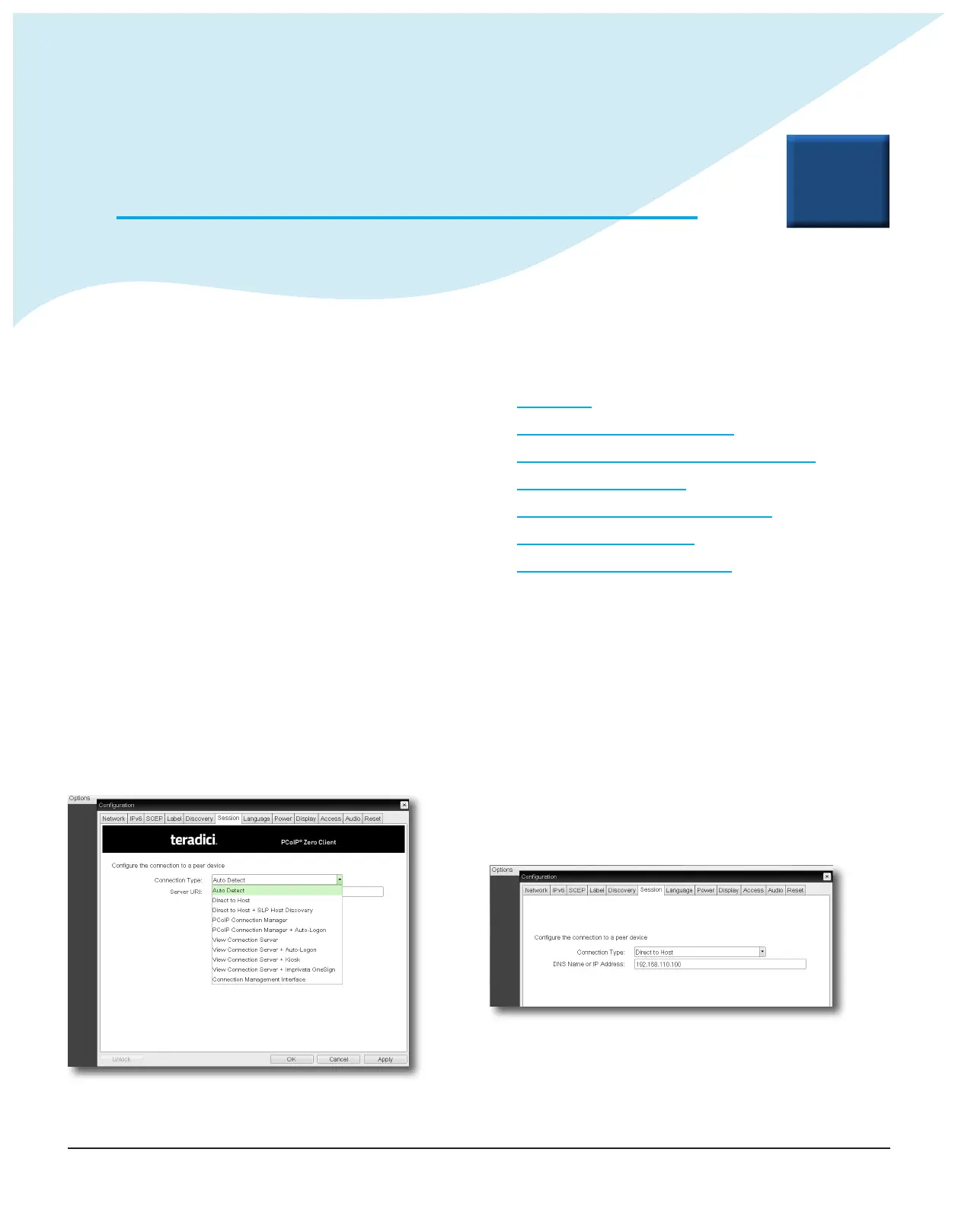
1. Select Opons > Conguraon and select the Session tab.
2. Click Unlock and enter the password. (Default is ahkdante)
Figure 15:
The following connecon methods are available:
• Auto Detect
• Connect directly to a specied host
• Connect to a choice of hosts using SLP Discovery
• PCoIP Connecon Manager
• PCoIP Connecon Manager + Auto-Logon
• Connect using VMware View
• Connect using a connecon broker
Note: For full details about each connecon method, refer to
the Session Connecon Types secon of the
.
5.2.1 Auto Detect
With this seng, the zero client connects to the address of any
specied server. This session type is used where the client must
choose between virtual and physical hosts.
5.2.2 Connect directly to a specied host
Important!
This connecon method is not praccal for very
large PCoIP deployments.
1. Select the Direct to Host session connecon type from the
drop down list.
Figure 16:
2. Enter the IP address (or DNS name) for the PCoIP host.
Note: You must also congure a Direct from Client session
connecon type on the host.


 To Next Page