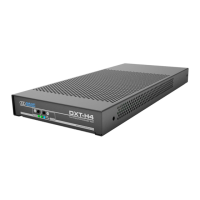
Quad Display KVM Extender Host
www.amulethotkey.com | Page 5
7. Addional informaon ....................... 29
7.1 Dual IP conguraon.............................. 29
7.2 Manage the DXT-H4 ............................... 29
7.2.1 Teradici Administrave Web Interface (AWI) .29
7.2.2 Amulet Hotkey Management Interface (MI) ..29
7.2.3 Enable the connecon to the Management
Interface ......................................................... 29
7.3 Login to the management interfaces ..... 29
7.3.1 To login with the AWI .....................................29
7.3.2 To login with the Amulet Hotkey Management
Interface ......................................................... 30
7.4 Check the DXT-H4 rmware ................... 31
7.4.1 Keep rmware up to date ...............................31
7.4.2 Check the Teradici rmware ........................... 31
7.4.3 Check the Amulet Hotkey rmware versions .31
7.5 Update the DXT-H4 rmware ................. 31
7.5.1 Update the Teradici rmware .........................31
7.5.2 Update the Amulet Hotkey rmware .............31
7.6 Addional funconality ......................... 32
7.7 Disable the Management Interface ....... 32
7.8 How to remove the DXT-H4 ................... 32
8. Technical specicaons ...................... 33
8.8.1 Warranty .........................................................33
8.8.2 Technology .....................................................33
8.8.3 Environment ................................................... 34
5. Set up a PCoIP session ........................ 23
5.1 Power up the zero client ........................ 23
5.2 Types of PCoIP session .......................... 23
5.2.1 Auto Detect .................................................... 23
5.2.2 Connect directly to a specied host ..............23
5.2.3 Connect to a choice of hosts using SLP
Discovery ........................................................24
5.2.4 PCoIP Connecon Manager ............................24
5.2.5 PCoIP Connecon Manager + Auto-Logon .....24
5.2.6 Connect using VMware View ......................... 24
5.2.7 Connect with View Connecon Server and
Auto-Logon ..................................................... 24
5.2.8 Connect using a connecon broker ................ 24
5.3 Set an automac connecon ................. 25
5.4 Disconnect from a host PC or virtual
desktop .................................................. 25
5.5 Further informaon ............................... 25
6. Manage the network ......................... 27
6.1 Consider network bandwidth
requirements ......................................... 27
6.1.1 Factors aecng bandwidth ........................... 27
6.1.2 What happens when available bandwidth is
exceeded ........................................................ 27
6.2 Choose a connecon broker if required 27
6.2.1 Role of the connecon broker ........................ 27
6.2.2 Specify the connecon broker ........................28
6.2.3 Using the connecon broker ..........................28


 To Next Page