Programming
37
Instruction Manual - Massio ControlPads and Keypads
Terminal (Telnet) Commands
Telnet terminal communication can be accessed remotely via TCP/IP.
Establishing a Terminal Connection via Telnet
1. In your Windows task bar, go to Start > Run to open the Run dialog.
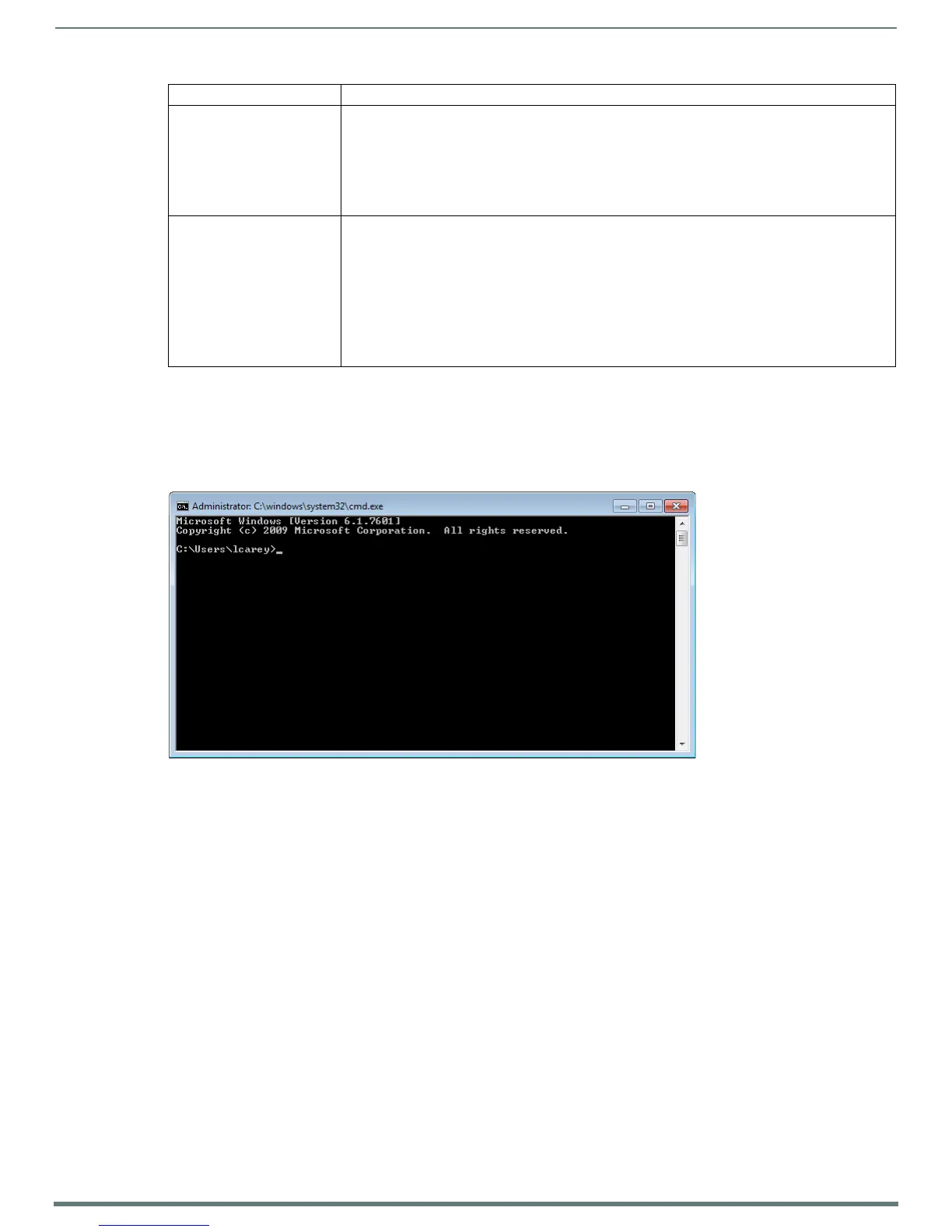
2. Type cmd in the Open field and click OK to open an instance of the Windows command interpreter - "Cmd.exe" (FIG. 40):
3. Type "telnet" followed by a space and the keypad’s IP address:
>telnet XXX.XXX.XXX.XXX
4. Press <Enter>.
Without a Telnet password set, a session will begin with a welcome banner similar to the following:
Welcome to MKP-108 v1.0.44 Copyright AMX LLC
>
If a Telnet password is set, then user credentials are required:
Enter username:
Enter protected password:
Welcome to MKP-108 v1.0.44 Copyright AMX LLC
>
Telnet User Name and Password
There are two Telnet commands that set the Telnet user name and password:
Set Telnet Username (see page 42)
Set Telnet Password (see page 42)
By default, both the user name and password are blank (empty string). Performing a factory reset on the device will return these
values to that default. See the ID Pushbutton section on page 17 for details.
Setting the User Name will have no effect if the password remains blank (empty string). That is, defining the user name
alone will not result in Telnet prompting for user login.
Command Description
REBOOT Reboot the keypad.
Syntax:
REBOOT
Example:
SEND_COMMAND DEVICE_1,"'REBOOT'"
Reboots DEVICE_1.
SET_NDX_DESC Set Friendly name and location for NDP.
Syntax:
SET_NDX_DESC-friendly name:location
Max of 25 characters for friendly name and max of 25 characters for location. If more than 25 characters
are sent for either friendly name or location, they will be truncated to a max of 25 characters.
Neither the friendly name nor the location should contain a “:” character, as that character is used as a
delimiter.
NOTE: This command requires a reboot to enable new settings.
FIG. 40
Windows command interpreter (Cmd.exe)


 To Next Page