Aomago VOICE RECORDER
E: support@aomago.com W: http://aomago.com
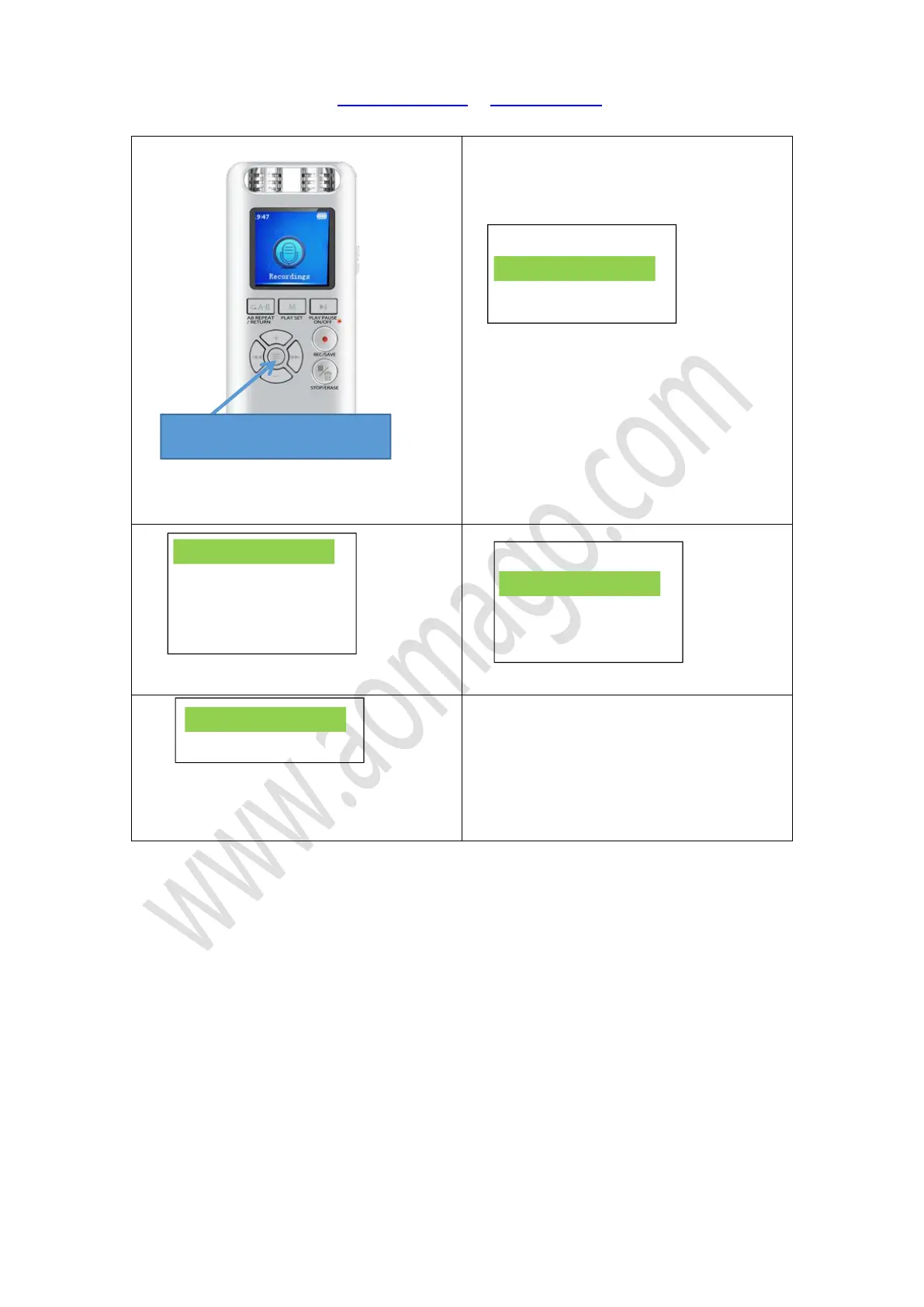
1) Turn on the device, press SELECTION button
to select
“
Recordings
”
menu
2) Press OK, enter
“
Recordings
”
, select
“
Record Settings
”
, and enter it
3) Select
“
Record Format
”
, press OK, enter it
4) Select Record Format, press OK, enter it
5) If we select at 64kpbs, it could record at
least 290hours for 8gb memory
6) Press OK button to confirm selection
Switch on your voice recorder,Select “Recordings”
Press OK button enter it.
Press SELECTION button to select “record settings”, press OK button, enter it
Find record format, press OK button, enter it
You could select MP3 Rec, WAV Rec, based on your requirement
Select the format in need, and then press OK button, confirm it
NOTICE:
1) Recordings at WAV/MP3 format, both could directly playback on MAC computer
2) When computer default media player cannot play the recordings, it may need to download the
free VLC media player to playback the recordings.
Recording..
Record Settings
Record Format
Track AVR Mode
Noise redu...
Monitor Sw..


 To Next Page