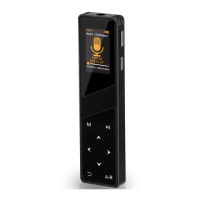
Aomago VOICE RECORDER
E: support@aomago.com W: http://aomago.com
Here is the VLC Media Player Official Website
https://www.videolan.org/
4) In default, recorder save recordings at WAV format, and WAV format could record files at PCM
flawless 1536kpbs high quality, for long time recording, you need to change recording quality at
MP3 format 64kpbs
NOTICE:
1) Higher bit rate, means higher recording quality,
2) When set at 1536kpbs, the 8GB storage could hold around 24 hours recordings file
3) When set at 64kpbs, the 8GB storage could hold around 291 hours recordings file
Turn on the device, select
“
SET
”
Press OK enter setting menu
Find
“
Format device
“
, press OK button, enter enter it
Screen will show
If you select Yes, and press OK button confirm it
The recorder will start to format the disk
Screen will show
“
Please wait...
”
NOTICE:
1) After format all data on the recorder disk will be erased totally, and it cannot never be
restored, be carefully when use this function, please make a copy of your important files before
format the device
2) You could also format the A19 recorder disk from your computer
3) Do not shut down the device until format disk process completed, or it will meet fatal
“
DISK
ERROR
”
, if, unfortunately, this happens, push the device POWER button to OFF position, and
then format the disk again on WINDOWS computer (file system at default (FAT32)), things will
be normal again, this is very important
16. Restore to Factory Setting
Turn on your voice recorder
Press SELECTIONS button to select
“
Set
”
, press OK enter setting menu
Find
“
Factory Settings
“
, press OK button, enter enter it
Screen will show
All data will be
deleted. Continue
?
Yes


 To Next Page