POS MV V5 Installation and Operation Guide
System Operation
ATTITUDE, HEADING, POSITION AND VELOCITY PARAMETERS
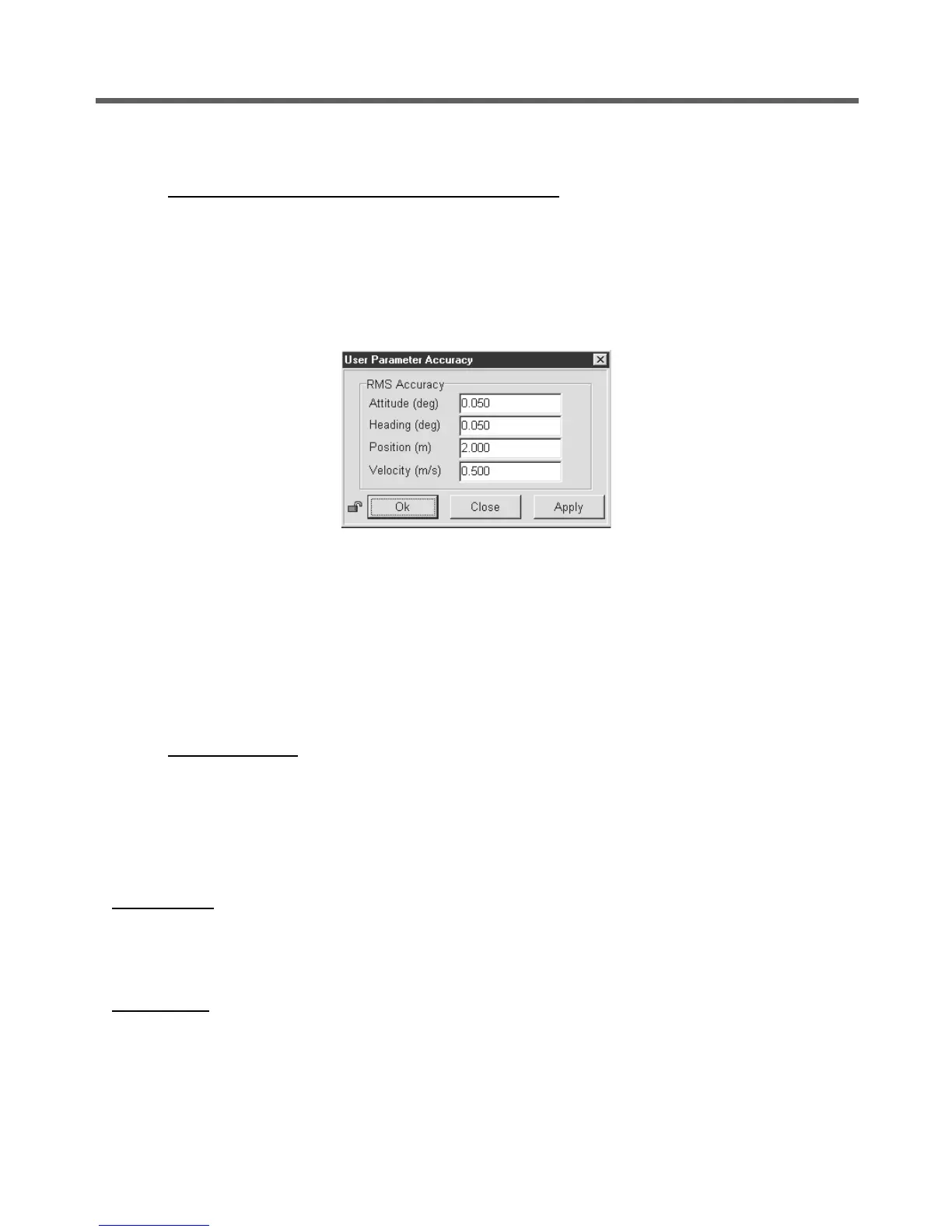
To set the thresholds for each measurement, select Settings, Installation, User Accuracy from the
MV-POSView menu bar. Enter the preferred accuracy threshold for each of the four fields; see
Figure 41. Click the OK button to accept.
The threshold settings do not affect the operation of POS MV, however, POS MV will not transition to
full navigation mode until it achieves the RMS accuracy setting boundaries.
Figure 41: POSView User Parameter Accuracy
In addition, POS MV estimates the accuracy of the data contained in the Attitude, Position and
Velocity panes. These estimations reflect the confidence boundaries on the displayed parameters;
they vary according to the current performance level of the GNSS receiver, the number of satellites
tracked and whether DGNSS corrections are available to the navigation algorithm. It also depends on
the level of motion that POS MV is experiencing; more dynamics will tend to improve the accuracy of
the solution (reducing the displayed confidence boundaries).
H
EAVE PARAMETER
The real-time heave accuracy parameter is not adjustable by the user. The fixed setting is based on
the industry standard performance ratings of 5 cm or 5% (whichever is greater). For heave
amplitudes (peak-to-peak) of 1 m or less, a 5 cm threshold is used, while for heave amplitudes which
exceed 1 m, 5% of the peak-to-peak amplitude is used.
Events Pane
Displays the identification count number and the time of occurrence for the most recent recorded
events.
Speed Pane
Displays the current speed in nautical miles per hour (knots) and the direction of the velocity vector
(Track) in degrees. When the vessel is travelling in the forward direction, the direction should be
similar to the Heading displayed in the Attitude pane.



 To Next Page