BIOS SETTING
18 NP-3262 POS Terminal
CHAPTER 5 BIOS SETTING
Introduction
The purpose of this chapter is to describe the settings in the AMI BIOS Setup
program on this motherboard. The Setup program allows users to modify the
basic system configuration and save these settings to CMOS RAM. The power of
CMOS RAM is supplied by a battery so that it retains the Setup information when
the power is turned off.
Basic Input-Output System (BIOS) determines what a computer can do without
accessing programs from a disk. This system controls most of the input and
output devices such as keyboard, mouse, serial ports and disk drives. BIOS
activates at the first stage of the booting process, loading and executing the
operating system. Some additional features, such as virus and password
protection or chipset fine-tuning options are also included in BIOS.
The rest of this manual will to guide you through the otions and settings in BIOS
Setup.
Plug and Play Support
This AMI BIOS supports the Plug and Play Version 1.0A specification.
EPA Green PC Support
This AMI BIOS supports Version 1.03 of the EPA Green PC specification.
ACPI Support
AMI ACPI BIOS support Version 1.0/2.0 of Advanced Configuration and Power
interface specification (ACPI). It provides ASL code for power management and
device configuration capabilities as defined in the ACPI specification, developed by
Microsoft, Intel and Toshiba.
PCI Bus Support
This AMI BIOS also supports Version 2.3 of the Intel PCI (Peripheral Component
Interconnect) local bus specification.
DRAM Support
DDR3 SDRAM (Double Data Rate II Synchronous DRAM) is supported.
Supported CPUs
This AMI BIOS supports the Intel CPU.
Using Setup
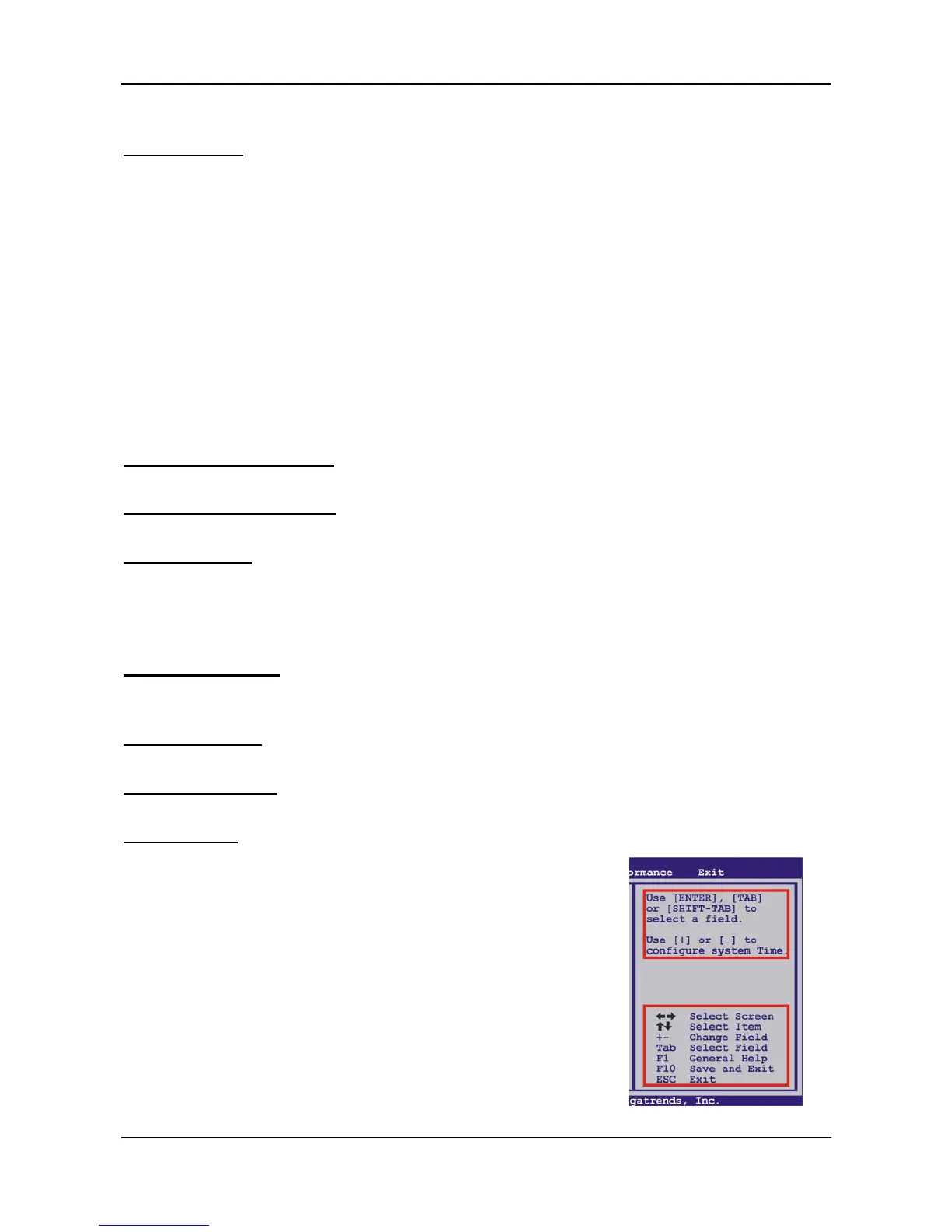
When starting up the computer, press <Del> during the
Power-On Self-Test (POST) to enter the BIOS setup utility.
In the BIOS setup utility, you will see General Help
description at the top right corner, and this is providing a
brief description of the selected item. Navigation Keys
for that particular menu are at the bottom right corner,
and you can use these keys to select item and change
the settings.
General Help
Navigation Keys



 To Next Page