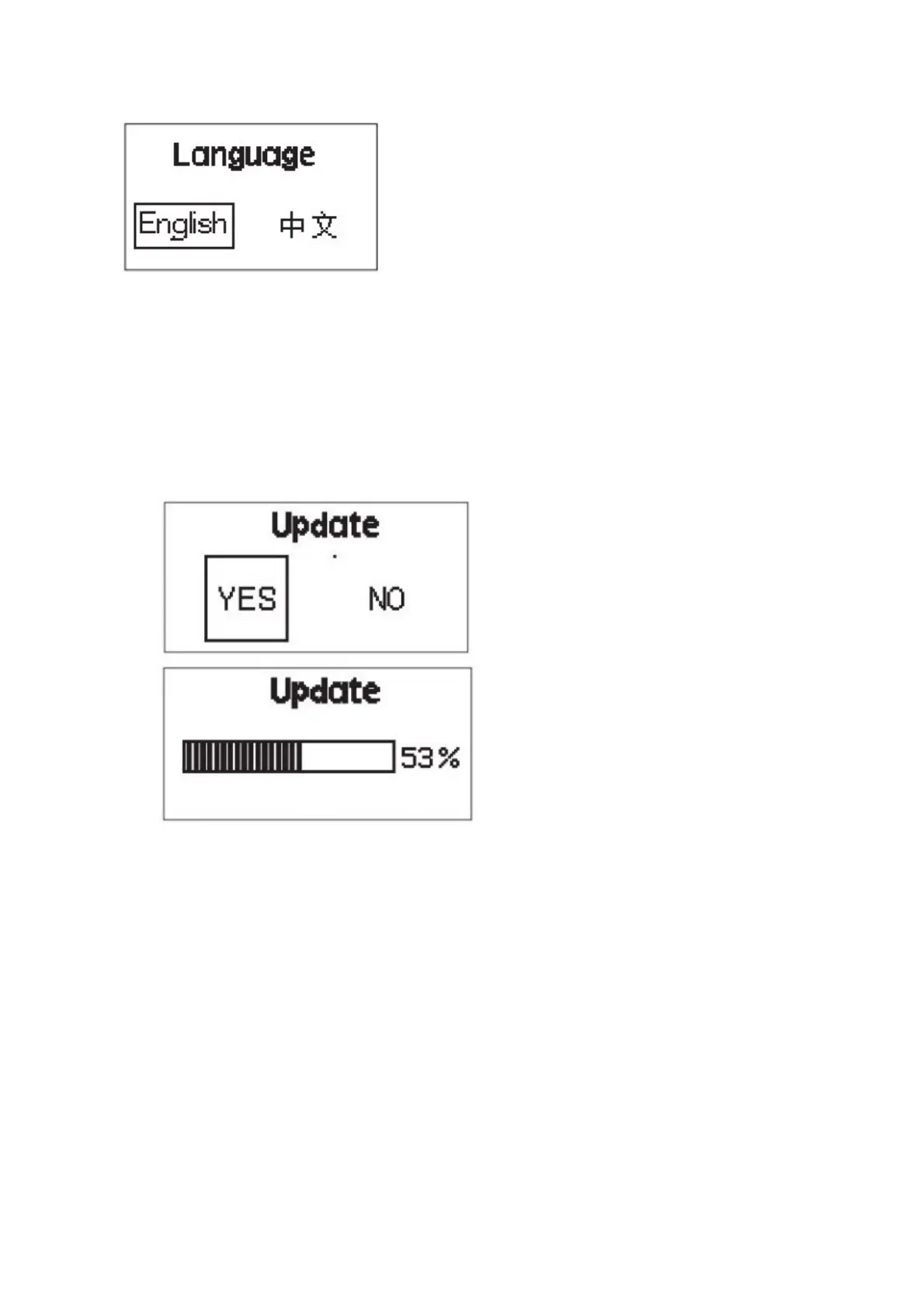
11. Language
Press the MENU button to enter the system menu, rotate the dimming wheel to select Language, and press the
MENU button again to enter the Language menu*. Use the wheel to select from the available languages. Initial
languages include “English” and “Chinese”.
The factory default language is English.
12. USB Mode
1. The control box has a built-in USB port for firmware updates (for both the control box and lamp head).
Insert a compatible USB* flash drive into the USB port.
2. To update the light’s firmware, press the MENU button to enter the system menu, rotate the dimming wheel
to select USB Mode, and press the MENU button again to enter the Update menu. Use the wheel to select
“YES” or “NO”. If a USB flash drive containing a firmware update is mounted in the USB port, the screen
will display an update progress bar**. If you choose “NO”, press MENU button then it will return the
menu interface.
3. If a USB flash drive is not inserted into the USB port of the flash drive does not contain a firmware upgrade
file, entering the Update menu and choosing “YES” will return you to the system menu interface.
Only FAT16 and FAT32 storage formats can be used for firmware updates. Incompatible formats
will result in the screen displaying a format error and will return to the main menu.
DO NOT unplug the light or the USB flash drive during the update process. In the case of an unexpected
power failure, DO NOT remove the USB flash drive. When the power is restored, the fixture will
automatically resume the update process. After successfully updating the firmware, the fixture will
automatically restart.
13. OTA Mode
You can also do an OTA wireless firmware update using the Sidus Link mobile app.
3. Remote Control
You can control the LS 300x from any channel or group configuration Light Storm lights have three channels (1/2/3)
and four groups (A/B/C/D). Only groups “C” or “D” can be used to control brightness, CCT and lighting effects, whil
groups “A” and “B” can only be used to control brightness.
1. Configuring channel and group settings on the control box Press the CHANNEL button to toggle
between channels 1, 2, & 3.



 To Next Page