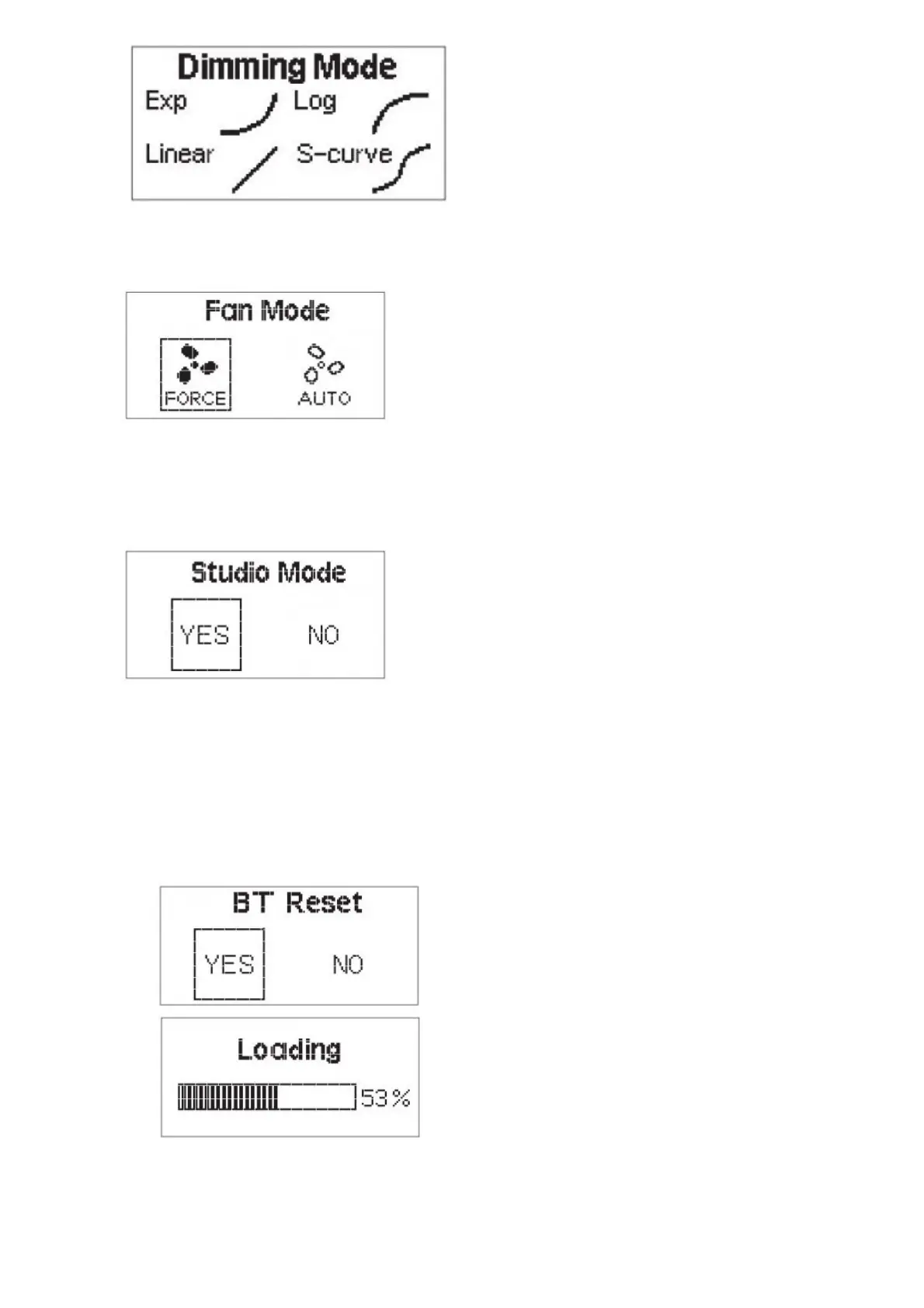
8. Fan mode
Press the MENU button to enter the system menu, rotate the dimming wheel to select Fan Mode, and press the
MENU button again to enter Fan Mode. Use the wheel to select between Force* and Auto, then press the MENU
button to confirm your selection.
In “Force Mode” the fan will continuously spin at its maximum speed. In “Auto Mode” the fan will only
begin spinning when the light has reached 45°C.
9. Studio mode
Press the MENU button to enter the system menu, rotate the dimming wheel to select Studio Mode, and press
the MENU button again to enter the Studio Mode menu. Once in the menu, use the wheel to choose between
“YES”*** or “NO” and press the MENU button to confirm your selection.
When Studio Mode is active, the light will turn on as soon as it receives power, without having to
press the power button.
The light must be connected to your mobile device using the Sidus Link mobile application, and not via your
device’s typical Bluetooth connection menu.
Studio Mode is active as the factory default.
10. Bluetooth reset
1. Press the MENU button to enter the system menu, rotate the dimming wheel to select BT Reset. Press the
MENU button again to enter the Bluetooth Menu. Use the wheel to select “YES” to reset the Bluetooth
pairing (the pop-up window displays the current reset progress and is completed within 5 seconds); or
select “NO” to return to the previous menu.
2. After resetting the light’s Bluetooth connection, your mobile phone or tablet will be able to connect to and
control the light.
3. If the Bluetooth Reset fails, a [Reset Failed] screen will pop-up, and the light will return to Bluetooth mode
after 2 seconds.
The light must be connected to your mobile device using the Sidus Link mobile application, and
not via your device’s typical Bluetooth connection menu.



 To Next Page