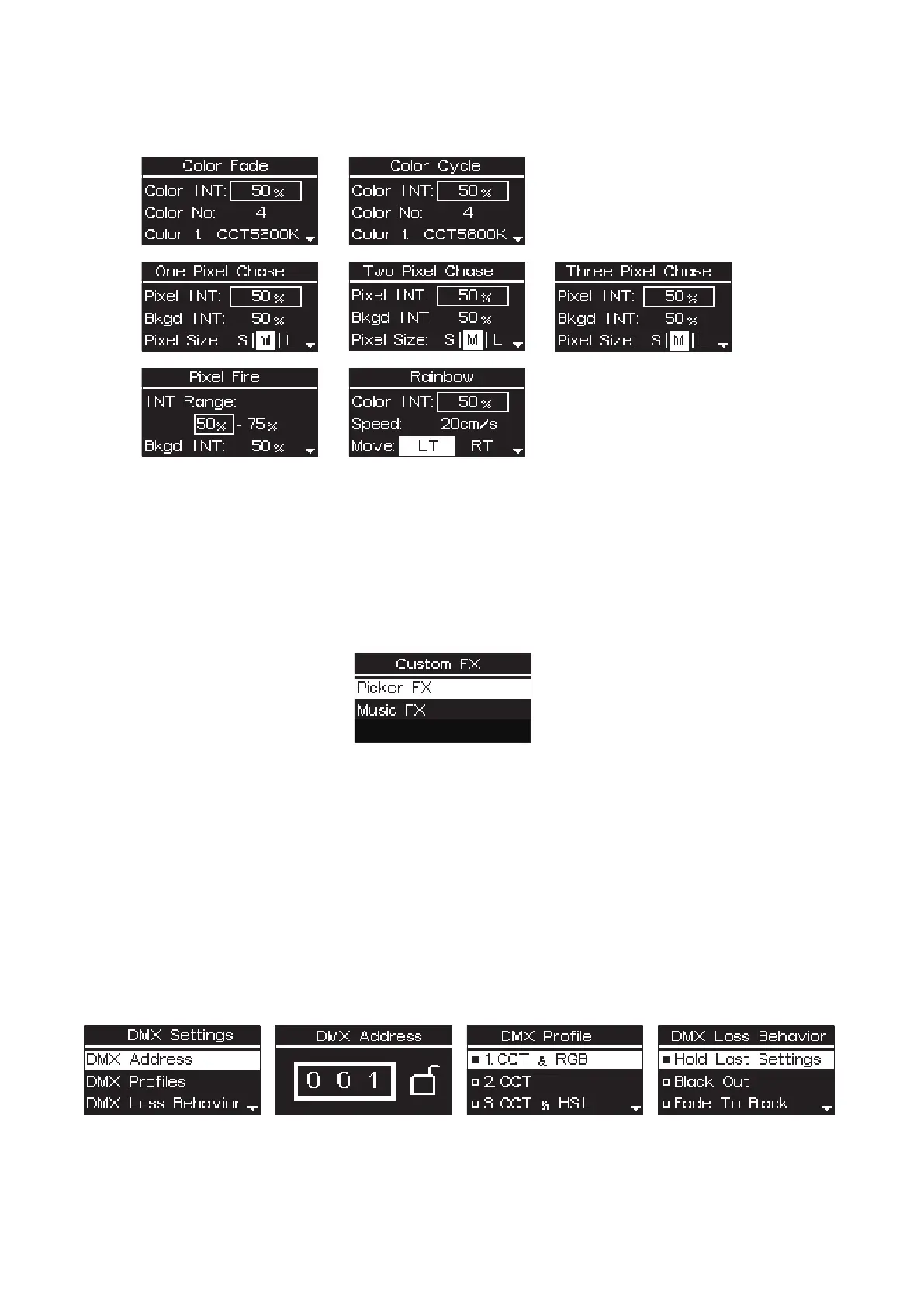
3.6.2 Pixel FX
Press the control wheel to select system FX, rotate and press the control wheel to select Color Fade / Color
Cycle / One Pixel Chase / Two Pixel Chase / Three Pixel Chase / Rainbow / Pixel Fire.
3.7 Custom FX
Press MENU to access the system menu, rotate and press the control wheel to select Custom FX. You can
choose to enter Picker FX or Music FX. Each type can save 10 custom FXs. In the name of each FX, "NO FX"
means unsaved FX, and "Untitled" means saved FX.
3.8 DMX Setting
Press MENU to access the system menu, rotate and press the control wheel to select DMX Setting.
DMX Address: Choose the DMX address of MT Pro, press and hold the control wheel for 2 seconds to
lock/unlock the DMX address (Prevent accidental touch to exit DMX mode)
DMX Profiles: Rotate the control wheel and press to choose DMX profile.
DMX Loss Behavior:
1. Hold Last Setting: After DMX signal is lost, remember the last control setting.
2. Black Out: when the DMX signal is lost, it will be Black out
3. Fade To Black: after DMX signal is lost, it will fade to Black in 60 seconds
4. Hold 2min & Fade Out: After the DMX signal is lost, keep the last control setting for two minutes, and then
Fade to Black within 60 seconds
* The fade-out time decreases as the percentage of brightness decreases. When the brightness output is 100%, the
fade-out time is 60 seconds, which decreases in sequence.
* If the signal is reconnected, the DMX console will continue to maintain the signal output as same as before.
- 7 -
* Please refer to page 12 - 14 for detailed parameter info



 To Next Page