Connecting to the App
Set up Shower - Controller
Wi-Fi setup can only be activated
via the main controller and not
via a remote (where installed).
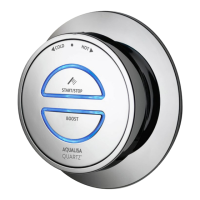
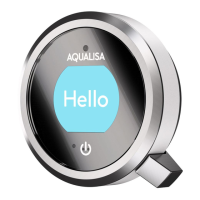
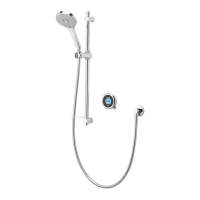
For shower controllers
(2 buttons): Press and hold the
Top button for 6-8 seconds
For bath controllers
(1 large button):
Press and hold the button
for 6-8 seconds
The LEDs on the controller will flash rapidly to indicate
that the Aqualisa SmartValve
TM
is searching for an
available Wi-Fi network. N.B. There is a 2-minute time
out if unable to connect.
Before starting you will need your Network Name (SSID code) and
password as they are required during the Aqualisa app setup journey.
These can normally be found on your internet router.
For Wi-Fi set up, the Aqualisa SmartValve
TM
must be powered, but the
shower must not be in use.
Set up Shower - Wi-Fi
The Aqualisa app will direct you to the Wi-Fi settings
menu on your mobile device
From the list of available Networks select: QSVC XXXX
The password is: SmartShower
N.B. Depending on Wi-Fi signal strength, the
connection may take a few minutes. Follow the
instructions on the Aqualisa app.
The LEDs will flash slowly to indicate the Aqualisa
SmartValve
TM
is connected to the Aqualisa app and will
switch to being solid to indicate a successful connection
to your selected Home Wi-Fi.
A successful connection message will provide confirmation
in the Aqualisa app journey and the LEDs on the controller
will turn o to indicate that the shower is ready for use.
If connection is unsuccessful a message will appear in your
Aqualisa app. Redo the steps above or refer to Aqualisa
app troubleshooting at www.aqualisa.co.uk/smartapp.
If the timer setting is adjusted within the Aqualisa app, then the shower will
run for the newly set duration, overriding the default maximum run time.
N.B. The water flow will stop at the end of the timer.
IMPORTANT: see page 6 “
” for special notes regarding Quartz
TM
bathfill.
The Aqualisa app gives you the capability to operate your product
remotely using your mobile device. It is the responsibility of the user
to ensure that it is safe to remotely activate the water flow. Aqualisa
recommend that baths and showers in operation are not left unattended.
Download and open the Aqualisa app on your
personal smart device and follow the instructions
to create Your Home profile before continuing with
this section.
For further advice, information on compatible
devices, or if you have any trouble downloading the
app scan the QR code or go to www.aqualisa.co.uk/smartapp.
12 13


 To Next Page
 Loading...