78
EN
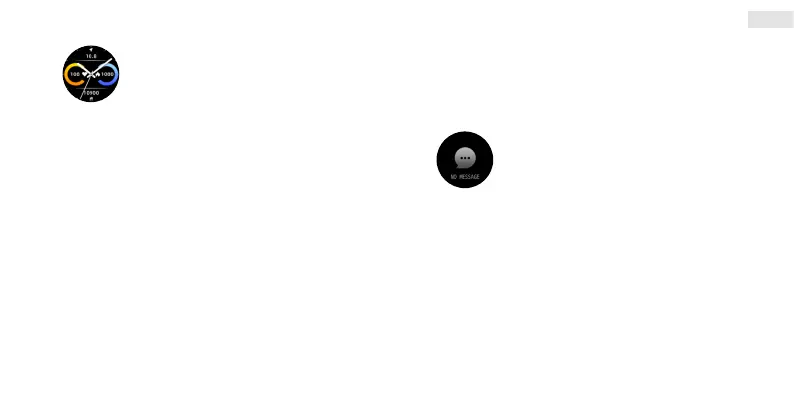
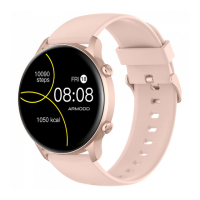
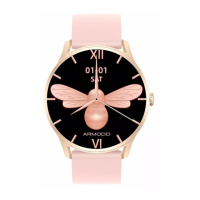
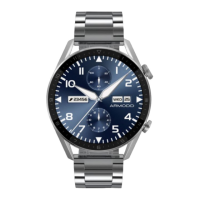
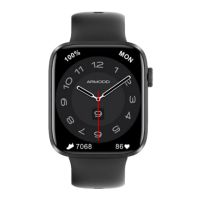
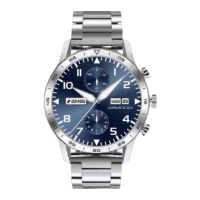
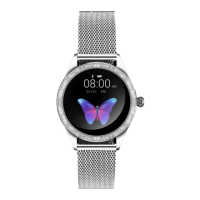
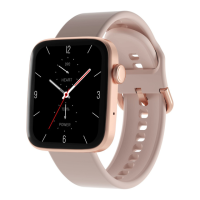
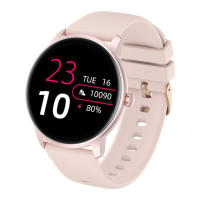
Watch face change
A long press on the display shows an overview of
watch faces to select from by swiping from right
to left. Tap on the watch face of your choice to
select it.
Other watch faces can be added directly from the app. In the app,
tap on “Watch faces” (Fig. 3) and then, at the bottom, on “More
watch face” (Fig. 4) and select a new watch face from the gallery.
Download it into the overview of watch faces (1–5) (Fig. 5) and
then tap on it to upload it into your watch.
Watch face settings
The successful setting of the watch face requires that the watch
and the mobile phone be charged sufciently.
In the app, tap on “Watch faces” (Fig. 3) and on “Adjust” next to
“Watch face 5” (Fig. 5). Then tap on “Select picture” (Fig. 6) and
select the image from your phone you want to save. Crop the
image and save it by tapping ✔in the upper right corner. You can
change the position of the clock, text colour and menus to be
displayed and click on “Save” in the upper right corner (Fig. 6). The
image will be uploaded in the watch and saved onto position 5
(Fig. 5). In the event of an error message during the upload, please
charge the phone and the watch and repeat the process.
Messages
Swipe your display (watch face) from bottom to
top to display the messages page.
To receive messages and notications, your
watch must be paired with your phone, and the
receipt of messages and notications must be allowed in the Da
Fit app – Notications (Fig. 3). Furthermore, you must allow the
app access to messages and notications in the settings of your
phone. (This is typically done during installation.)
Display activation by twisting the wrist
In your phone’s Da Fit app, tap on “Others” (Fig. 3) and activate the
function (Fig. 7).


 To Next Page