Monitoring 65
You can configure width, height and offset (position from left and top of image area).
► Select MENU > Monitoring > Frame Lines > User Rectangles > User Rectangles.
Following options are available:
Off
Rectangle 1
Rectangle 2
Rectangle 1 + 2
User Rectangles are not displayed.
Only user rectangle 1 is displayed.
Only user rectangle 2 is displayed.
User rectangles 1 + 2 are displayed.
► Select MENU > Monitoring > Frame Lines > User Rectangles > User Rectangle 1 or User
Rectangle 2.
Following options are availabe:
Width
Height
Offset Left
Offset Top
Reset All
Adjusts the user rectangle width in the range of 0-999.
Adjusts the user rectangle height in the range of 0-999.
Adjusts the horizontal user rectangle offset in the range of 0-1000.
Adjusts the vertical user rectangle offset in the range of 0-1000.
Resets all values.
14.4 False Color
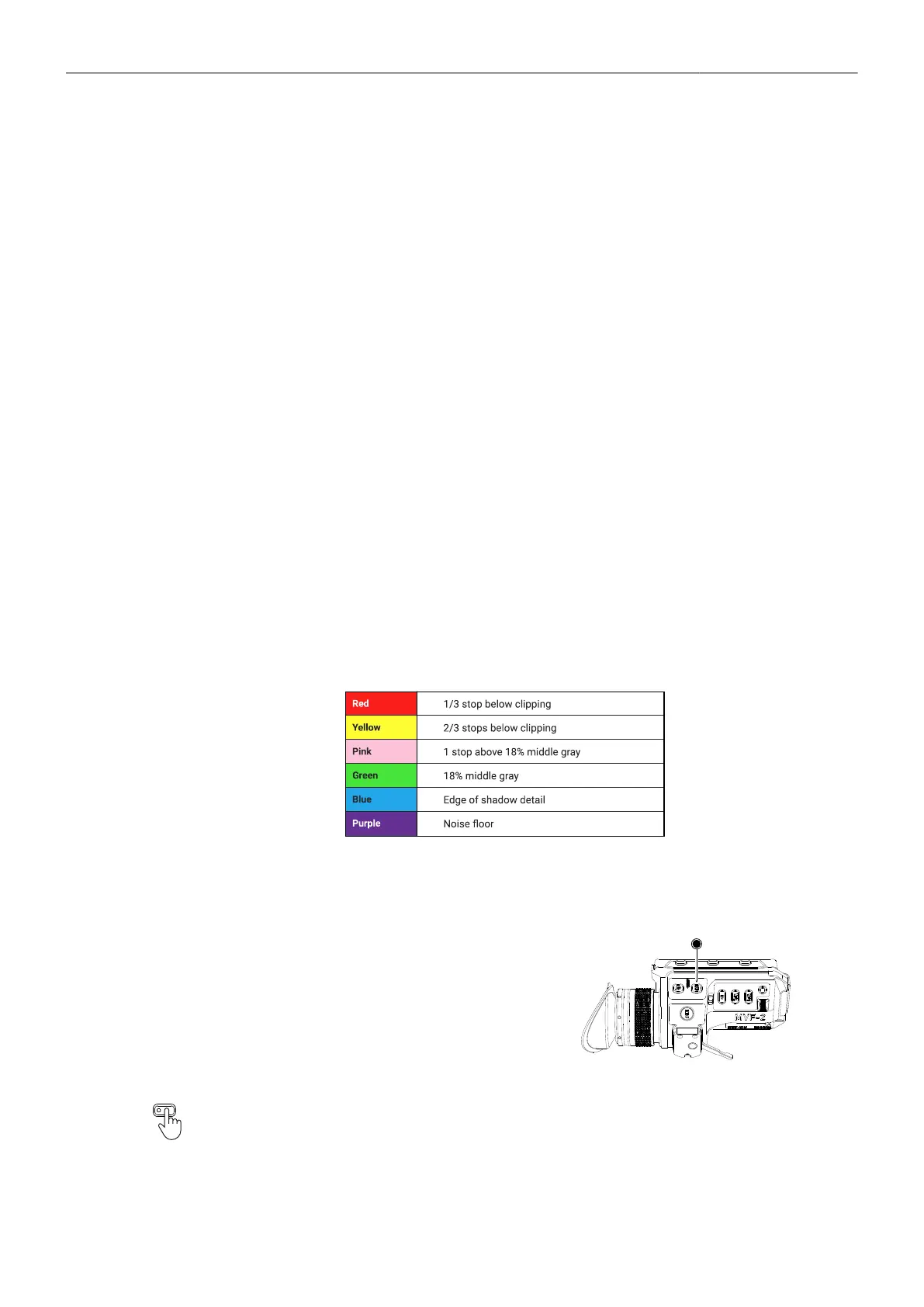
False Color is an exposure tool to check for correct exposure. When active, the image is turned into
a gray scale image with important luminance ranges shown in signal colors. Activating False Color
temporarily switches the corresponding output to LogC4 and replaces luminances with the following
colors:
When a gray card is used (or another object in the scene has a similar reflectance level), the exposure
can be set such that the card is in the green zone.
► To activate False Color on both EVF and Monitor,
press the EXP button (1) on the MVF-2. Press the
EXP button again to deactivate False Color.
User Buttons VF False Color, SDI 1 False Color and SDI 2 False Color support to quickly en-
able/disable False Color on the corresponding outputs.


 To Next Page