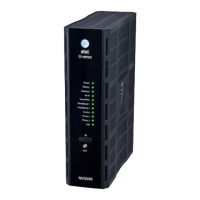
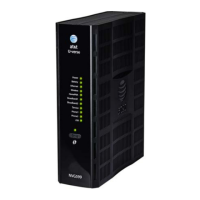
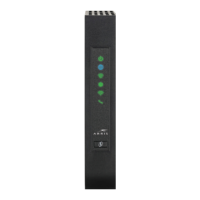
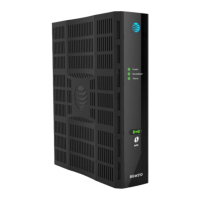
Powering and inial cabling
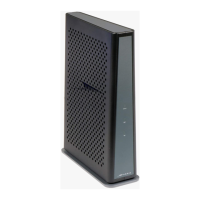
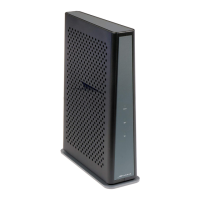
Press the Power buon on the back of the gateway. The Power indicator will inially ash GREEN to indicate that the gateway is boong and then solid GREEN
to indicate it is operaonal. Under normal operaon, while the gateway is powering up, LED status is as follows:
• Broadband, WAN Ethernet, and Wi-Fi indicators will be o.
• Broadband indicator will inially be solid RED, and once the NVG558 obtains an IP Address will change to solid BLUE.
• Wireless indicator will light solid GREEN to indicate that the Wireless service is enabled.
NOTE: During the inial setup, it may take several minutes to achieve service connecvity.
Broadband: Follow instrucons provided by Verizon. If no instrucons are provided, then call Verizon.
LAN Ethernet: To make an Ethernet connecon:
• Connect an Ethernet cable to the Ethernet port on a local computer.
Access the Web Management Interface
To connect a computer to the gateway via Wi-Fi:
1. Look for the Wi-Fi network with a name starng with “Verizon-XXXX” in your computer’s Wi-Fi sengs, where “XXXX” will match the network name printed
on the label on the side and boom of the NVG558.
2. Open a web browser on your computer (such as Firefox, Chrome, or Microso Edge) and type the following address in the address bar to open the
Access Code Required Screen: hp://myrouter
• To add a wireless device to the gateway, use your phone or tablet to scan the QR code on the side of the gateway.
• To make changes to the default Wi-Fi name/password:
1. Use the phone or tablet you connected to the NVG558 Wi-Fi by scanning the QR Code, or connect a laptop to the NVG558 via Ethernet LAN port.
2. Enter the address hp://myrouter into your web browser to open the Web Management conguraon pages.
3. Navigate to the Wi-Fi secon to make changes to the sengs.
4. When prompted for the Device Access Code, that can be found on the product label on the base of the NVG558
NOTE: The main page provides an overview about the connecon and network status. You can also access informaon for the following:
• Home: Network Status/Conguraon
• System: System status, restart and factory reset opons
• Broadband: WAN status, stascs, and parameter sengs
• Wi-Fi: Wi-Fi status and conguraon
• Network: LAN status and conguraon
• Firewall: Firewall status/conguraon
• Diagnoscs: Gateway connecon and applicaon diagnoscs
• Cellular: Cellular stascs, sengs, and APN management.
Access the Web Management conguraon pages
If, while connected to the NVG558 web management interface, you are aempng to look at NVG558 web pages that can change the conguraon of the
NVG558 you will be asked for the Access Code to proceed.
1. Provide the Access Code - this is a unique code printed on the label on the base of the gateway.
2. Select Connue.
Access Code Required
Page
Add a wireless device to the gateway
Declaraon of conformity
The following secons describe regulatory compliance by region.
FCC compliance
This device has been tested and cered as compliant with the regulaons and guidelines
set forth in the Federal Communicaon Commission - FCC Title 47 Part 15 regulatory
requirements.
Manufacturer: ARRIS
Model: NVG558HX
This device complies with part 15 of the FCC Rules. Operaon is subject to the following
two condions:
(1) this device may not cause harmful interference, and (2) this device must accept any
interference received, including interference that may cause undesired operaon of the device.
The device could automacally disconnue transmission in case of absence of informaon
to transmit, or operaonal failure. Note that this is not intended to prohibit transmission
of control or signaling informaon or the use of repeve codes where required by the
technology.
The device for operaon in the band 5150–5250 MHz is only for indoor use to reduce the
potenal for harmful interference to co-channel mobile satellite systems.
This equipment has been tested and found to comply with the limits for a Class B digital
device, pursuant to part 15 of the FCC Rules. These limits are designed to provide
reasonable protecon against harmful interference in a residenal installaon. This
equipment generates, uses and can radiate radio frequency energy and, if not installed
and used in accordance with the instrucons, may cause harmful interference to radio
communicaons. However, there is no guarantee that interference will not occur in a
parcular installaon. If this equipment does cause harmful interference to radio or
television recepon, which can be determined by turning the equipment o and on,
the user is encouraged to try to correct the interference by one or more of the following
measures:
• Reorient or relocate the receiving antenna.
• Increase the separaon between the equipment and receiver.
• Connect the equipment to an outlet on a circuit dierent from that to which the
receiver is connected.
• Consult the dealer or an experienced radio/TV technician for help.
Cauon: Changes or modicaons not expressly approved by the party responsible for
compliance could void your authority to operate this equipment.
Image: Home page
(Note: This is a reference image and may slightly dier based on your device.)


 To Previous Page
 Loading...