EasyManua.ls Logo

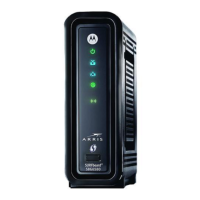
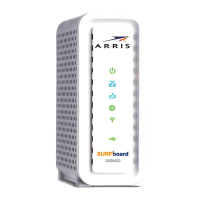
Arris SURFboard SBG6400 - User Manual

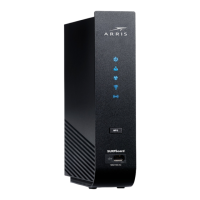
Arris SURFboard SBG6400
92 pages
Print Icon
To Next Page IconTo Next Page
Loading...
User Guide
SURFboard
®
SBG6400
DOCSIS 3.0 Wireless Gateway

Table of Contents

Other manuals for Arris SURFboard SBG6400

Questions and Answers

  • S
    Stephanie BaileyJul 28, 2025
    Why can't I access the internet with my Arris Gateway?
    • M
      Mackenzie SinghJul 28, 2025
      If you're having trouble accessing the internet with your Arris Gateway, make sure all cable and power connections on both the gateway and your computer are properly connected. Also, verify that the Power, Online, and Wireless LEDs on the gateway's front panel are lit and solid. Check the Ethernet cable to ensure it's properly connected to both the gateway and your computer. Additionally, check each end of the coaxial cable connection on the gateway and cable wall outlet, and hand tighten each connector if needed. You may also need to check or update the latest drivers for your network adapters.
  • J
    Jeffrey HicksAug 11, 2025
    What to do if the power LED icon is off on my Arris SURFboard SBG6400 Gateway?
    • V
      Victoria MiddletonAug 11, 2025
      If the power LED icon is off on your Arris Gateway, first check the power connection between the gateway and the electrical wall outlet. If the gateway is plugged into a power strip, ensure the power strip is switched on. Also, verify that the electrical wall outlet is working and not controlled by a light switch. If it is, disconnect the gateway power cord from that outlet and connect it to another one that isn't controlled by a light switch.

Summary

Safety and Regulatory Information

Important Safety Instructions

Essential safety precautions for device operation and installation, including warnings about fire and shock hazards.

Getting Started

Introduction

Overview of the ARRIS SURFboard SBG6400 Wireless Gateway and its features.

Installing the Gateway

Connect the SBG6400 to Your Computer

Step-by-step guide for physically connecting the SBG6400 to your computer and network.

Establish an Internet Connection

Procedures for activating the gateway and verifying initial internet connectivity.

Setting Up a Wireless Network Connection

Launch the SBG6400 Quick Start Wizard

Guides users through customizing basic wireless network settings via a step-by-step wizard.

Quick Connect Using the Windows Taskbar

Step-by-step instructions to connect to a wireless network using the Windows taskbar.

Test Your Wireless Network Connection

Procedures to verify that wireless devices are successfully connected to the network.

Use the SBG6400 WPS Pairing Button

Instructions for using the WPS button for quick wireless device pairing and connection.

Using the Gateway Web Manager

Start the Gateway Web Manager

Steps to access and log into the SBG6400's web-based management interface.

Configuring Your Wireless Network

Set Up Your Wireless Primary Network

Steps to configure the main wireless network settings for your home.

Set Up a Wireless Guest Network

Configuration steps for creating a separate guest network for visitors.

Change Your Wireless Network Name (SSID)

Guide to changing the wireless network's name (SSID) and security settings.

Protecting & Monitoring Your Wireless Network

Prevent Unauthorized Access

Recommendations for securing your home network against unauthorized access.

Change the Default Username and Password

Steps to change the gateway's administrator login credentials for enhanced security.

Set Up Firewall Protection

How to configure firewall settings to protect your home network from online threats.

Set Up Parental Controls

Instructions for configuring user access restrictions and content filtering on the network.

Managing Your Gateway and Connected Networks

View the Gateway Status and Network Connection

How to check the gateway's operational status and network connection details.

Troubleshooting Tips

Solutions

Lists common gateway problems and their corresponding solutions for diagnosis.

Front Panel LED Icons and Error Conditions

Explains the meaning of front panel LED indicators and their associated error states.

Arris SURFboard SBG6400 Specifications

General IconGeneral
Device TypeGateway
DOCSIS StandardDOCSIS 3.0
Maximum Download Speed343 Mbps
Maximum Upload Speed131 Mbps
Ethernet Ports4
Wireless Standard802.11n
Wireless Frequency Bands2.4 GHz
Weight1.5 lbs
Downstream Channels8
Upstream Channels4
Wi-Fi Speed300 Mbps
USB Ports1
Channel Bonding8x4
SecurityWPA2

Related product manuals