EasyManua.ls Logo

Arris BGW210-700 - User Manual

Arris BGW210-700
32 pages
Print Icon
To Next Page IconTo Next Page
Loading...
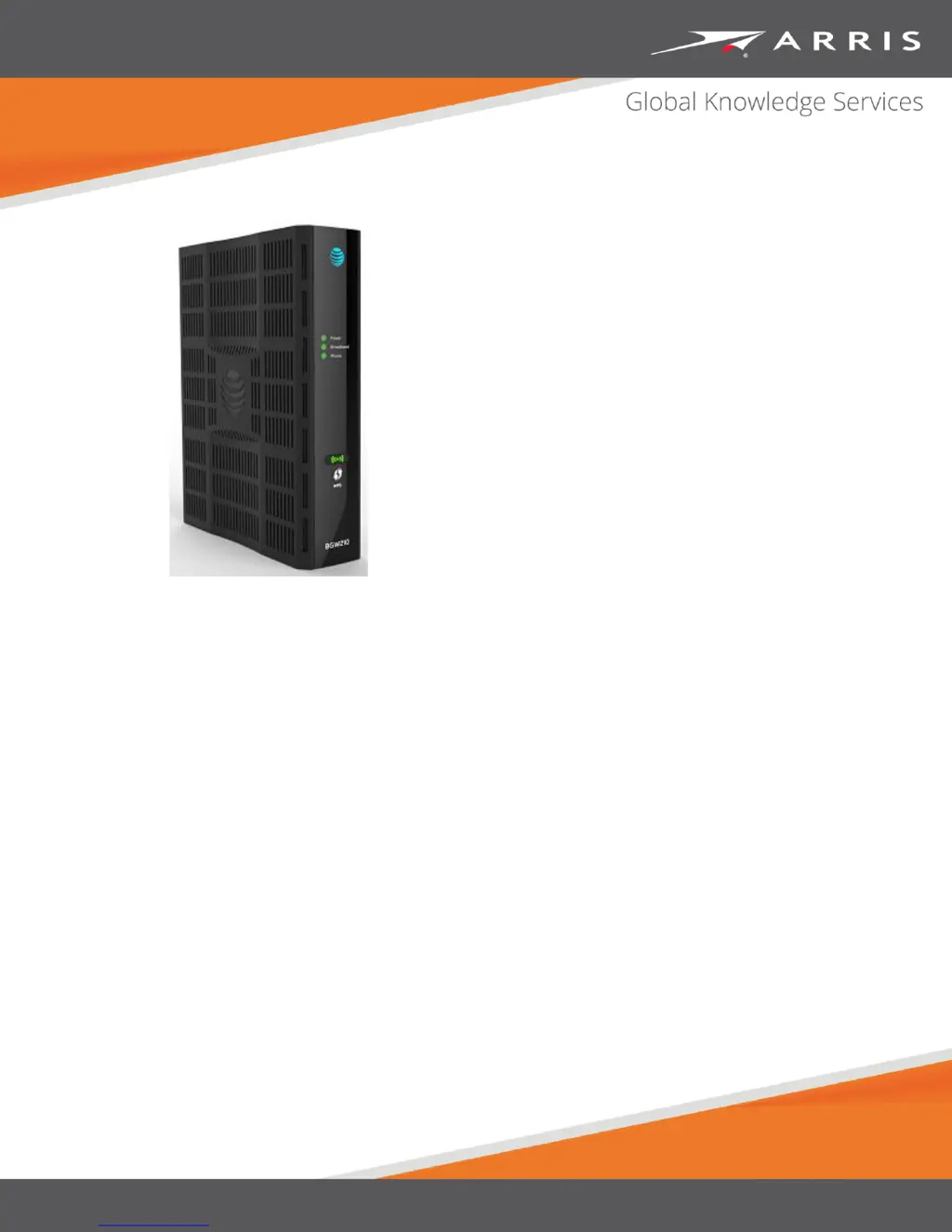
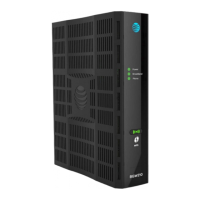
BGW210-700 Broadband Gateway
Release 1.0
Install and Operations Guide
365-095-30882 Revision 4.0
November 2016

Questions and Answers

  • D
    davidwhiteJul 27, 2025
    What to do if Broadband is not lit on my Arris BGW210-700 Gateway?
    • R
      Robert ReedJul 27, 2025
      If the Broadband light on your Arris Gateway is not lit, ensure you're using the correct DSL cable (a thinner standard telephone cable labeled 'Data Cable') and that it's plugged into the correct wall jack and the DSL port on the gateway. Also, verify that AT&T has activated your DSL line and that the gateway is not plugged into a micro-filter. Check if any telephone directly connected to a home wall phone jack (not to the gateway's phone port) has a micro-filter installed. If not, it may need to be installed, assuming the home does not use a DSL splitter to separate home phone and DSL lines.
  • B
    Brittany KirkAug 6, 2025
    What to do if Ethernet 1,2,3,4 is not lit on my Arris Gateway?
    • M
      Megan ChambersAug 6, 2025
      If the Ethernet 1,2,3,4 lights on your Arris Gateway are not lit, make sure you're using the yellow Ethernet cable, not the DSL cable, and that it's securely plugged into both the Ethernet jack on your PC and the Ethernet port on the DSL gateway. Additionally, ensure that you have Ethernet drivers installed on your PC. Confirm that your PC’s TCP/IP properties for the Ethernet network control panel are set to obtain an IP address via DHCP, and that your PC has obtained an address in the 192.168.1.x range. Ensure your PC is configured to access the Internet over a LAN, and disable any unused network devices (Ethernet, HomePNA, Wi-Fi).
  • B
    Bobby StewartAug 17, 2025
    How to fix Arris Gateway power if the front panel light is off?
    • C
      Christopher MooreAug 17, 2025
      To troubleshoot a front panel power light that is off on your Arris Gateway, first check the rear panel Power LED, located to the right of the power adapter connector. If the rear panel Power LED is off, ensure the power adapter is properly plugged into the gateway and try a known good wall outlet. If you're using a power strip, make sure it is switched on. If the rear panel Power LED is on, contact AT&T by phone or via their website.

Summary

Preliminary Safety Instructions

Hardware Gateway Installation

BGW210-700 Broadband Gateway Cabling Overview

Illustrates and describes the cabling connections for the gateway, including DSL and power.

BGW210-700 Broadband Gateway Rear Panel

Details the ports on the rear panel of the BGW210-700 Broadband Gateway and their functions.

Connecting the Power Adapter

Step-by-step instructions for connecting the power adapter to the gateway and a power outlet.

Connecting Devices Using Wired Ethernet

Procedure for connecting computers or other devices using wired Ethernet ports.

Connecting Devices Using Wi-Fi

Guide to connecting wireless devices to the gateway's Wi-Fi access point.

Connecting the BGW210-700 Broadband Gateway to the Internet

Instructions for connecting the gateway to the internet via DSL or Ethernet WAN port.

Basic Troubleshooting

Status Indicator Lights

Explanation of front view status indicator lights (LEDs) for troubleshooting gateway status.

Problem Isolation

Guides to diagnose and resolve issues when status indicator lights do not display correctly.

Rear Panel Connectors

Detailed illustration and description of all connectors found on the rear panel of the gateway.

Factory Reset Switch

Instructions for using the reset switch to reboot the gateway or restore factory defaults.

ARRIS Contacts

Arris BGW210-700 Specifications

General IconGeneral
Device TypeGateway
ModelBGW210-700
ManufacturerArris
Wi-Fi Standards802.11a/b/g/n/ac
Frequency Bands2.4 GHz, 5 GHz
MoCAYes
Ethernet Ports4
USB Ports1 USB 2.0 port
Voice Ports2
WAN TechnologyGPON

Videos

How to Set Up ARRIS BGW210-700 WiFi Router

Related product manuals