The ARRIS SURFboard SBG8300 is a versatile Wi-Fi Cable Modem designed to provide high-speed internet access for home or small business networks. This device integrates a DOCSIS 3.1 cable modem with a four-port Ethernet router and Wi-Fi capabilities, leveraging DOCSIS 3.1 technology for ultra-fast internet connections. It's important to note that the SBG8300 requires a cable service connection with a cable Internet Service Provider and will not function with DSL or satellite internet services.
Function Description
The primary function of the SBG8300 is to act as a central hub for your internet connectivity. As a cable modem, it connects to your existing coaxial cable connection, receiving internet data from your service provider. The integrated four-port Ethernet router allows for wired connections to devices such as desktop computers, gaming consoles, or smart TVs, providing stable and high-speed data transfer. Simultaneously, its Wi-Fi capabilities enable wireless internet access for a multitude of devices, including smartphones, tablets, laptops, and other smart home devices, operating on both 2.4 GHz and 5 GHz bands. This dual-band functionality helps to optimize wireless performance by allowing devices to connect to the most suitable frequency for their needs, reducing congestion and improving overall network efficiency.
Usage Features
Setting up and using the SBG8300 is designed to be straightforward, with several features aimed at enhancing user experience.
-
Physical Connections:
- Coaxial Cable Connection: The device connects to your cable wall outlet or an RF splitter using a coaxial cable (not included). This is the initial step to establish the internet connection. The connection should be tightened by hand to ensure a secure fit.
- Ethernet Ports: The SBG8300 features four Ethernet ports on its rear panel. These ports allow you to connect wired devices directly to the modem for a stable and fast internet connection. An Ethernet cable is included in the box for this purpose.
- Power Connection: The power adapter connects to the power port on the rear of the SBG8300 and then plugs into an electrical wall outlet. The device is designed to power on automatically once connected.
-
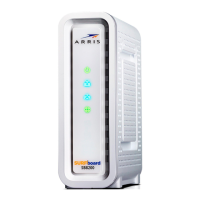
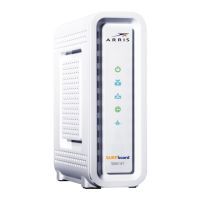
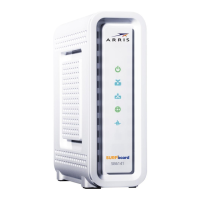
Status Indicators (Front Panel LEDs): The front panel of the SBG8300 features two LEDs, "Online" and "Wi-Fi," which provide visual feedback on the device's operational status.
- Online LED:
- Blue (Solid): Indicates that power is connected.
- Blue (Slow Blink): Signifies that the device is acquiring a downstream connection.
- Blue (Fast Blink): Indicates that the device is acquiring an upstream connection.
- Green (Solid): Shows that the IP Link is established and the device is online.
- Blue & Green (Alternating): Denotes that a firmware download is in progress.
- Wi-Fi LED:
- Green (Solid): Indicates that Wi-Fi clients are found on either the 5 GHz or dual-band frequencies.
- Green (Slow Blink): Signifies that no Wi-Fi clients are found on either the 5 GHz or dual-band frequencies.
- Blue (Slow Blink): Indicates that no Wi-Fi clients are found on the 2.4 GHz band only.
These LEDs are crucial for quickly assessing the device's status during setup and operation. After initial power-on, both LEDs should eventually turn solid green, indicating a successful connection.
-
Internet Service Activation:
- Before full internet access can be established, the SBG8300 typically needs to be activated with your cable internet service provider. This usually involves providing the modem's model name (SBG8300), HFC MAC ID, and Serial Number (S/N), which are found on the Wi-Fi cable modem label on the bottom of the device or in the provided documentation.
- For Comcast subscribers, a specific activation portal (xfinity.com/activate) is provided, along with a dedicated support number for activation issues. Users will need their Comcast XFINITY account number, account phone number, and login information.
- After connecting and activating, users can verify connectivity by accessing a public web page like www.surfboard.com. If the page fails to open, contacting the service provider is recommended to set up or activate the internet service.
-
Wi-Fi Network Setup: The SBG8300 offers two primary methods for setting up your Wi-Fi network connection:
- ARRIS SURFboard® Manager Mobile App: This app, available on the Apple App Store and Google Play Store, provides a convenient way to configure your SBG8300 Wi-Fi network. Users can scan a QR code to download the app and then follow the in-app prompts. This method is particularly useful for replacing an existing router or Wi-Fi cable modem, as it allows users to set the same network name and password, ensuring existing Wi-Fi devices automatically connect.
- Manual Mobile Device Connection: Users can also connect to the SBG8300's Wi-Fi network directly through their mobile device's settings. This involves accessing the Wi-Fi or Wireless settings, ensuring Wi-Fi is enabled, and then selecting the SBG8300's network name (SSID) from the list of available networks. The Wi-Fi network password, which was set during activation, will be required to join the network.
-
Wi-Fi Cable Modem Web Manager: For more advanced configuration and management, the SBG8300 includes a web-based interface.
- Accessing the Web Manager: This interface can be accessed by opening a web browser on a connected computer or laptop and typing
192.168.0.1 into the address bar.
- Login Credentials: The default login credentials are
Username: admin and Password: password. It's important to note that the default login is case-sensitive.
- Password Change: For security, users are strongly advised to change the default password immediately after accessing the Web Manager for the first time. This option is typically found on the
Gateway > Login screen.
- Customizing Wi-Fi Network Name (SSID): The Web Manager allows users to customize the default Wi-Fi network name (SSID), which is typically in the format
SBG8300-####. Customizing the SSID can make it easier to identify your home network. Users have the flexibility to either keep the default name or create a new, more memorable one.
Maintenance Features
While the SBG8300 is designed for reliable operation, some aspects contribute to its maintenance and longevity.
- Firmware Updates: The "Online" LED's alternating blue and green state indicates a firmware download. Firmware updates are crucial for maintaining the device's security, performance, and compatibility with internet service provider networks. These updates are typically managed automatically by the service provider or ARRIS.
- Troubleshooting Information: The Quick Start Guide directs users to the ARRIS Support website (www.arris.com/selfhelp) for detailed LED status information and the SBG8300 User Guide. This online resource provides comprehensive troubleshooting steps and explanations for various operational issues.
- Support Resources: ARRIS offers multiple support channels for additional assistance:
- Self Help, FAQs, Product Manuals: Available on the ARRIS support website.
- Live Chat and Email Support: Also accessible through the support website.
- Phone Support: A dedicated phone number (1-877-466-8646) is provided for direct assistance.
- Physical Care: Keeping the device in a well-ventilated area and free from dust can help prevent overheating and ensure optimal performance. Avoid placing it in enclosed spaces or near heat sources.
In summary, the ARRIS SURFboard SBG8300 is a robust and user-friendly Wi-Fi cable modem that combines essential internet connectivity functions into a single device. Its straightforward setup, clear status indicators, and multiple configuration options (via mobile app or web manager) make it accessible for a wide range of users, while comprehensive support resources ensure assistance is readily available when needed.

 Need help?
 General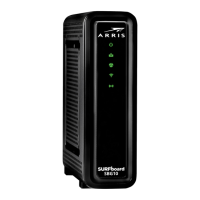



 To Next Page