EasyManua.ls Logo

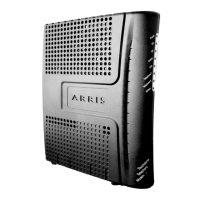
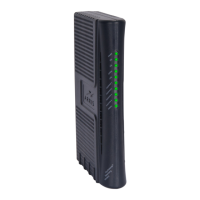
Arris Touchstone TM1602G - User Manual

Arris Touchstone TM1602G
42 pages
Print Icon
To Next Page IconTo Next Page
Loading...
Touchstone
®
TM1602G
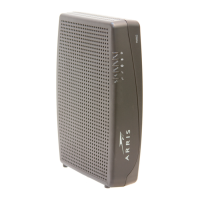
Telephony Modem Users Guide
Get ready to experience the Internets express lane! Whether youre checking out
streaming media, downloading new software, checking your email, or talking with
friends on the phone. the Touchstone TM1602G Telephony Modem brings it all to
you faster and more reliably, all while providing toll quality Voice over IP telephone
service. It also provides a Lithium-Ion battery backup to provide continued tele-
phone service during power outages.
The Touchstone Telephony Modem provides an Ethernet connection for use with
either a single computer or home/office Local Area Network (LAN). The Touchstone
Telephony Modem provides for up to two separate lines of telephone service.
Installation is simple and your cable company will provide assistance to you for any
special requirements. The links below provide more detailed instructions.
Safety Requirements
Getting Started
Battery Installation
Installing and Connecting Your Telephony Modem
Conguring Your Ethernet Connection
Using the Telephony Modem
Troubleshooting
Glossary

Questions and Answers

  • N
    Natalie HarrisonAug 5, 2025
    Why am I not getting on the internet with my Arris Touchstone TM1602G Modem?
    • K
      kayla55Aug 5, 2025
      It might take over 30 minutes to establish a connection the first time you power up your Arris Telephony Modem, especially when many people are online. Ensure your modem remains plugged into AC power and connected to the cable system. Check that the Power and Online lights are on. If the Power light blinks for more than 30 minutes, contact your cable company. Also, check your cable connections to ensure they are tight. If the coax cable is pinched, kinked, or bent sharply, you may need to replace it. If you have splitters between the modem and the CATV outlet, remove them and connect the modem directly to the outlet.
  • L
    Laura HallAug 12, 2025
    What to do if my Arris Modem internet is slow?
    • T
      Tiffany EllisAug 12, 2025
      If your Arris modem internet speed is slow, it could be due to a few reasons. If the website you're visiting is very popular, or if you're experiencing peak usage hours, wait a few minutes and try again. If your Telephony Modem is connected to a LAN, either directly or through a firewall, other communications on the LAN may slow down your connection. You can also test your network speed using an online tool.
  • M
    Matthew JuarezAug 17, 2025
    What to do if only one computer can get internet from Arris Modem?
    • J
      juanandrewsAug 17, 2025
      Check your cable company’s terms of service, as they may only allow one computer to connect directly to the Arris Telephony Modem.
  • J
    James PetersAug 29, 2025
    How to fix Arris Touchstone TM1602G Modem when power light is off?
    • P
      Phillip WyattAug 29, 2025
      If the Arris Telephony modem is plugged in but the power light is off, check all power connections to ensure the power cord is firmly plugged in at both ends. If the power cord is plugged into a power strip, verify that the strip is switched on. Avoid using an outlet controlled by a wall switch, if possible. Check the outlet by plugging in another device, such as a lamp. Finally, check the fuse or circuit breaker panel.
  • E
    emillerNov 22, 2025
    Why don't I have dial tone on my Arris Modem phone?
    • M
      Matthew KempNov 22, 2025
      If you don’t have a dial tone when you pick up your phone connected to the Arris Modem, check the following: * Is the Power LED lit? If not, ensure the modem is plugged in and the outlet has power. * Is the Online LED lit? If not, check the coax connection at the modem and the wall. If the Online LED is lit, proceed to the next step. * Is the Telephone (Tel 1 or Tel 2) LED lit? If not, phone service has not been provisioned on that line; contact your cable company. If it is blinking, there is a phone off hook somewhere in the house. Find that phone and hang it up. If it is lit, go to the next step. Also, ensure the phone is plugged directly into the modem. If so, try a different phone and phone cable. If a new phone and cable do not restore dial tone, call your cable company. If t...

Summary

Safety Requirements

General Safety Warnings

Covers risks like electric shock, equipment damage, explosion, and proper usage guidelines.

FCC Part 15 Compliance

Details compliance with FCC rules for digital devices and radio frequency energy.

RF Exposure and International Compliance

Outlines FCC RF exposure limits, Industry Canada, and Mexican regulatory compliance.

European Union Directives and Disposal

Details EU directives (EMC, LV, WEEE, RoHS) for product safety and disposal.

Getting Started

Modem Overview and Features

Provides an overview of the TM1602G modem's features, connectivity, and compatibility.

Whats Included and Required

Lists modem package contents and essential items needed for installation.

Establishing Service with Your Provider

Guides users on contacting the cable company to set up Internet and telephone service.

System Requirements

Details hardware and operating system requirements for the Telephony Modem.

Battery Installation and Replacement

Battery Model Types

Describes basic, extended, and maximum backup battery models and their capacities.

Basic Battery Installation

Step-by-step instructions for installing or replacing the basic backup battery.

Extended Battery Installation

Step-by-step instructions for installing or replacing the extended backup battery.

Maximum Battery Installation

Step-by-step instructions for installing or replacing the maximum backup battery.

Installing and Connecting Your Telephony Modem

Pre-installation Checks

Ensures necessary service and items are ready before installation begins.

Front and Rear Panel Overview

Identifies and explains the indicators, connectors, and controls on the modem.

Mounting Instructions

Provides guidance on wall or desktop mounting the Telephony Modem.

Connecting Cables

Details how to connect coax, Ethernet, and telephone cables to the modem.

Configuring Your Ethernet Connection

Configuration Requirements

Lists the necessary computer and network requirements for configuration.

TCP;IP Configuration Procedures

Provides step-by-step guides for configuring TCP/IP settings on Windows and macOS.

Using the Telephony Modem

Setting up Your Computer

Instructions for preparing your computer to work with the Telephony Modem.

Indicator Lights Explained

Details the meaning of various indicator lights for normal operation and startup.

Startup Sequence and Operation

Explains light patterns during startup and normal operation.

Reset and Battery Booting

Instructions on using the reset button and booting the modem from battery power.

Troubleshooting

Power and Connectivity Issues

Addresses problems with the power light and establishing an Internet connection.

Slow Internet and Telephone Problems

Guides users on resolving slow internet performance and telephone service issues.

Glossary

Common Technical Terms

Defines common cable and networking terms used in the manual.

Arris Touchstone TM1602G Specifications

General IconGeneral
BrandArris
ModelTouchstone TM1602G
CategoryModem
LanguageEnglish

Related product manuals