Chapter 3: Adding a SURFboard mAX satellite
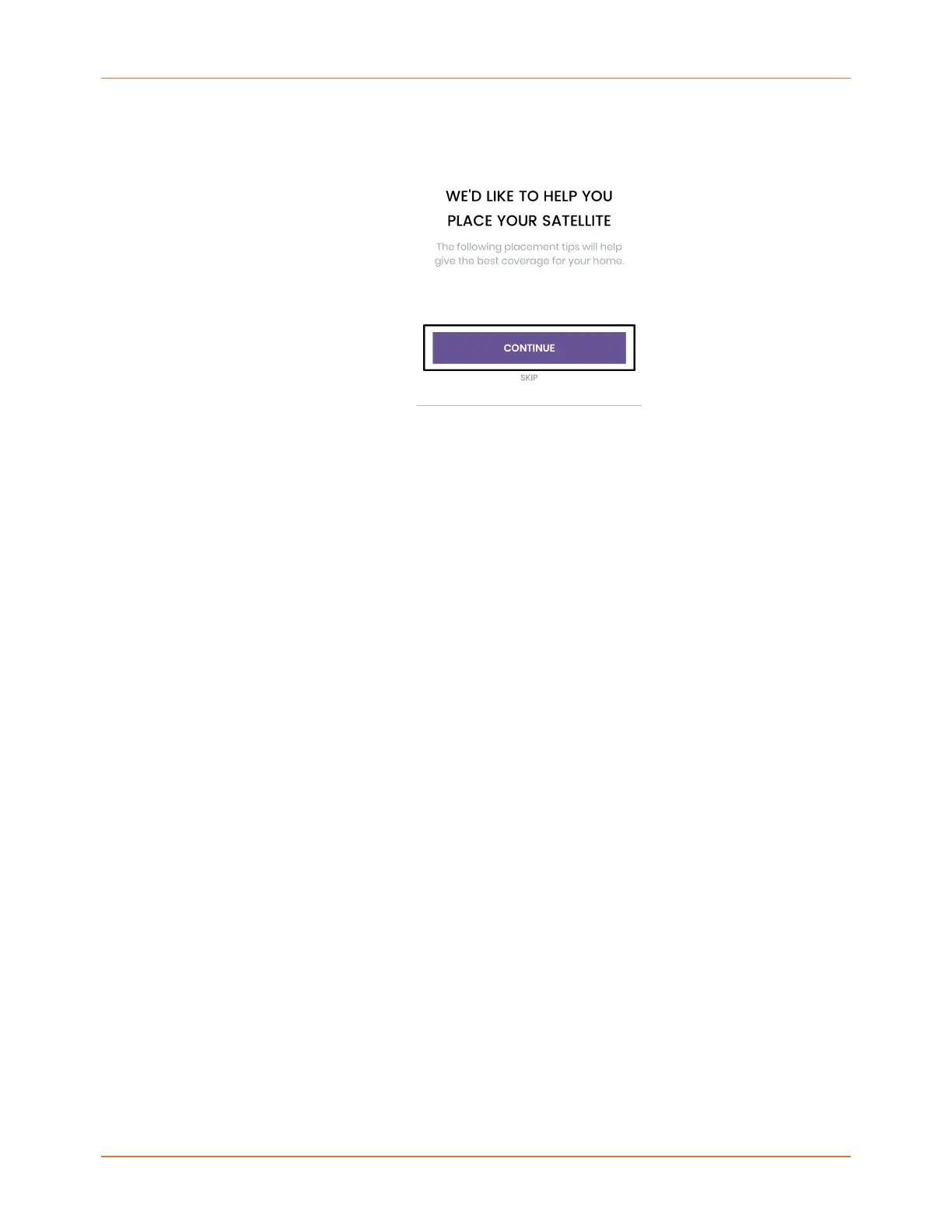
5. The next screens present satellite placement information you can use to optimize your
network's coverage. Either tap CONTINUE to find the best placement for the satellite in
your home or tap SKIP if you want to skip to installation.
Get your SURFboard mAX satellite online
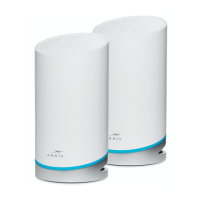
1. Use the provided power adapter and plug the satellite into an outlet and then tap NEXT.
2. Your mobile device will attempt to connect to the satellite to begin the configuration.
Tap NEXT to continue with the process.
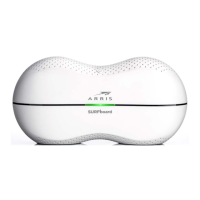
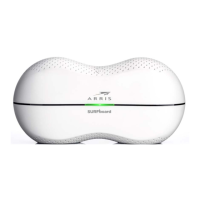
3. The LED on your mAX device will flash green throughout the attempt. This may take
a moment. You may receive a prompt from your mobile device to confirm connecting
to the SSID. Confirm joining to the mAX unit's SURFBoard-Onboarding SSID for
configuration.
4. Upon establishing a connection, the SUCCESSFULLY CONNECTED screen displays. Tap
NEXT to continue.
5. The app begins to configure your mAX satellite and connect it to your mAX router. You
may receive a prompt from your mobile device to confirm connecting to your mAX home
Wi-Fi network SSID. If you receive this prompt, confirm joining the network.
Once complete, your mAX satellite will be registered with your SURFboard account.
6. Next, the satellite will check for new firmware updates. If updates are required, the LED
will flash blue and amber while they are downloaded. Once the satellite has confirmed
the firmware is up to date, the YOUR SATELLITE IS UP TO DATE! screen displays in your
mobile app. Tap NEXT.
SURFboard mAX User Guide Standard Revision x.1 24



 To Next Page