30
2.2.4 Using MCM API Monitoring Tool
When you hit Connect button, Configuration utility will automatically try to connect to the
default address of 1, and display the status of the connection inside the Connection Status box.
If the MCM has a different address, select the appropriate address from the Address selection
box. Configuration utility should connect to the device and display its status as green or red boxes
inside the MCM Mode, MCM Status and Motor Status boxes.
You can send commands to the MCM by clicking on the Select Command box, which brings up a
list of available commands. Choose commands from the list below to test various functions of
the MCM.
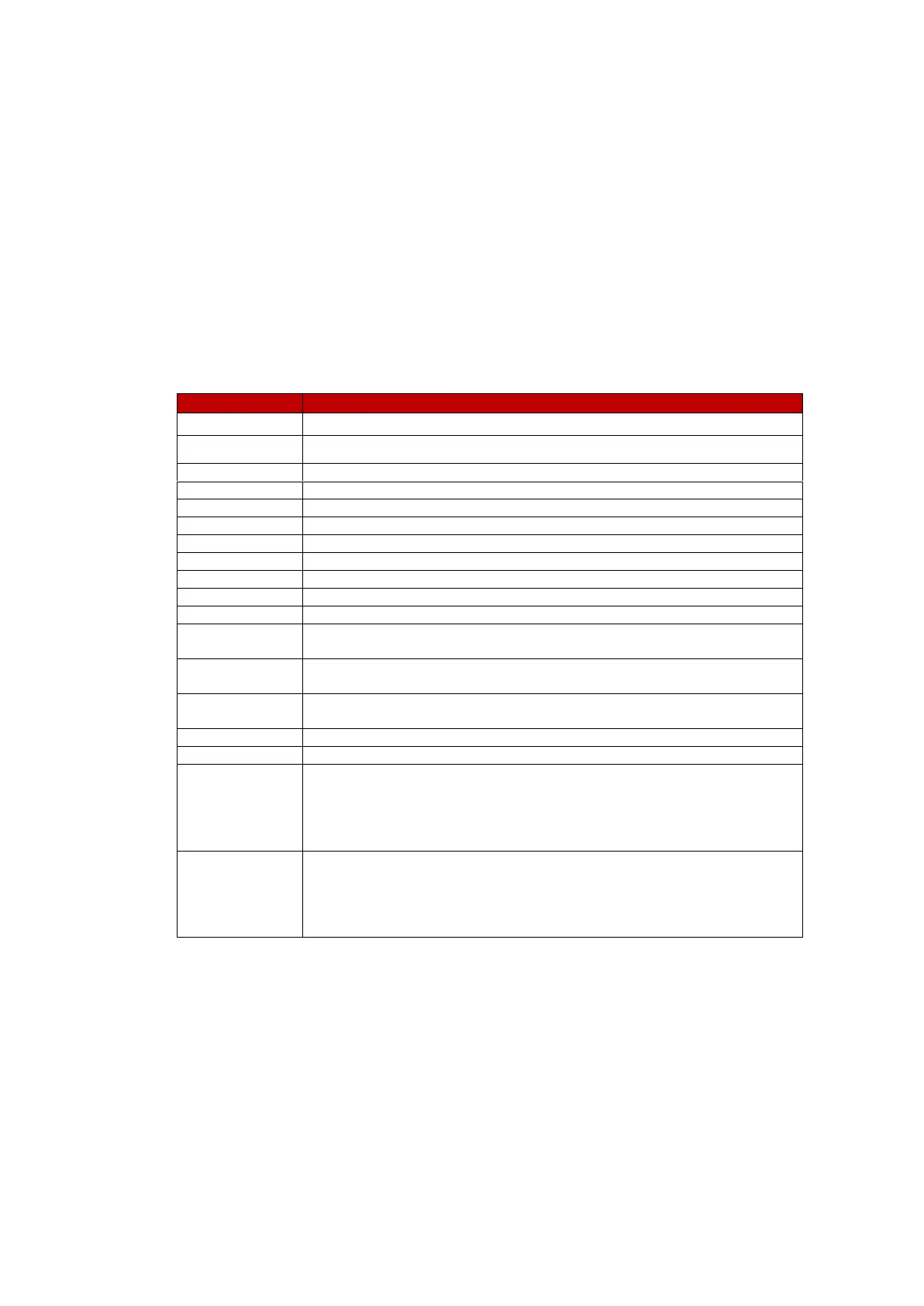
Updates the status information
Sends MCM to the IDLE state
Sends MCM to the CHECK state
Sends MCM to the UPDATE state
Sends MCM to the RESUME state
Gets alarm information from the device
Gets error information from the device
Gets warning information from the device
Gets RMS values from the device
Gets MCM settings and displays all the setting values for checking & editing
Gets PSD values from the device
Downloads previously recorded VI data for viewing. Use of Take
Data is recommended for latest VI values.
eMCM clears
learned
data and restarts
d
iagn
osis
module.
Once
learned data
is
removed,
learn should
be
executed
again for
status
m
o
n
i
t
o
ri
n
g
.
This restarts diagnosis module.
This resets
all
setting
to
the factory defaults.
Pressing
this
button shows following dialogue.
A
f
t
er
connecting
current
and voltage
source
to
the
eMCM
and entering setting value (example: voltage
380V,
current 3A),
inject same current / voltage value as setting value to
the
device and press
[
O
K]
button.
* Before changing
this v
a
l
u
e
,
p
l
ea
s
e
contact
t
h
e Artesis.
This command starts [Learn -> Improve ->Monitoring] procedures. Pressing this button
shows following commission dialogue. User should enter voltage, current, frequency,
speed, VT ratio, CT ratio and motor connection and press [OK] button. Then diagnosis
module starts learning and improve. Once the count of iterations exceeds iteration
count, the module will enter to Monitor mode automatically.
Check system response by sending a Get Status message. This is done by selecting Get Status from
the Command selection combo box and pressing the Send Command button. If "Response
Received" message does not appear in the Connection Status box in the amount of time specified
earlier as the timeout interval, check the connections, cabling, baud rate, pc ports, etc.


 To Next Page