Up2Stream AMP SUB Board User Manual
1. Introduction
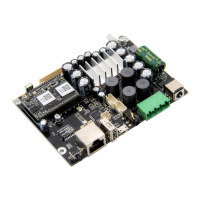
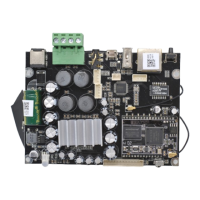
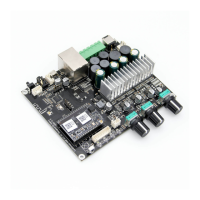
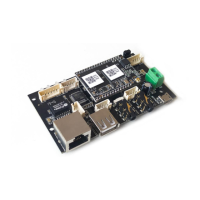
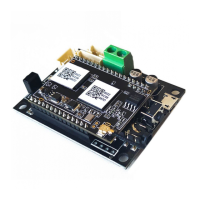
Up2Stream AMP SUB board is a WiFi subwoofer amplifier board that can add as a subwoofer amplifier for other Up2Stream audio
board. It can provide max. IOOW output to 20 - 80 passive subwoofer, you can set the crossover frequency and maximum volume leve
by the two rotary knob. If you need more low frequency power in the room, you can add multiple subwoofer board to the audio system
to create the booming sound effect.
2. What's in the box
Up2Stream AMP SUB Board
3. Interface
4. Connection Diagram
DC input
5. How To Use
5.1 App download
Knob Cover x2
C) DC IN
O LED
Screw Driver Antenna xl
Arvl c
User's Manua
C) PowerButton
G) VolumeKnob
C) CrossoverFrequencyKnob
O AUXIN
O speakerOUT
O CND (12-24VDCin)
*Opower Button: Short press to power off or
on; When in WiFi mode, ong press to reset
WiFi settings and enter paring mode.
* Hold Power button then plug in the power
can force the device to enter WiFi mode. f
C) SwitchJumper(forDIYpowerswitch)
you have setup router connection before,
O WiFi Module
the device will auto connect to that router.
O WiFi Antenna
Analog Device Audio input 3 5mm AUX
WiFi
0 00000 0
Wireless Router
passive Subwoofer (2Q
4STREAM
- 80)
Download the 4STREAM application from App Store for
VOSbased devices and Goog e Play Store for Android based
devices.
The application supports English, Spanish, French,
German, Italian, Portuguese, Korean, Simplified Chinese,
Traditional Chinese and Japanese
5.2 First Time Usage
1. Hold the POWER button then plug in the power cable.
2. The LED light will start flashing, release the button and
wait till the LED flash Slowly.
3. Goto your mobile WiFi settings and search for SoundSys
tem_xxxx WiFi and connect.
*f you cannot find SoundSystem connection, ong press
the POWER button for 5 secs and then refresh your
GET IT ON
Google Play
Download on the
App Store
SELECT NETWORK
mobile's WiFi listing.
4. Turn on your mobi e GPS then open 4Stream APP and
there will be 2 options: Direct Mode & Add Device.
5. Direct Mode: f you don't have router, please choose
direct mode. After connected, you can play music store in
your mobi e.
6. Add Device: After you choose add device, select the
router SSD you want your Up2stream device connect to
(enter password if required) and select continue.
7. Once connected, you can change the name of the device. You can select a pre-set one or enter your own.
8. After you define the name of the device, you wil see it appears in the device list in 4stream app and now you can start
streaming music.
* f you change to another router, or the password of the connected router has been changed, please ong press POVVER button
for 5 secs in WiFi mode to reset the connection.
* Hold POVVER button then plug in the power can force the device to enter WiFi mode. f you have setup router connection
before, the device will auto connect to that router.

 Need help?



 To Next Page
 General