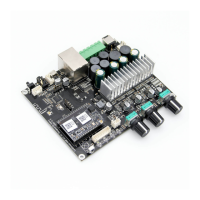
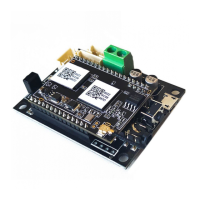
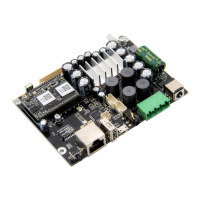
Up2Stream Pro is a WiFi and Bluetooth audio receiver board that can be easily integrated to your existing audio hardware devices to enable
them with network and bluetooth streaming capability. With Up2Stream installed and using 4STREAM app, it allows you to stream music from
cloud, phone, NAS, and more streaming services, such as spotify, deezer, qobuz, tidal..etc. It also support multiroom and multizone control
and music playback.This receiver board is perfect to build your own Audio Source Receiver, Wireless Audio Amplier, Wireless Seapker,
Wireless Speaker Forniture & Mulitroom Audio System.
1. Introduction
2. What's in the box
Up2Stream Pro User Manual
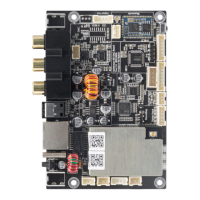
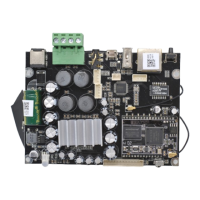
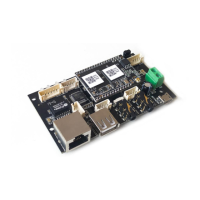
3. Interface
4. Connection Diagram
IR Receiver
BT Antenna
Extension Port
On-board Bluetooth Antenna
5V/1A Power Input
B
C
D
E
H
G
I
J
K
L
M
N
O
P
F
Mirco USB(Power/USB DAC)
USB
LAN
Power Button
*
3.5mm Line-Out
3.5mm Line-In
B DC F
I
H
G
J
KLMO N
P
E
IIS-out,SPDIF-out
WiFi Antenna
LED
GPIO
LED Status :
Power on :White light on
System Booting :White light blink fast
Ready for Connection: White light blink slowly
Ready to play : White light on steady
Bluetooth Pairing: Blue light blink
Bluetooth Connected :Blue light on steady
USB Playback :Red light on
Line in Playback: Green LED Steady on
*
P
Power Button: Short press to power off and on; When in WiFi mode, long press (press and hold the button for more than 5 seconds) to
reset WiFi settings and enter the paring mode; When in Bluetooth mode, long press to terminate current connection.
D
PH2.0-7P: SPDIF, MCLK, IIS_DATA, BCLK, LRCK, GND,
VCC_3V3:
This is the digital audio output extension. For the IIS, BCLK is
2.8MHz, the LRCK is 44.1KHz, the MCLK is 11.288MHz, the DOUT
following the standard IIS data
format and have 16 bits depth. The system is running in master
mode, you should make sure the IIS port of connected device is
running in slave mode.
E
PH2.0-4P: 3V3, GND, .....
GPIO2 and GPIO1 is used to connect a coding key, should be used
for volume control.
F
PH2.0-11P: 3V3, .......
KEY is used for external buttons, refer to the circuit right for key
definitions. The LED pins are used to extend the LED, and are
common-anode connected. You should connect 3.3V to a current
limit resister and then to LED and then to the pin. TX/RX are UART
interface to send events and receive controls.
Further Notes
C27
0.1uF
MODE
PLAY/PAUSE
NEXT
PREV
VOL+
R60
1K
R61
2.2K
R62
3.6K
R63
5.6K
R64
100R
VOL-
R65
8.2K
MUTE
R66
12K
NUM1
R67
18K
NUM2
R68
27K
NUM3
R69
47K
NUM4
R70
100K
KEY
VDD3V3
DGND
UpStream Pro
Acrylic Casing
More accessories coming soon at www.arylic.com
7pin cable
External SPDIF Board
4pin cable
External DAC Board
2pin cable
External Button Board
WiFi Antenna
External Knob Board
User Manual
DAC

 Need help?
 General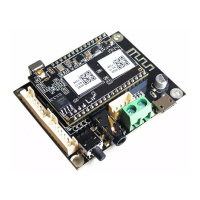






 To Next Page