08 October 2018 / Ver. D 15
TD 93272EN
Installation Guide
Application server
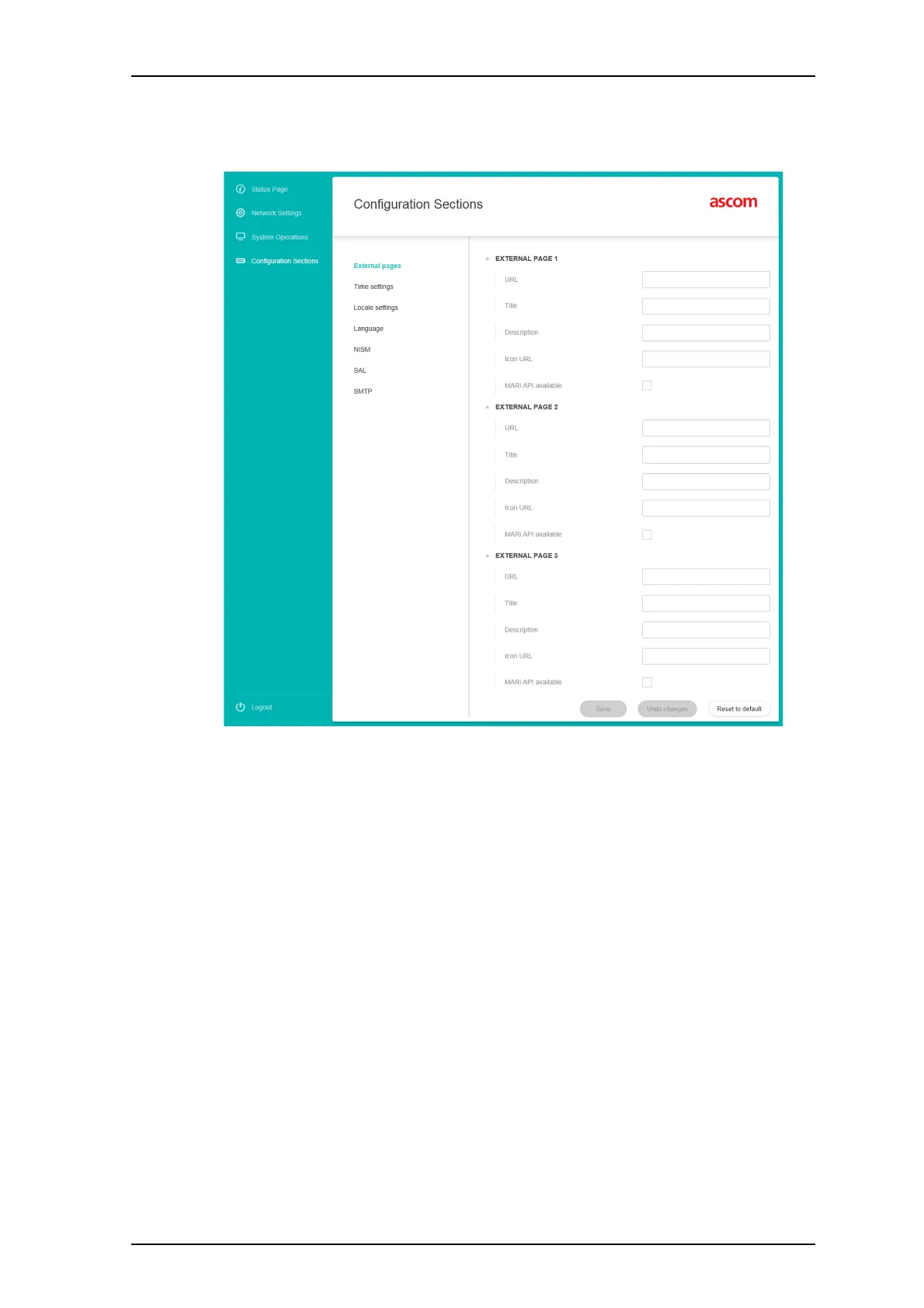
4 Select the ‘External pages’:
For each link:
5 Enter the URL: e.g. https://www.ascom.com
The URL can be obtained by copying the web page address from the browser
address bar.
6 Enter the Title: e.g. Ascom
7 Enter the Description: e.g. External Ascom page
8 Optionally, enter an icon file name: e.g. https://www.ascom.com/
content/dam/ascom/general/brand-specific-assets/logo/ascom-
logo.svg
The logo URL can be obtained by right-clicking on the logo in the web page and
copying the URL for the logo.
9 Optionally, check the box if the linked page has a MARi API.
10 Click ‘Save’ to save the settings
IMPORTANT: Check that the link is correctly working in the User GUI.
The external link will show up in side bar of the MARi User GUI. With the example given
above, the Ascom logo shows as a link in the side bar and the webpage in the main
screen:


 To Next Page