08 October 2018 / Ver. D 24
TD 93272EN
Installation Guide
Application server
5 Enter an IP-address of the SMTP server (or use the default 127.0.0.1)
6 Enter the port on which the protocol will work.
7 If necessary, enter the credentials and the default sender.
8 Click ‘Save’ to save the settings.
4.7 Upgrading of software package
Before the upgrade:
• Check in the release notes if it is possible to upgrade from the currently installed
version to the new version, and whether this can be done without losing the data.
• Put the firmware image (fbin-file) on an ftp- or http-server that is reachable by the
Application Suite.
IMPORTANT: The upgrade of the software will remove all configuration settings.
Please write down these settings and re-enter them after upgrading.
To upgrade:
1 Access the Application Suite via the network using the IP-address and the config
extension: “xxx.xxx.xxx.xxx/config”.
2 Login with user and password
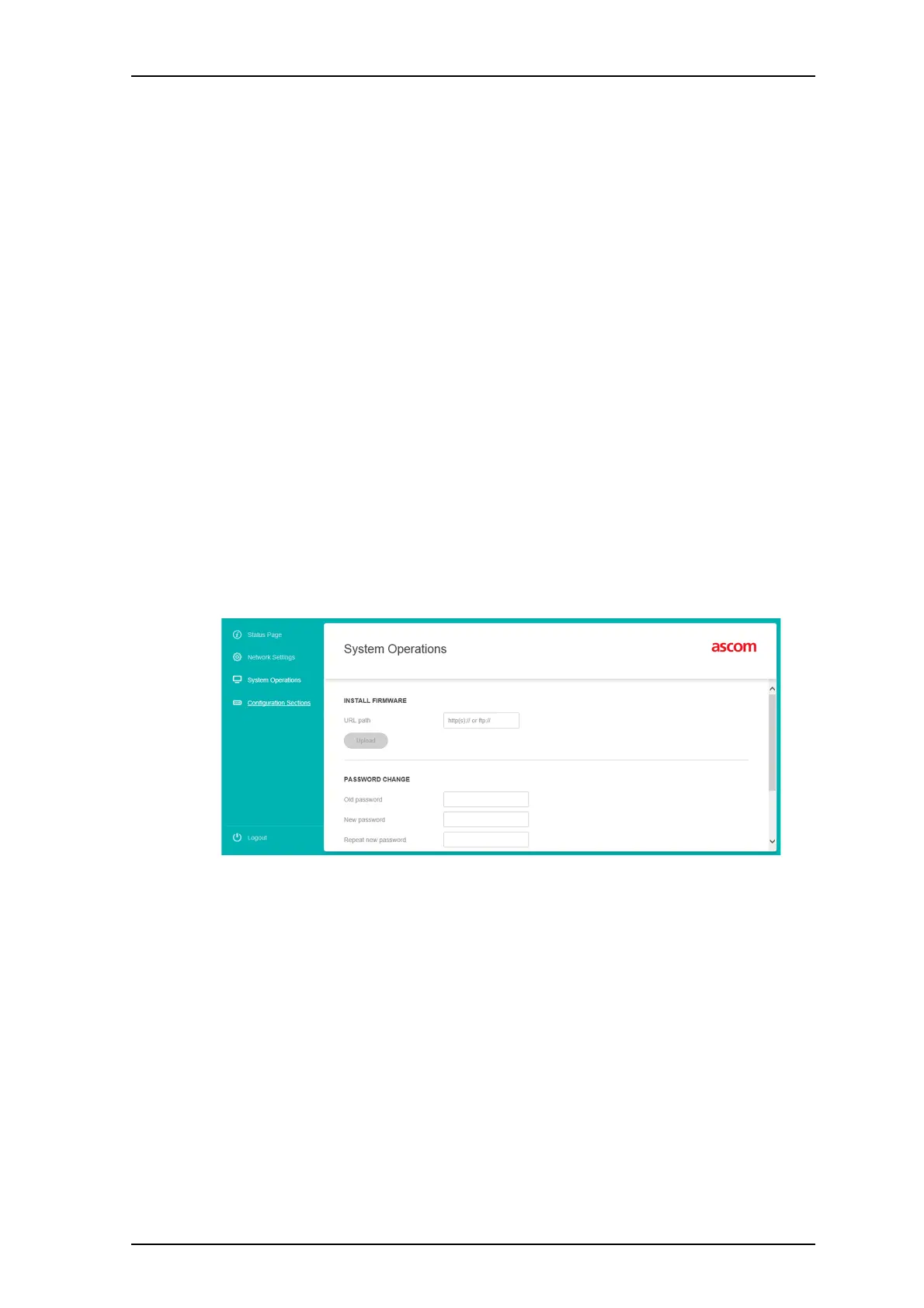
3 Select ‘System Operations’
4 In the section 'Install Firmware', enter the complete URL to the firmware
image (fbin-file).
5 Click 'Upload', to start the uploading.
6 In the pop-up that appears, click on 'Upload and install'.
The installation will now start.
Note: During the installation, a blank page is shown and an indication that your
browser is waiting for data from the Application Suite. This might take several
minutes.
7 When the installation has finished, a pop-up box appears that shows that
the download has finished. Click “Ok and log in again.
8 After login, check on the status page that your new version is installed.


 To Next Page