EasyManua.ls Logo

ASCOM NISM2 - User Manual

ASCOM NISM2
29 pages
Print Icon
To Next Page IconTo Next Page
Loading...
08 October 2018 / Ver. D
TD 93272EN
Installation Guide
Application Suite
Question and Answer IconNeed help?

Do you have a question about the ASCOM NISM2 and is the answer not in the manual?

Summary

Introduction

1.1 About this Document

Details the document's purpose for installation, configuration, administration, and troubleshooting.

1.2 Abbreviations and Glossary

Provides a list of abbreviations and glossary terms used throughout the manual.

1.3 Requirements

Outlines the necessary requirements for the successful installation of the Application Suite.

1.4 FCC Compliance Statements

Contains FCC compliance information for Class B digital devices and Canadian IC requirements.

General Information

2.1 General Setup

Provides general information regarding the setup of the Application Suite within a NISM system.

2.2 MAC Address Location

Explains how to locate the MAC address of the Application Suite unit.

2.3 Authentication and Administration

Details web-based administration, required user accounts, and default password security.

Description

3.1 LED Status Indicators

Explains the meaning of the various LED status indicators on the Application Suite unit.

3.2 Operating Modes

Describes the different operating modes of the Application Suite, including Normal Operation and Boot Mode.

Installation and Configuration

4.1 Installation Procedure

Provides a step-by-step procedure for the physical and initial software installation of the Application Suite.

4.2 Mounting Guidelines

Details the recommended mounting procedures and environmental conditions for the Application Suite.

4.3 Supply Voltage Connection

Explains how to correctly connect the primary AC supply voltage to the Application Suite.

4.4 Connection Ports

Describes the available connection ports, including Ethernet and future-use ports.

4.5 Accessing the Application Suite

Guides users on how to access the Application Suite via network IP or management port.

4.6 Basic Configuration

Covers essential basic configuration settings for the Application Suite.

4.6.1 Login to Configuration

Details the process of logging into the Application Suite's configuration interface.

4.6.2 Network Settings

Explains how to configure network parameters such as IP address and gateway.

4.6.3 Adding External GUI Pages

Describes how to add custom external URLs to the User GUI for enhanced navigation.

4.6.4 Time Zone Settings

Outlines the procedure for setting the time server and time zone for accurate time synchronization.

4.6.5 Locale Settings

Details how to set local parameters that affect date and number formats.

4.6.6 Language File Upload

Provides instructions for uploading new language and online help files to the Application Suite.

4.6.7 Download Language Files

Explains how to download existing language and online help files from the Application Suite.

4.6.8 Download Language Templates

Guides users on downloading template files for creating new language translations.

4.6.9 Change NISM IP Address

Details the process for modifying the IP address settings of the connected NISM.

4.6.10 External Data Storage

Instructions for configuring an external PostgreSQL database for storing application data.

4.6.11 SMTP Settings Configuration

Covers the configuration of Simple Mail Transfer Protocol (SMTP) for email notifications.

Upgrading of Software Package

Before the Upgrade

Lists important checks and preparations required prior to performing a software upgrade.

To Upgrade

Provides detailed, step-by-step instructions for upgrading the Application Suite software.

Boot Mode

Related Documents

Overview

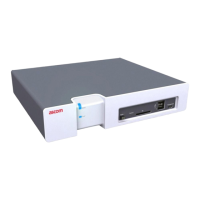
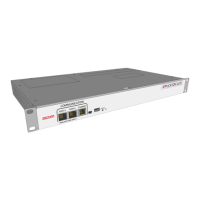
The Ascom Application Suite (NUAPPSVC-H) is an embedded platform designed to provide Messaging, Assignments, and Reporting Interface (MARi) capabilities, offering reporting templates for analyzing trends and responsiveness. It functions as a computer server and is an integral part of the MARi hardware package, which also includes the FE3-NKABAE teleCARE IP System Manager (NISM2). The Application Suite integrates with teleCARE IP NISM software and the Telligence Integration Module. Its operation is ancillary to UL 1069 or UL 2560 normal operations.
Important Technical Specifications:

  • Electrical Rating: Input: 100-240Vac, 50-60Hz
  • Power Dissipation: 250W (890 BTUs)
  • Ethernet Port Data Throughput Rating: 10/100 MBPS
  • Mounting: 19-inch (48.3cm) wide rack mountable or wall mountable in a standard third-party sectional cabinet. It must be fixed by screws or other fixtures to the rack and should not be easily movable.
  • Termination: RJ-45 ports for Ethernet.
  • Status Indicators:
    • Blue LED for AC Power (Normal indication).
    • Green and Amber LEDs for Port A and Port B (not approved for use).
    • Green LEDs for Ethernet.
  • Fuse: 250V 5.0A
  • Operating Environment: 32 to 122°F (0 to 50°C).
  • Temperature/Humidity: 0 to 95% RH, non-condensing at 90°F (32°C).
  • Storage Capacity: Stores data locally, limited to about 500,000 entries. External PostgreSQL database (version 9.6 or higher) can be configured for extended storage.

Usage Features:

  • Installation and Configuration: The device is installed by mounting it in a 19-inch rack, connecting the supply voltage, and connecting a LAN cable to the "Ethernet" RJ45 jack on the front.
  • Accessing the Application Suite: The module can be accessed via an IP network or directly through the mini-USB management port (reserved IP address: 192.5.36.229). A web browser (Internet Explorer 8.0™ or later) is used to access the web interface.
  • Basic Configuration: Initial setup involves configuring network settings (IP, Subnet mask, Gateway, Hostname, DNS), time settings (NTP source, NTP server IP, Timezone), and locale settings (language, date, and number notations).
  • Authentication and Administration: Administration is performed via a web browser, requiring a user name ("admin") and password ("changeme" by default, which should be changed for security). The admin account has full permissions to change all settings.
  • External Pages Integration: Up to three external URLs can be added to the User GUI, appearing as links in the left column of the main screen. This allows for integration of other web pages, potentially with MARi API support.
  • Language Support: The Application Suite supports multiple languages. Language and online help files can be uploaded and downloaded. Templates for new language files are also available for download.
  • NISM IP-address Configuration: The IP address of the connected NISM (Nurse Call System Manager Application) can be configured. It is crucial for the Application Suite to receive events from the NISM.
  • External Storage of Data: For larger data storage needs beyond the local capacity, an external PostgreSQL database can be configured. The SAL application in MARi will create and update tables in this database, requiring a database user with appropriate privileges.
  • SMTP Configuration: Simple Mail Transfer Protocol (SMTP) settings can be configured for email notifications, including the SMTP server IP address, port, credentials, and default sender.
  • Operating Modes:
    • Normal Operation: All configuration, settings, maintenance (backups, software upgrades), and troubleshooting are performed through the application GUI.
    • Boot Mode: Primarily for development purposes. It is used for installing new software if no application is running or if the application cannot be started. The module can also enter Boot Mode automatically if it detects major errors (e.g., restart loop).

Maintenance Features:

  • Software Upgrade: Firmware upgrades are performed by uploading an fbin-file from an ftp- or http-server. It is important to note that upgrading the software will remove all configuration settings, which must be re-entered after the upgrade.
  • Troubleshooting: The management port (mini-USB) can be used for direct connection to the module for troubleshooting, especially if network access is unavailable or the IP address has changed.
  • Port Driver Installation: For direct access via the management port on Windows 7 or 10, a specific port driver ("Linux USB Ethernet/RNDIS Gadget") may need to be installed.

ASCOM NISM2 Specifications

General IconGeneral
BrandASCOM
ModelNISM2
CategoryServer
LanguageEnglish

Related product manuals