EasyManua.ls Logo

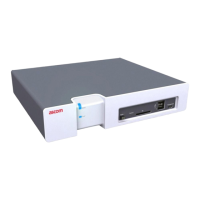
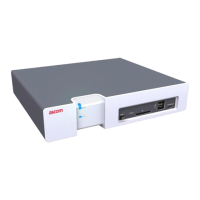
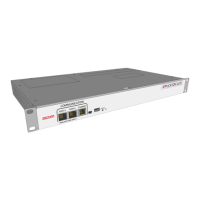
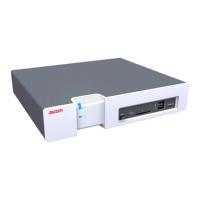
ASCOM Elise3 Lite - User Manual

ASCOM Elise3 Lite
43 pages
Print Icon
To Next Page IconTo Next Page
Loading...
Installation Guide
Elise3
TD 92679EN
22 November 2013 / Ver. G

Questions and Answers

  • D
    debrachurchAug 3, 2025
    Why are several ASCOM Elise3 Lite Server software functions not starting?
    • S
      Sarah JohnsonAug 3, 2025
      There might be a few reasons why the software functions aren't starting. It could be due to an invalid license, or the module might have been running in Demonstration mode for over two hours. In both cases, check if the functions start in Demonstration mode; if they do, enter a valid license and restart the product. Another possibility is that no software is installed, or the installed software is malfunctioning, so you may need to install new software.
  • S
    Sean KingAug 10, 2025
    What to do if the ASCOM Server cannot be accessed via the management port?
    • A
      Ashlee SerranoAug 10, 2025
      If you cannot access the product via the management port, it might be because the required port driver is not installed (or not correctly installed) on your PC for the USB port you're using. Also, when switching between mass storage mode and network mode, it takes about 30 seconds for the PC to obtain an IP address from the DHCP server, so wait a little. As an additional step, open the Command Prompt and type: route DELETE 192.5.36.229 arp -d 192.5.36.229.
  • M
    Ms. Barbara Conway MDAug 18, 2025
    What does it mean if the ASCOM Elise3 Lite Power LED flashes red when an external battery is connected?
    • J
      jason81Aug 18, 2025
      If the Power LED shows a slow flashing red light, and the system status indicates that the external supply is not charging, it could be because the device does not charge the external battery if its voltage is below 8.0 Vdc or if the internal power supply voltage is less than 13.8 Vdc.
  • S
    sarah55Aug 26, 2025
    How to troubleshoot ASCOM Server in Boot Mode?
    • A
      Adrian MathewsAug 26, 2025
      If the product is in Boot Mode, use the Troubleshoot button in the Boot Mode GUI to access the product’s web interface (no applications are running). This allows you to view logs and other information.

Summary

1. Introduction

1.1 Abbreviations and Glossary

Defines technical terms and acronyms used in the manual.

2. General Information

2.1 Licenses

Details requirements for valid software licenses and where to find license numbers.

2.2 MAC Address

Explains where to find the MAC address of the Elise3 hardware.

2.3 Authentication and Administration

Describes user authentication and access to administration pages via web browser.

2.3.1 Authentication

Lists default user accounts, passwords, and their permissions for Elise3.

2.3.2 Administration

Explains how to access and use the Advanced Configuration page for system setup.

3. Description

3.1 Overview of Connectors, Buttons and LEDs

Identifies and describes the front panel components like Status LED, Power LED, Mode button.

3.2 Label for IP Address;Host Name

Explains how to label the product with its IP address or Host name for support.

3.3 LED Indications

Describes the colors and meanings of the status, mode, and power LEDs.

3.4 Operating Mode

Details the different operating modes of the Elise3: Normal, Boot, Demonstration, and Troubleshoot.

3.4.1 Normal Operation

Explains how configuration and settings are managed via the web user interface.

3.4.2 Boot Mode

Describes Boot Mode for software installation, troubleshooting, and factory reset.

3.4.3 Demonstration Mode

Allows running Elise3 software for two hours with full or near-full functionality.

3.4.4 Troubleshoot Mode

Enables system troubleshooting and log file access when normal interface is unavailable.

4. Installation and Configuration

4.1 Mounting

Details environmental requirements and methods for mounting the Elise3 hardware.

4.1.1 Environmental

Specifies the acceptable ambient temperature and relative humidity for Elise3 placement.

4.1.2 Installations Requiring Seismetic Considerations

Provides guidance for installing the Elise3 in seismic-prone regions.

4.1.3 Wall Mounting

Instructions for mounting the Elise3 securely on a wall using provided hardware.

4.1.4 Rack Mounting

Describes front and reverse mounting options for the Elise3 in a 19-inch rack.

4.2 Supply Voltage

Explains power supply options, including primary 100-240 Vac and backup 12-24 Vdc.

4.2.1 Change Power Supply Parameter

Guides on configuring the power supply setting in the Elise3 application.

4.3 Connections

Details how to connect various modules and systems to the Elise3 ports.

4.3.1 Ethernet Ports

Describes the two Ethernet modular jacks (RJ45) and their current usage.

4.3.2 S900;A-bus connection

Explains connections for Ascom Paging System, Alarm, and Output modules via bus cabling or twisted pairs.

4.3.3 LON Bus

Notes the availability of the LON connection on specific Elise3 variants.

4.3.4 Error Relay Output

Describes the error relay output for indicating Elise3 malfunctions or errors.

4.3.5 AUX Connections

Details the connection of digital inputs and outputs, supported by the installed software.

4.4 Strain Reliefs and Warning Labels for Medical Devices

Instructions for using strain reliefs and warning labels for medical device gateways and seismic installations.

4.5 Accessing Elise3

Explains how to access the Elise3 via an IP network or directly using the management port.

4.5.1 Access via Network

Recommends static IP addresses and provides steps for network access to the Elise3.

4.5.2 Access via Management Port

Details accessing the Elise3 via the management port when network access is unavailable.

4.6 Basic Configuration

Guides on initial setup using the Setup Wizard or Advanced Configuration page.

4.6.1 Setup via Setup Wizard

Step-by-step instructions for configuring the Elise3 using the Setup Wizard.

4.6.2 Setup from Advanced Configuration Page

Instructions for configuring the Elise3 using the Advanced Configuration page.

4.6.3 Change Secured Settings

Explains activating security settings that require physical confirmation on the module.

4.6.4 Clock Synchronization and Time Settings

Details how to set and synchronize the clock using time servers or the module itself.

4.6.5 Message Distribution

Describes configuring distribution lists for incoming information and addressing modules.

5. Working in Boot Mode

5.1 Set Elise3 in Boot Mode

Step-by-step instructions for initiating and entering Boot Mode on the Elise3.

5.1.1 System Information

How to view system information like boot mode cause, module key, and software version.

5.1.2 Network Settings

Describes how to view and edit network settings when the Elise3 is in Boot Mode.

5.1.3 Install Software in Boot Mode

Instructions for installing new software versions on the Elise3 while in Boot Mode.

5.1.4 Return to Normal Operation

Steps to restart the Elise3 from Boot Mode back to normal operation.

6. Demonstration Mode

7. Maintenance

7.1 Software Management

Details on installing software and creating backups of software settings.

7.1.1 Installation of Software

Describes how to install software via the web interface or Boot Mode.

7.1.2 Create Backup of Software Settings

Steps to create a backup of the Elise3's software settings in Boot Mode.

7.1.3 Field Upgrade of Boot Software

Procedure for upgrading the boot software using a USB memory stick.

7.2 Restarting the Elise3

Instructions for performing controlled and forced restarts of the Elise3 unit.

7.2.1 Controlled Restart using Restart Button

Detailed steps for a controlled restart using the physical restart button.

7.2.2 Forced Restart

Procedure for a forced restart when the Elise3 is unresponsive.

7.3 Factory Reset

How to reset the Elise3 software to factory default settings via web interface or Boot Mode.

8. Troubleshooting

8.1 Troubleshooting from Boot Mode

Steps to access web interface and perform troubleshooting from Boot Mode GUI.

9. Related Documents

10. Document History

Appendix A: Move License from ELISE2 to Elise3

ASCOM Elise3 Lite Specifications

General IconGeneral
BrandASCOM
ModelElise3 Lite
CategoryServer
LanguageEnglish

Related product manuals