TD 92679EN
22 November 2013 / Ver. G
Installation Guide
Elise3
25
4. Installation and Configuration
2 Enter user name “admin” and the password “changeme”.
3 Click “System Setup” and navigate to “Network”. Set the network pa
rameters.
4 Click “License” and enter the license number.
5 Set the time, see 4.6.4 Clock Synchronization and Time Settings on page 25
6 Change the default passwords for all users. If the
passwords are not changed, anyone
with knowledge of the default passwords can access the module and change any
parameter.
7 Restart the Elise3. Select “Reboot” in the m
enu and click the “Reboot” button.
8 When Elise3 has been restarted, enter the URL x
xx.xxx.xxx.xxx/admin in your
browser (xxx.xxx.xxx.xxx is the IP address that was given to Elise3 during network
setup) to see that it has started up correctly.
4.6.3 Change Secured Settings
To be able to activate some security settings it is required that someone physically confirms
the changes on the
Elise3. This is a security feature due to the remote access (LAN or VPN)
ability on the Elise3. The Elise3 is often locked in some kind of secured area that only
approved users have access to (such as the server room).
When clicking the “Activate” button for a secured setting the web user interface will prompt
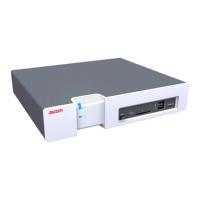
the user to confirm the secured change by pressing the Mode button on the module. The
Elise3’s Mode button LED indicates that a confirmation is needed with a quick flashing blue
light .
1 Push the Mode button. The Mode button LED stops f
lashing and indicates that
confirmation has been done with fixed yellow light on the status LED and fixed blue
light on the mode button.
Status LED
Mode LED
2 Click the “Activate” button to save the secured setting.
The possibility to save secured settings is
open for 10 minutes after the Mode button
has been pressed or until the user manually exits the mode by clicking the Mode
button once more.
4.6.4 Clock Synchronization and Time Settings
The clock in different Elise3 can be set from t
he web browser, A-bus (i.e. Central Unit in
System 900) or a time server. To be able to synchronize the clocks in different Elise3
modules a time server has to be used. Depending on software application and license, an
Elise3 can be used as time server. An external time server supporting the Network Time
Protocol (NTP) can also be used. Normally the Elise3 used as time server synchronizes with
an external time server and then all other Elise3 modules use that Elise3 as the time server.
To select time source do as follows:
1 Enter “xxx.xxx.xxx.xxx/admin” (xxx.xxx.xxx.xxx is the IP address of the Elise3)in a
web
browser to access the Advanced Administration page.
2 Click “Settings” in
the left menu.
3 Select time source to be used.
4 Click “Activate”.


 To Next Page