English
46
– Run File Explorer
– Delete unnecessary files
– Return to MobileMapper Field and stop logging the
feature. The feature will normally be saved if enough
memory space has been cleared.
Deleting Features
For some reason or other, you may want to delete a feature,
whether a point, a line or a polygon. This is possible from the
map screen showing the location of the feature:
• Through zoom and drag operations, adjust the view of the
map screen in order to see the location of the feature.
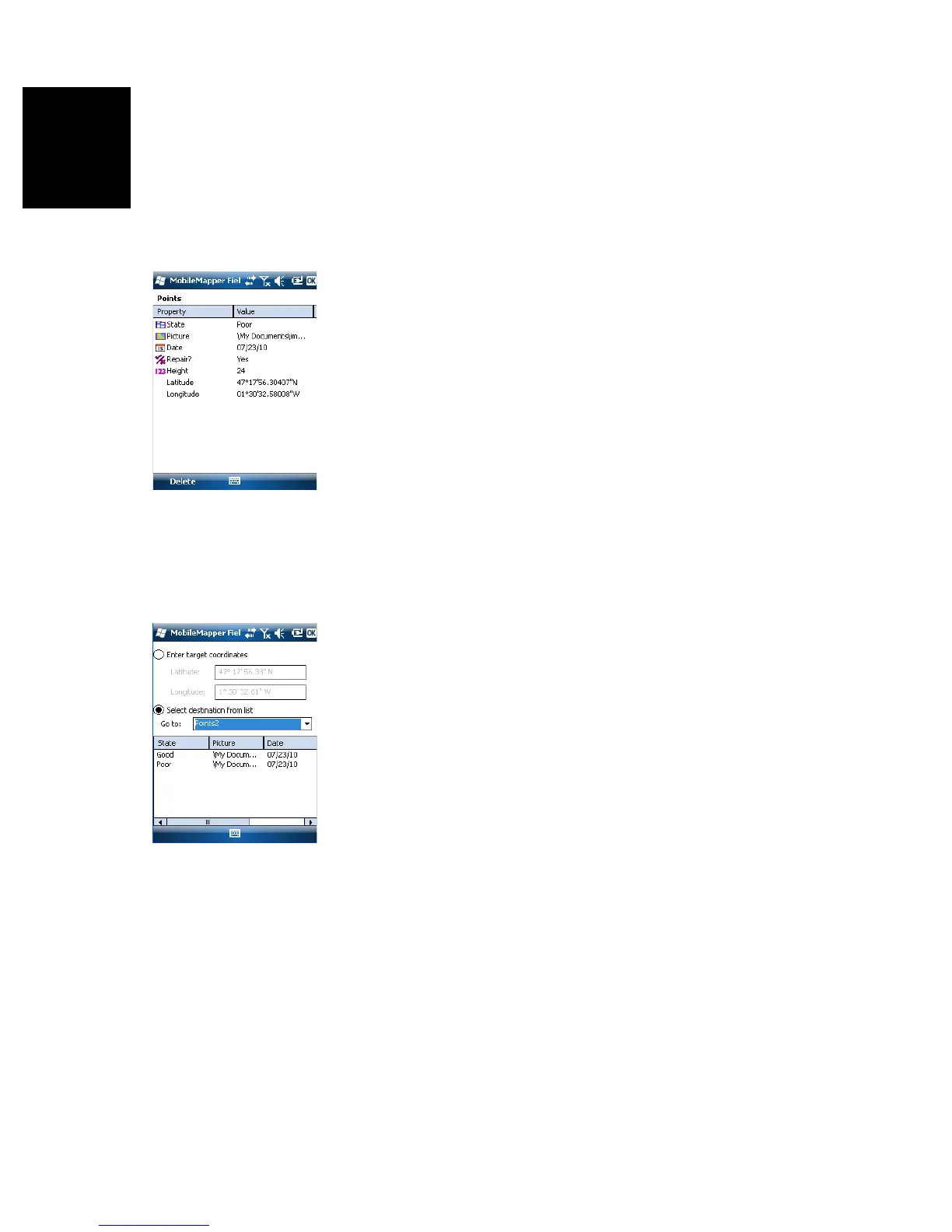
• Tap on the feature. This opens a new window showing the
properties of the feature.
• Tap on the Delete function shown in the lower bar. The
feature is deleted immediately from the corresponding
layer, without prior confirmation, and its location removed
from the map screen.
Revisiting Features Going Back to a Feature
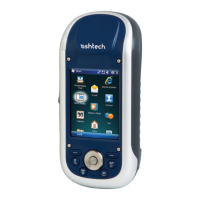
•Tap Menu>Go To.... The receiver allows you to go back to a
feature according to one of the following two methods:
1. Enter target coordinates: Choose this option if you want
to go back to a point feature for which you know the
coordinates (latitude/longitude or Easting/Northing (X/
Y) depending on the coordinate system used in the
map file). After you have entered the two coordinates,
tap OK. This takes you back to the map screen.
2. Select destination from list: Choose this option if you
want to go back to a feature stored in the open map.
First of all, you have to select the layer the feature
belongs to. Use the Go to drop-down menu to make this
choice. As a result, the screen lists all the features
contained in that layer. Features are listed from the
nearest to the farthest from your current location.
Select the desired one simply by tapping on its name.
This takes you directly back to the map screen.


 To Next Page