English
48
Upload/Download
Functions
Using the USB data cable provided with your receiver, you
can exchange data between the receiver and your office
computer.
With Vista running your computer, no particular settings are
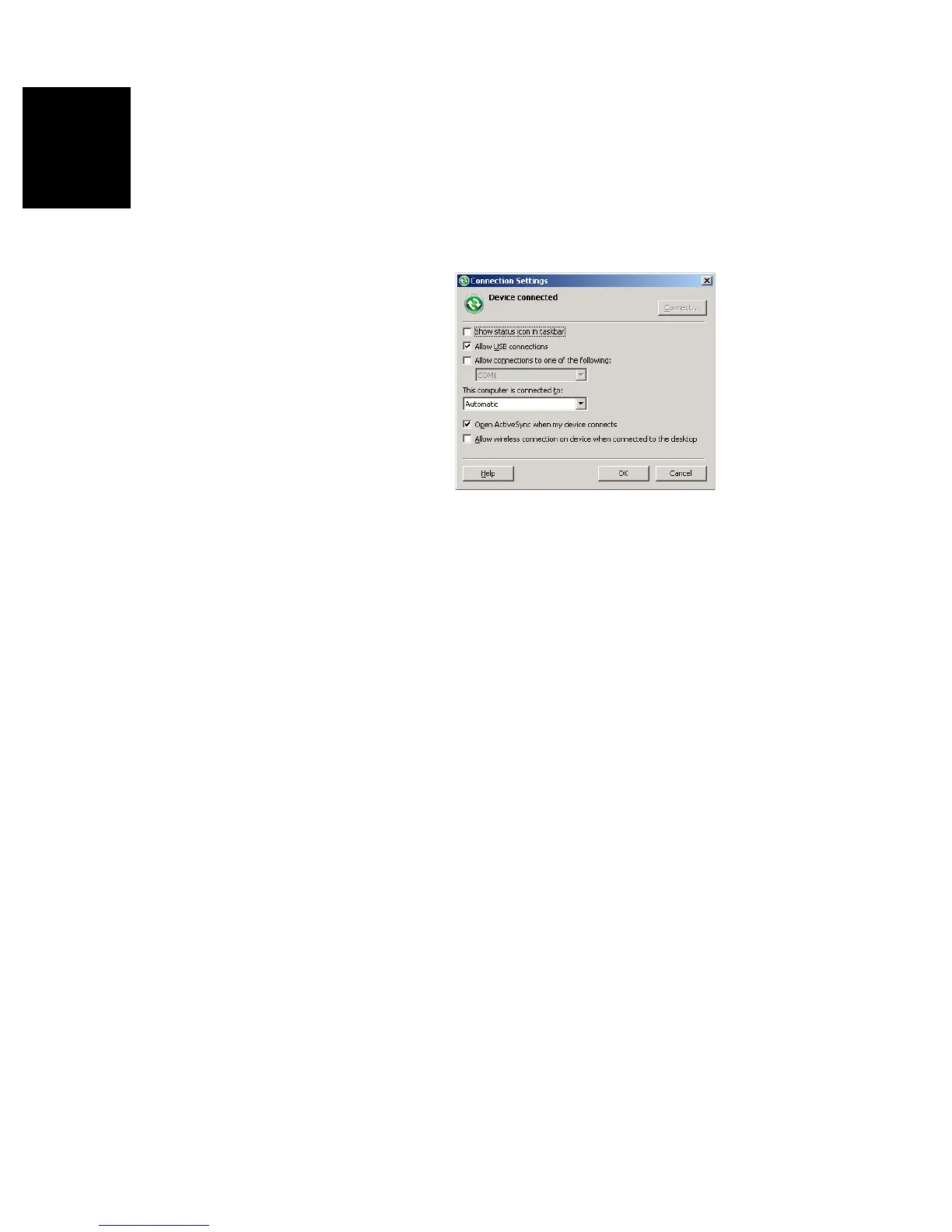
required. With Windows XP (or older), use the following
settings in ActiveSync to make the connection automatic at
receiver power up:
Use the procedure below to copy files from one unit to the
other:
• Place the receiver on the docking station
• Connect the docking station to your office computer using
the USB data cable.
•Turn on the receiver.
• Wait until the connection is active.
• Do the following, depending on the OS used in your
computer:
– (Vista) In the auto-run window that opens, choose the
option to explore the mobile device
– (Windows XP or older) In the ActiveSync window, click
Explore.
• From either of these windows, you can copy any file from
the receiver to any folder on your office computer, or the
other way around, using the usual copy, paste and browse
functions.
A good practice is to have all the files used in a job (i.e.
job file, layers, image files, sound files, all the files
relevant to the background map used) to be saved to the
same folder on the receiver. Apart from the raw data files,
which are in a separate folder, downloading a job to
MobileMapper Office will then only consist of copying the
entire folder to the office computer.


 To Next Page