English
66
Troubleshooting For some reason, the Ashtech Technical Support may ask you
to use this function to help them solve the problem you are
reporting. Should this happen, please proceed that way:
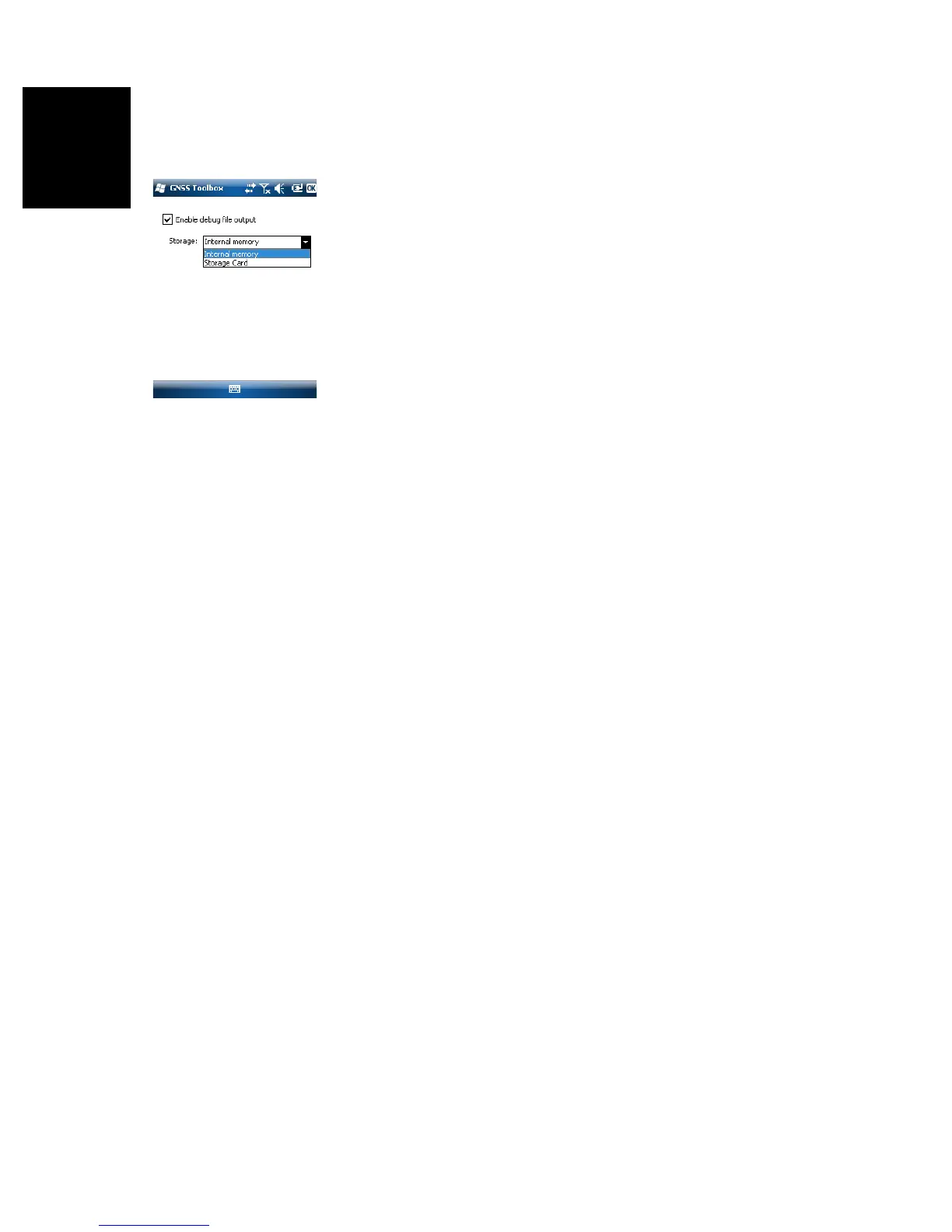
•Open the GNSS Toolbox and tap on Troubleshooting.
• Activate the Enable debug file output check box.
• Choose the memory where to store the data file (“Internal
Memory” or “Storage Card”).
•Tap OK.
• Let the receiver record data for the time requested by the
Ashtech Technical Support. You will then come back to
the Troubleshooting screen to clear the Enable debug file
output check box and tap OK.
The procedure is then as follows:
• Back at the office, place the receiver on the docking
station.
• Connect the docking station to your computer using the
USB cable provided.
• Using Microsoft ActiveSync, open one of these folders:
– “Storage Disk” if “Internal Memory” was selected for
data recording.
– “Storage Card” if “Storage Card” was selected for data
recording.
This folder contains a folder named “GNSS Raw Data” in
which you will find a file of this type:
ATL_yymmdd_hhmmss.log
(e.g. “ATL_100715_162514.log” for a file logged on July 15, 2010
at 4:25:14 pm)
• Send an email to Ashtech Technical Support with this file
attached to the email. The file uses a proprietary format
and so can only be parsed by Ashtech.
Note: If you are using Windows Mobile’ E-mail, you can send the file
directly from your receiver.
About In addition to providing the software version of the GNSS
Toolbox, this function also reports the following:
• GNSS firmware version
• System firmware version
• Receiver serial number


 To Next Page