English
5
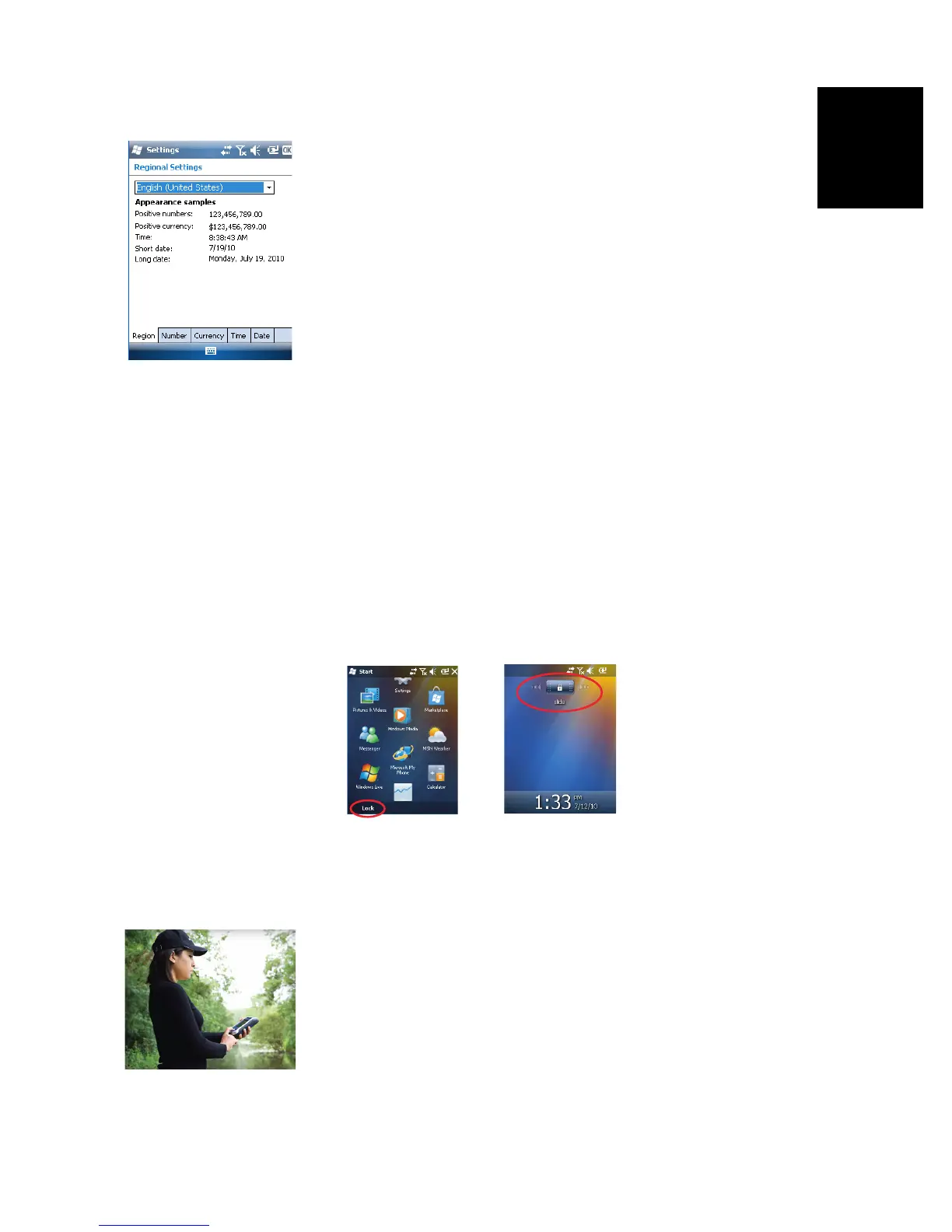
Regional Settings
It’s a good idea to customize your receiver so that it complies
with a number of local preferences, such as country’s
currency, decimal point representation, time and date
formats, etc.
• From the Start screen, tap successively on Start, Settings,
System and Regional Settings.
•On the Region tab, select your country.
• Use the other tabs to set your local settings:
– Number format
– Currency choice
– Time and date formats
•Tap OK to save your settings and return to the Start screen.
Locking the
Screen and the
Keypad
At some stage in your work, you may need to lock the receiver
to make sure no user intervention from the screen or keypad
can affect the work in progress.
• From the Start screen, tap on Start.
• At the bottom of the screen, tap Lock. As a result, the
touch screen and keypad are made inactive.
• To unlock the touch screen and keypad, just drag the on-
screen slide button either to the left or right. This will take
you back to the Start screen.
How to Hold the
Receiver
Tracking satellites with your receiver requires that you hold it
in an appropriate manner.
The receiver will have the best view of the sky when you hold
it at an angle of 45 degrees from horizontal and not too close
to your body.
You can check that your receiver is tracking enough satellites
by running the GNSS Toolbox, and more particularly the
GNSS Status function (see GNSS Status on page 64). When


 To Next Page