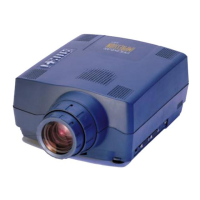
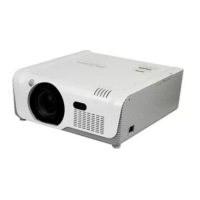
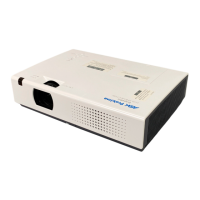
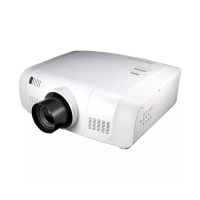
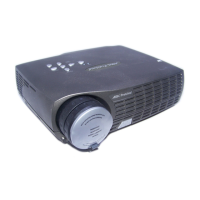
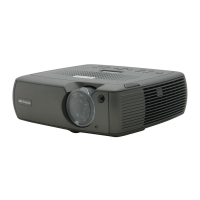
USER GUIDE XGA LCD PROJECTOR
20
REMOTE
CONTROL
KEYS
FUNCTION MEM
SOURCE
1&2
Selects between SOURCE 1 and SOURCE 2 as
the active source.
No
POINTER Applies a trackball-controlled pointer to the
screen.
No
ZOOM Press to zoom in on the image. Use the
trackball or the cursor keys on the projector
keyboard to zoom in or out. Change the zoom
area by using PAN. Push ZOOM to escape.
No
PAN Allows panning within oversized images using
the trackball. For details see The Options
Selections section.
-
LIGHT Press to illuminate the keypad. -
MENU Invokes the menu system. -
TRACKBALL The trackball is mainly used to control the
mouse pointer (if the mouse cable is attached
properly). When ZOOM, MASK, PAN or MENU
is invoked, mouse control is disabled, as the
trackball is used to control these functions
instead. Trackball sensitivity, except for the
mouse, is set under OPTIONS in the menu
system. Mouse sensitivity is set at your
computer as with the standard mouse.
-
RIGHT Emulates the right mouse key. -
BOTTOM/
DRAG
This emulates the ‘click-and-hold’ function of the
desktop mouse.
Use DRAG instead of RIGHT key when
connected to a Macintosh computer.
-
LEFT/
ENTER
Emulates the left mouse key.
Once the menu is accessed selections are
confirmed using ENTER.
-


 To Next Page