Asoka® User’s Guide
PlugLink 9650 Ethernet Adapter PL9650-E TH
Page 17 of 26
Chapter 7
Using the Admin Utility
The Admin Utility is a tool for Advanced Users. It allows you to manually configure a PlugLink 9650
Ethernet Adapter that is directly connected to your Personal Computer or any PlugLink 9650
Ethernet Adapters that are remotely residing on your PlugLink Powerline network.
Figure 7-1: Admin Utility Icon
The Admin Utility consists of four (4) screens.
Profile Screen
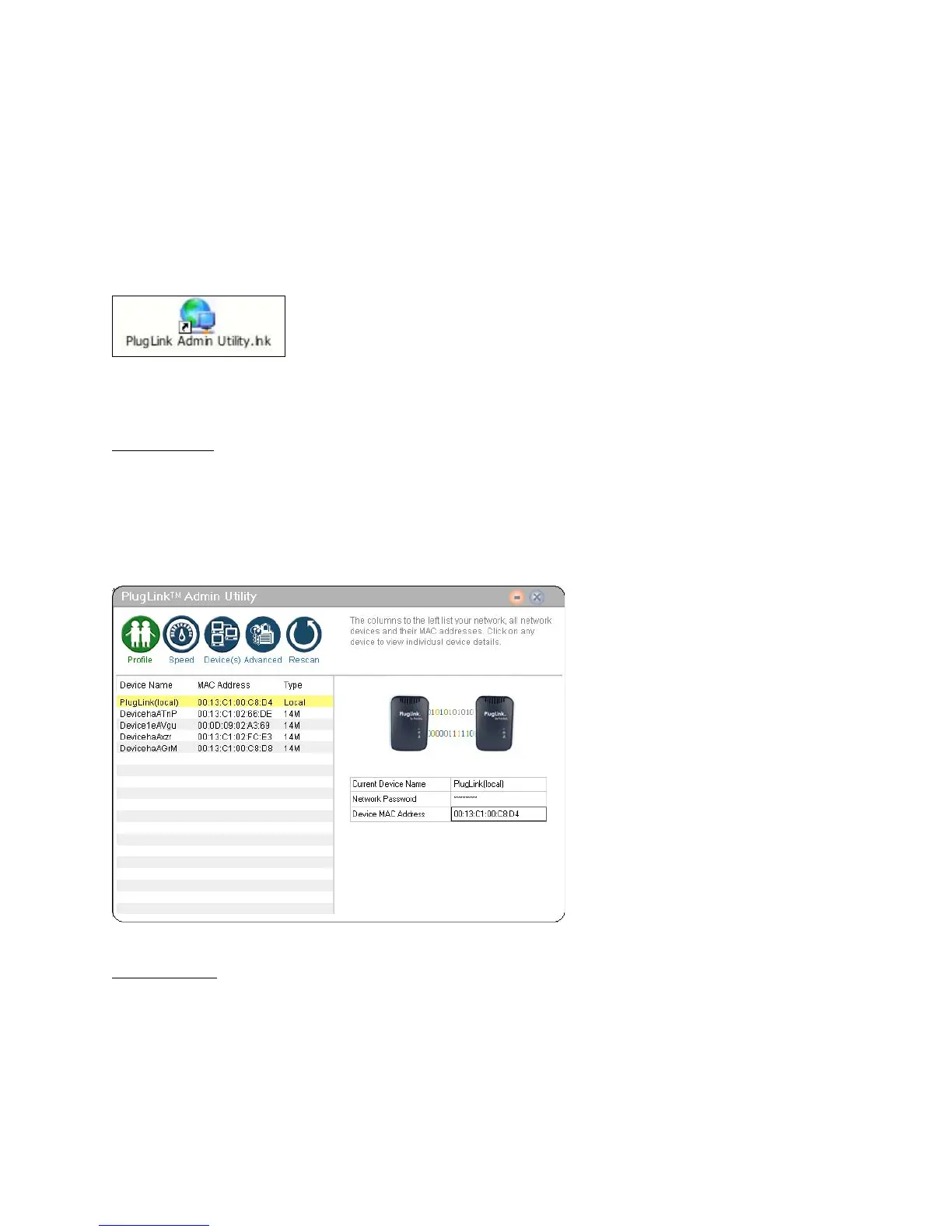
The Profile Screen displays information about all Powerline devices attached directly to your PC
and other Powerline devices on your network. The screen displays the Device Name, MAC
Address, and Type (local or remote; 14mbps or 85mbps) of connection for each device on your
network. To refresh the list of Powerline devices, Click on the ‘Rescan’ icon. (Note: Devices set up
with a different network password will NOT show up on this list.)
Figure 7-2: Profile Screen.
Speed Screen
The Speed Screen displays the speed of your device’s connection to the Powerline network.
You can check the speed of the other devices by clicking on them.



 To Next Page