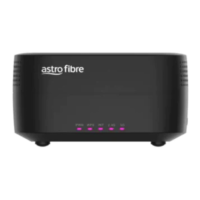
Login Web Manager and Change Settings
• How to Login and execute password changes
1. Open a web browser and input the following text in address bar:
http://192.168.100.254
2. Input default Username and Password, e.g. user/user
Note: You may also check the label at the bottom of the device for default IP
and username/password if the information above does not work
• How to change password:
1. Click "System Tools" icon
2. Click "User management" menu
3. Enter your old password and new password
4. Click on "Apply/Save" button to submit your change
• How to Change Wi-Fi SSID and Password
1. Click "WLAN" icon
2. Click "2.4G " or “5G” menu
3. Enter your new SSID and new Wi-Fi Key on Basic Setting page.
4. Click on "Save/Apply" button to submit your changes, Wi-Fi configurations of all
routers including mesh units will be changed.
• How to Reset a Router’s Configurations to its Factory Default Settings
1. Power on the RGW.
2. Press and hold the ‘RST’ button at the rear panel of your device for more than 10
seconds using the end of a paper clip or other small object with a narrow tip such
as a pencil, and then release.
Note: Once the RGW is set to Mesh Agent mode, its DHCP server will be disabled and its
default LAN IP may be replaced by a dynamic IP address provided by the Mesh Controller.



 To Next Page