15
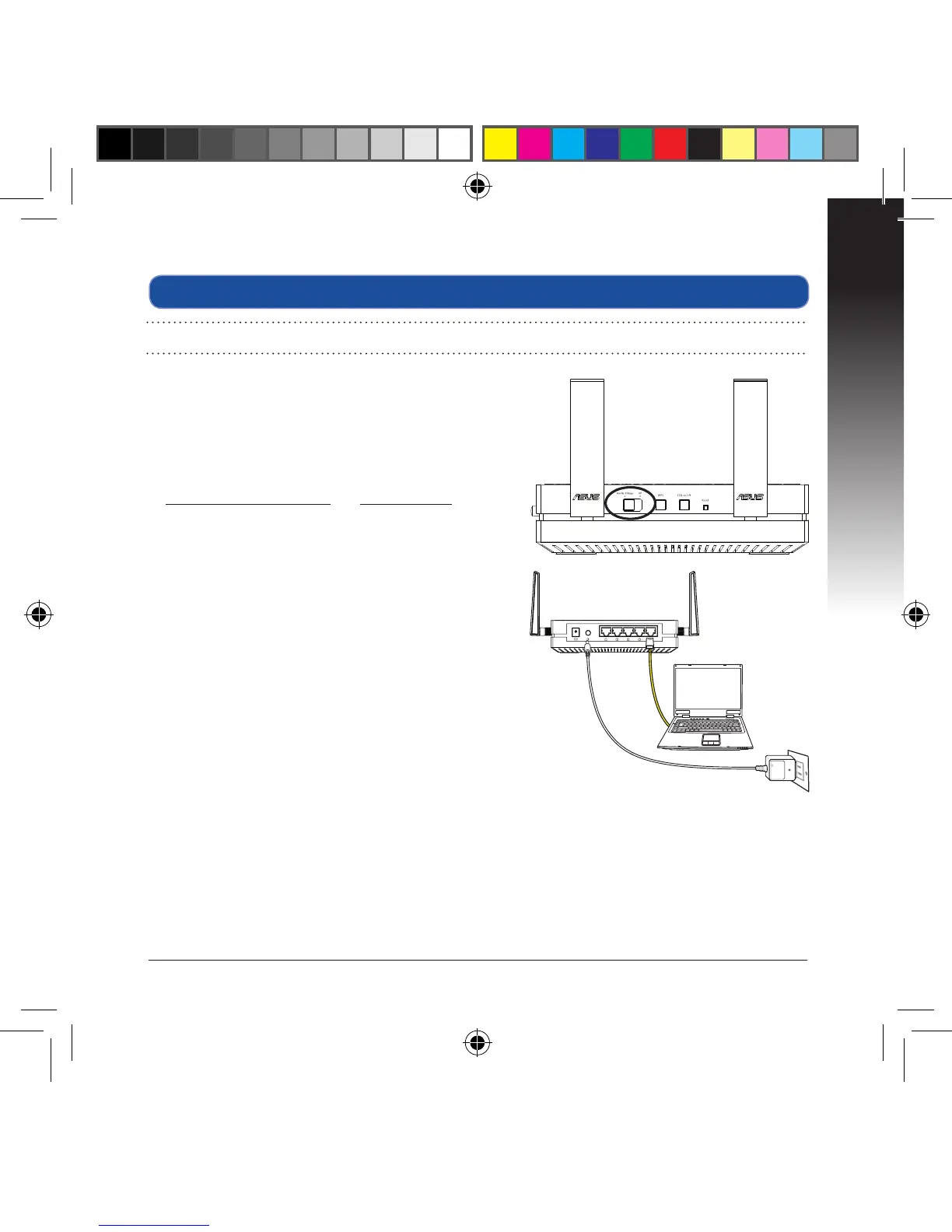
a. Adjust the slide switch to media bridge.
b. Plug in the power adapter and using the
bundled network cable, connect your com-
puter to your EA-AC87’s LAN port.
c. In your web browser, key in
http://ndasus.local or 192.168.1.1 in the
browser’s address bar. Key in admin as the
default username and password to log into
EA-AC87’s web graphical user interface (Web
GUI).
d. Follow the onscreen instructions to com-
plete the wireless connection setup
e. Check if EA-AC87’s LED indicator turns a
solid light, which indicates that EA-AC87
has successfully connected to the wireless
network.
Setting up via web-based interface
NOTE: If you have already used WPS to connect your device, skip this section.


 To Next Page