Chapter 3: Keeping in touch
51
Customizing your contact’s prole
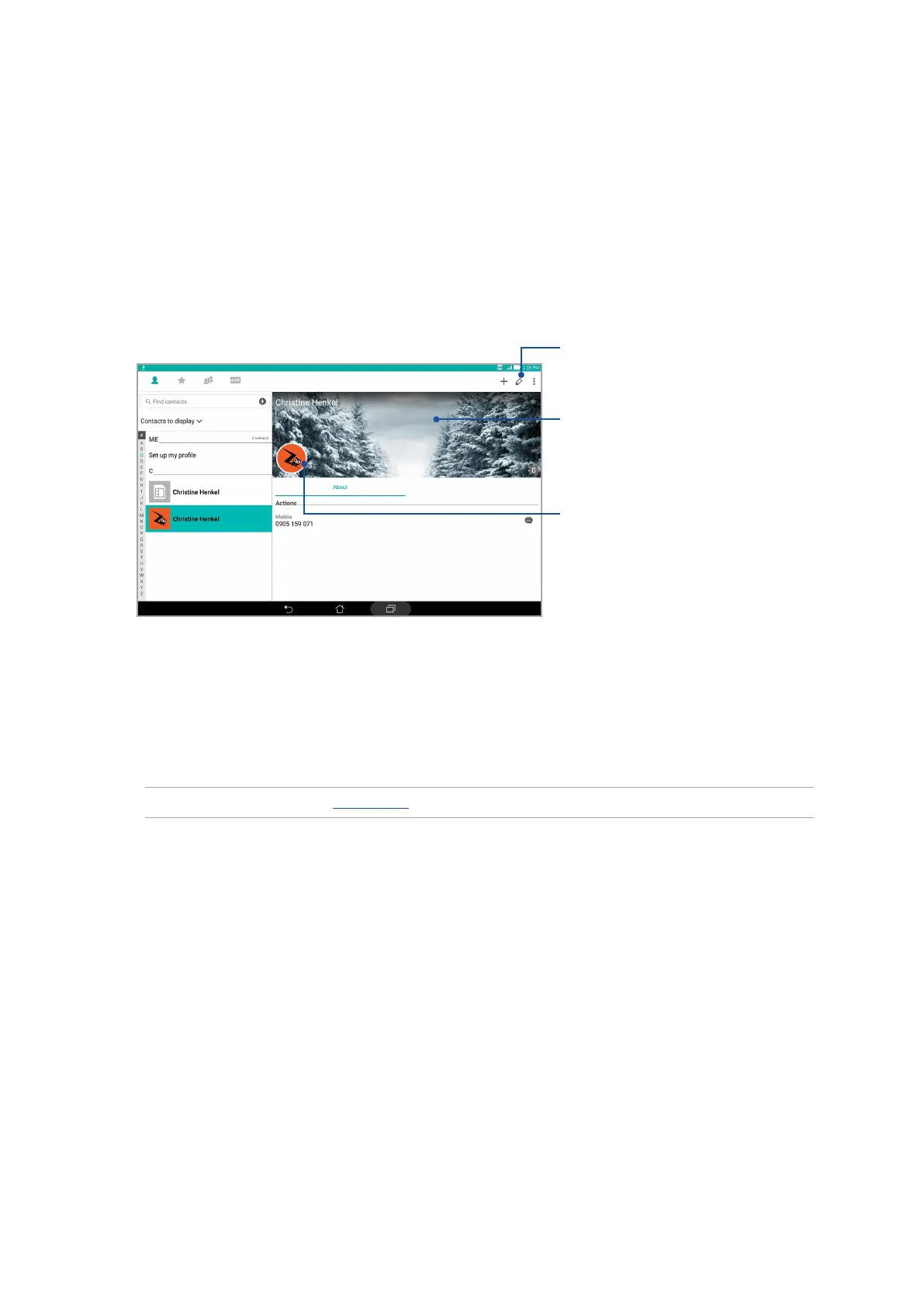
Edit your contact’s info, add a photo, or take a photo as a cover for your contact’s prole.
1. Launch the Contacts app then select the contact whose info or prole you want to edit or
customize.
2. Make the changes from the contact’s prole page.
Setting up your VIPs
Group your contacts as VIPs to get notied about upcoming anniversaries, birthdays, and other
important events. You’ll also get alerts about any unread messages or emails from your VIPs. You’ll
get all these notices as your What’ s Next alerts and reminders.
NOTE: For more details, see What’s Next.
Set up your VIP from the Contacts app home screen
To set up your VIP from the Contacts app home screen:
1. Launch the Contacts app, tap and hold the contact you want to set up as a VIP, then select Add
to VIP group.
Tap to add your contact’s photo from
Gallery or by capturing a photo
Tap to edit your contact’s info
Tap to add your contact’s prole cover
from Gallery or by capturing a photo
You can display a Facebook prole cover as
the theme cover for a Facebook contact


 To Next Page
 Loading...