EasyManua.ls Logo

ATEN CS-64A - User Manual

ATEN CS-64A
16 pages
Print Icon
To Next Page IconTo Next Page
Loading...
User Manual
CS-64A
Read this guide thoroughly and follow the installation and operation
procedures carefully in order to prevent any damage to the unit and/or
any devices that connect to it.
This package contains:
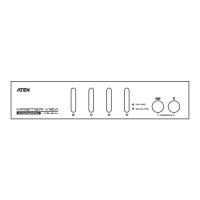
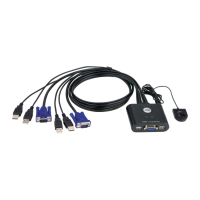
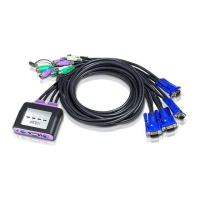
M 1 CS-64A Four Port Petite KVM Switch with Attached Cables
M 1 User Manual
M 1 Quick Start Guide
If anything is damaged or missing, contact your dealer.
© Copyright 2003 ATEN
®
International Co., Ltd.
Manual Part No. PAPE - 1235-1AT
Printed in Taiwan 08/2003
All brand names and trademarks are the registered property of their respective owners.
2003-08-26

Questions and Answers

  • R
    Rachel ParkerJul 31, 2025
    What to do if pressing hotkeys on my ATEN CS-64A Switch gets no response?
    • P
      phillipsjakeAug 1, 2025
      If pressing hotkeys on your ATEN Switch yields no response, it could be due to these reasons: * The selected port might be connected to a computer that is powered off. Resend the hotkey command, ensuring you select a port with a powered-on computer attached. * The hotkey sequence might be entered incorrectly. Resend the hotkey command, pressing and releasing each key in the sequence individually. * The switch could be in Auto Scan Mode. Press the [Spacebar] to exit Auto Scan Mode.
  • K
    Kimberly BakerAug 8, 2025
    Why is my ATEN Switch keyboard not responding?
    • P
      ppopeAug 8, 2025
      There are several reasons why your ATEN Switch keyboard might not be responding: * The keyboard cable connections might be loose. Check that all keyboard cables are completely seated in their sockets. * The keyboard may need to be reset. Try unplugging the keyboard from the Console Keyboard Port and then plugging it back in. * The switch itself may need a reset. Turn off the computers, unplug the KVM cables, wait five seconds, then plug the cables back in and turn the computers on. * The switch might be in Auto Scan Mode. Press the [Spacebar] to exit Auto Scan Mode.
  • M
    morrisjuliaAug 15, 2025
    What to do if my ATEN Switch mouse is not detected or responds incorrectly?
    • W
      William BerryAug 15, 2025
      If your mouse is not detected or responding correctly, consider the following: * Check that all mouse cable connections are securely seated in their sockets. * Ensure you are using a PS/2 mouse and that your computers have PS/2 type mouse ports, as serial mouse ports with adapters are not supported. * Try unplugging the mouse from the Console Mouse Port and plugging it back in to reset it. * Reset the switch by turning off the computers, unplugging the KVM cables, waiting five seconds, and then plugging the cables back in and turning the computers on. * Verify that the mouse is set to PS/2 mode if it has the option to switch between PS/2 and serial modes. * Confirm that the correct mouse driver is installed via your Device Manager.
  • K
    Kevin GardnerAug 23, 2025
    How to fix video problems on my ATEN CS-64A Switch?
    • J
      Jason ReyesAug 23, 2025
      If you are experiencing video problems with your ATEN switch, the resolution and/or bandwidth might be set too high. Try selecting a lower resolution and/or bandwidth.

Summary

Overview

Features

Hardware Requirements

Console

Specifies the monitor, mouse, and keyboard requirements for the user's console.

Computers

Outlines the required video card and ports for each computer connected to the KVM switch.

Cables

Explains the integrated 4-in-1 KVM cables and their PS/2 connectors, noting limitations.

Front View

KVM Cables

Explains the 4-in-1 cables that connect to computer ports for keyboard, video, mouse, and audio.

Port LEDs

Describes the function of the LEDs on the front panel, indicating the active KVM port and its status.

Speaker Jack

Identifies the port for connecting optional speakers to the KVM switch.

Console Ports

Details where to plug in the user's keyboard, monitor, and mouse on the KVM unit.

Installation

Operation

Invoking Hotkey Mode

Details the specific key sequence required to activate the KVM's Hotkey command mode.

Selecting the Active Port

Describes how to use Hotkeys to switch KVM focus directly to a specific computer port.

Auto Scan Mode

Explains the feature that automatically cycles through connected computers at set intervals.

Skip Mode

Details how to manually skip between connected computers using Hotkey combinations.

Specifications

Troubleshooting

Limited Warranty

ATEN CS-64A Specifications

General IconGeneral
TypeKVM Switch
Ports4
Computer Connections4
Port SelectionPushbutton
CompatibilityWindows, Linux, Mac
Video Resolution2048 x 1536
ConnectorsUSB, VGA
Switching MethodPushbutton, Hotkey
Resolution2048 x 1536

Related product manuals