31 32
SOFTWARE SOFTWARE
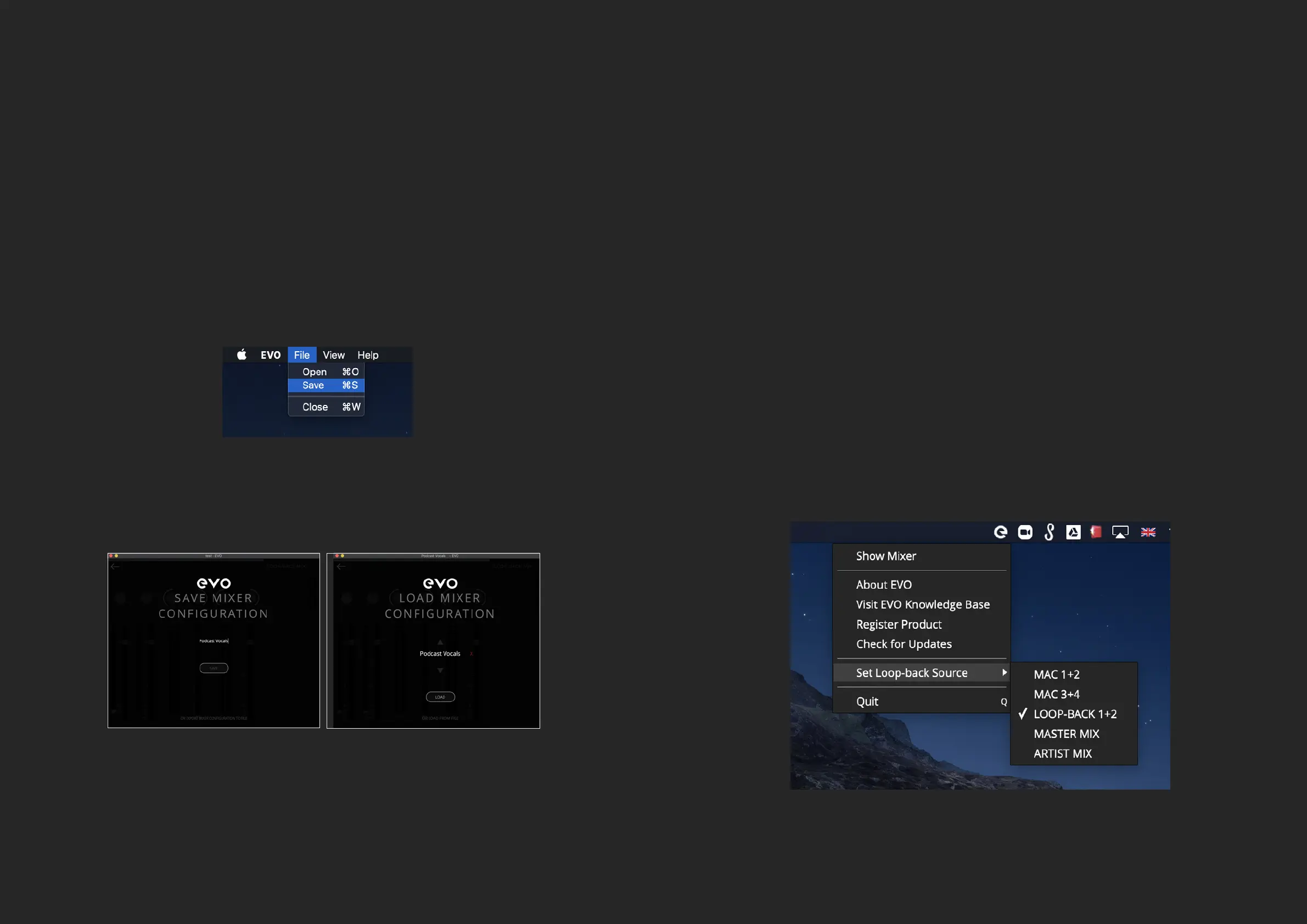
If you have a conguration you want to use again in the future then you can
save it as a preset. EVO 8 will save all your settings to allow for speedy recall.
To Save a conguration, go to File > Save.
You can then give the conguration a name and click Save. If you’d like to send
your settings to another computer or EVO 8 user, you can click Export Mixer
Setting to File and you can save this to your documents.
EVO CONFIGURATIONS
SAVING AND OPENING
To open a previously saved conguration go to File > Open and select the
conguration from the list.
You can also delete a previously saved conguration by clicking the red X next
to it.
If you’d like to open an EVO 8 conguration from your documents, simply click
“Load From File” and then use the le explorer to nd the setting you wish to
load.
EVO 8 includes a loop-back channel allowing you to take audio from
applications on your computer and feed it to another application, great for
recording video interviews or for setting up gaming streams.
The loop-back audio will be on input channels 5+6 of the EVO 8 and you can
choose from what source the loopback audio is taken from in the EVO menu.
USING LOOP-BACK ON EVO 8


 To Next Page