35 36
SOFTWARE SOFTWARE
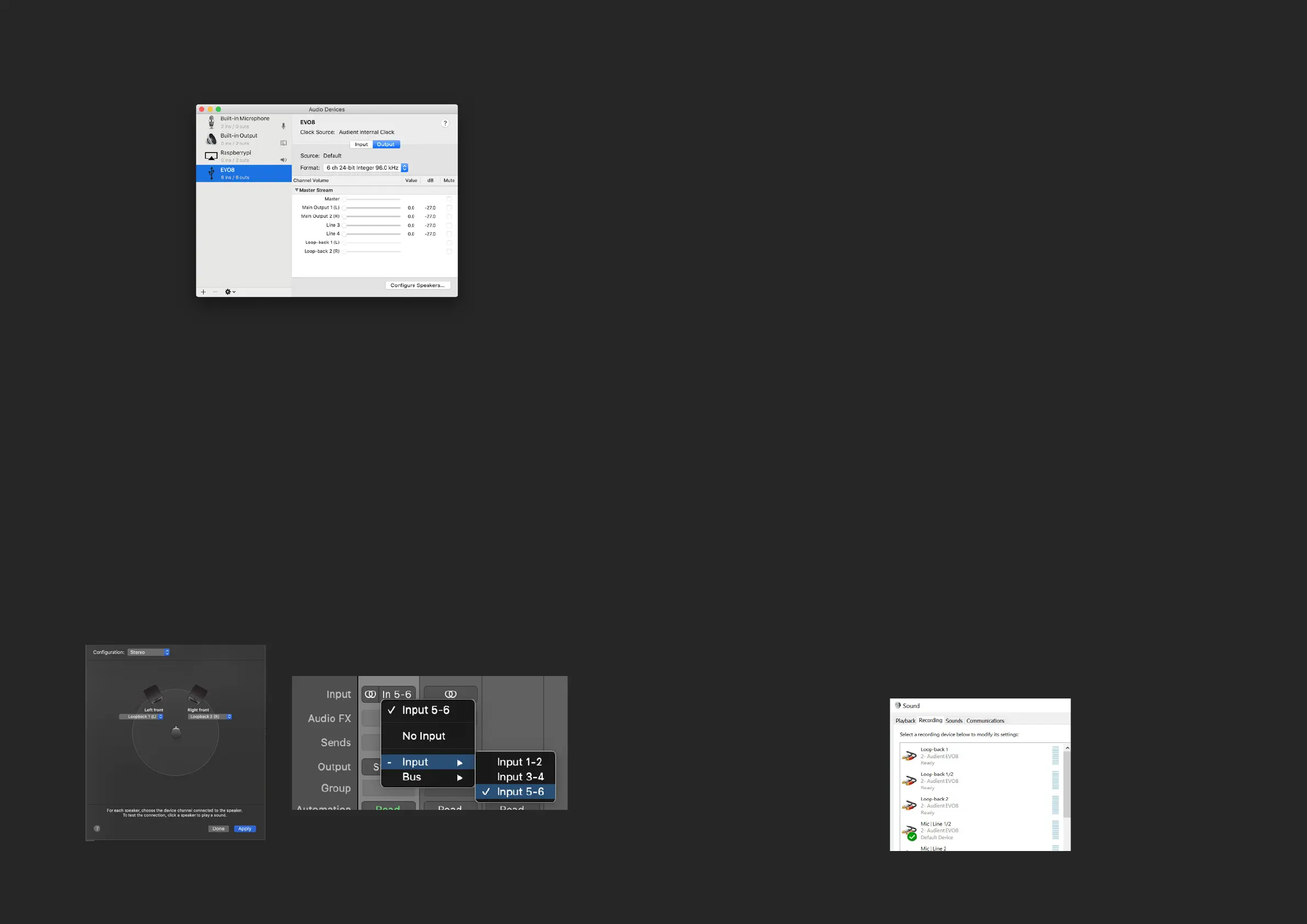
Then select EVO 8 from the list of devices and select Congure Speakers:
Then simply set your left and right output to Loop-back 1 (L) and Loop-back 2
(R). Now any audio played back from your Mac will be sent through the
Loop-back Mixer, ready to be recorded or streamed.
Otherwise, if you are using the Master Mix or Artist mix, open the EVO Mixer and
use the faders to create your Master or Artist Mix.
Now that the Loop-back output is set up, you would then simply need to open
the software you will be using to capture or stream the audio and set your audio
input to the Loop-back inputs.
Depending on your software, this may appear as Loop-back 1+2 or just as Input
5+6.
As with MacOS you can use either the Dedicated loop-back channel or the
Master/Artist Mix.
If using the dedicated loop back channels, the rst step of is setting up your
computer to output sound to the Loop-back outputs of EVO 8. On some
software, you can change this in the software itself in the settings. For details on
how this is done, we’d recommend contacting the developer of your software or
reading through it’s manual.
Otherwise, for software that doesn’t allow you to set the output channel, such
as web browsers or video call services, you may need to adjust your output
setting in the Windows Sound Settings.
This can be adjusted by going to Control Panel > Hardware and Sound > Sound.
Now select the Playback tab.
In the list of output devices, nd Loop-back 1+2, select it and then click Set
Default Device, Applications will then default to sending audio to the
Loop-back output.
Otherwise, if you are using the Master Mix or Artist mix, open the EVO Mixer and
use the faders to create your Master or Artist Mix.
As with Mac, you’d simply need to open up your recording or streaming software
and select Loop-back 1+2 or Input 5+6 as your Input.
USING LOOP-BACK ON WINDOWS


 To Next Page