Need help?
Do you have a question about the Audient EVO 8 and is the answer not in the manual?
Introduces the EVO 8 audio interface, highlighting its design to simplify audio recording and its key features.
Explains the Smartgain feature for automatically setting microphone levels perfectly.
Details control over input levels, linking to Smartgain, and muting channels.
Describes the main volume knob and output volume buttons for controlling levels.
Instructions on reading manuals, avoiding water, heat sources, and protecting cables.
Guidance on qualified technicians, no user modification, and hazardous to health warnings.
Statements regarding compliance with FCC Part 15 and CE standards for audio products.
Procedure for resetting the device after electrostatic discharge interference.
Connects the EVO 8 to Mac without drivers, recommends the EVO application.
Steps for unpacking, connecting via USB, and setting EVO 8 as system output.
Explains the need for drivers on Windows and the download/installation process.
Steps for unpacking, connecting via USB, and setting EVO 8 as system sound device.
Instructions for creating an account, verifying email, and registering the EVO 8.
Access to offers, promotions, and creative tools after product registration.
Details on combi connections, XLR for mics, and TRS for line-level devices.
Explains gain adjustment range and manual control using the volume knob.
Describes how Smartgain automatically sets microphone levels by playing or singing.
Details the button presses and LED indicators for activating and using Smartgain.
How to link channels for stereo recording and matching gain levels.
Procedure for enabling +48V phantom power for microphones via the 48V button.
Explains phantom power channel limits based on USB-A or USB-C port connection.
Details the dedicated Instrument DI input for guitars and basses.
How to use separate controls for speaker and headphone output volumes.
Instructions for quickly muting inputs and outputs using channel buttons.
Introduction to the software mixer and Audio Loop-back feature.
How to open the EVO Mixer application on macOS and Windows.
Explanation of fader functions: Mute, Meter, Fader, Pan, Stereo/Mono, Solo.
Describes Mic channels, DAW playback channels, and the master output controls.
Controlling microphone preamplifiers remotely using the EVO Mixer software.
Enabling a separate mix for Outputs 3+4 (Headphone 2) for artist monitoring.
How to save, export, and load EVO 8 settings and configurations.
Routing audio from computer applications to other applications.
Identifies input channels 5+6 as the destination for loop-back audio.
Using Mac/Windows playback or Master/Artist Mixes as loop-back sources.
Choosing dedicated channels or mixes and configuring computer output.
Locating and using the Audio MIDI setup utility for configuration.
Choosing sources and configuring Windows sound settings for loop-back.
Selecting Loop-back 1+2 or Input 5+6 in recording software.
Technical details for microphone preamplifiers and the DI input.
Specifications for DAC outputs and headphone amplifier performance.
Information on USB speed, latency figures, and physical dimensions.
Notes on factors influencing performance and latency at low buffer sizes.
Steps to check for and install firmware updates via the EVO Application.
Information on installation, unit restarts, and recommended precautions.
Details the one-year manufacturer's warranty and what faults are covered.
Requirements for warranty claims, including proof of purchase and authorized dealers.
Clarifies what constitutes a manufacturing defect versus other types of damage.
Lists conditions that void the warranty, such as accident, misuse, or unauthorized repairs.
Provides contact details for further warranty inquiries and support.
The EVO 8 is a 4-in/4-out audio interface designed to simplify the recording process for creatives. It aims to remove technical barriers often encountered in audio production, making recording accessible to everyone.
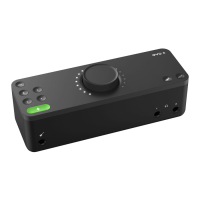
The EVO 8 serves as a central hub for audio input and output, connecting microphones, instruments, and other audio sources to a computer, and routing audio from the computer to speakers and headphones. It features four high-performance EVO Preamps, a JFET Instrument Input, pristine converters, and a powerful headphone amplifier. The device is bus-powered via USB, meaning it draws power directly from the connected computer, eliminating the need for an external power supply. This allows for true phantom power over USB, providing the necessary 48V to condenser microphones for optimal performance.
Smartgain: A standout feature, Smartgain automatically sets the input levels for microphones. Users simply start playing or singing, and the EVO 8 adjusts the gain perfectly, removing the guesswork from setting recording levels. To activate Smartgain, press the Smartgain button. The LED will flash red and the volume wheel LEDs will illuminate, indicating it's listening. Once a channel is selected (by pressing one or more input channel buttons, which will flash green), press the Smartgain button again to begin the process. The device will then dial in the correct levels, and the Smartgain button will flash green twice upon successful completion, signaling readiness for recording.
Channels 1-4: These buttons control the level of the inputs. They can be linked for Smartgain functionality or held down to mute individual channels.
Volume Knob: This central knob provides unified control over speakers, headphones, and individual channel levels, streamlining the monitoring and mixing process.
Output Volume Buttons: Dedicated buttons allow users to set separate volume levels for headphones and speakers.
Stereo Linking: Channels 1+2 and 3+4 can be stereo linked to match the gain for both left and right channels, useful for recording instruments with two microphones (e.g., piano, guitar) or inputting stereo line signals (e.g., synths, DJ decks). This is achieved by pressing down the 1 and 2 buttons or the 3 and 4 buttons simultaneously. The software mixer will reflect this change, and selecting one linked channel will automatically select the other.
Phantom Power: Essential for condenser microphones, the EVO 8 provides +48V phantom power. To enable it, press the desired channel button and then the 48V button. The 48V button will illuminate red to indicate active phantom power. It's important to note that if the EVO 8 is connected to a USB-A port, only two channels of phantom power can be used simultaneously. A USB-C port capable of providing 1.5A of current allows all four channels to use phantom power at once. Users should check their microphone's documentation to confirm if phantom power is required, as providing it to microphones that don't need it can cause damage.
Instrument Input: A dedicated JFET Instrument Input on the front of the EVO 8 allows direct connection of instruments like guitars and basses. This high-impedance input, often referred to as a DI (Direct Injection) port, ensures optimal tone. Plugging a guitar jack into this input overrides the Mic/Line input for Channel 1. Gain can then be set using Smartgain or the main knob.
Volume Control: The EVO 8 offers two separate volume controls for its outputs. Volume Control 1 adjusts the volume for speaker outputs 1+2 or the first headphone output. Volume Control 2 adjusts the volume for speaker outputs 3+4 or the second headphone output. To adjust, tap the desired output button and turn the control knob; the meter ring will show the current volume level.
Muting: Outputs and individual inputs can be quickly muted by pressing and holding the respective channel buttons or output volume buttons. The button will flash when muted and can be unmuted by pressing and holding it again. This is useful for temporarily silencing a microphone during a podcast or muting speakers to take a phone call.
The EVO Mixer software provides comprehensive control over monitoring for recording, mixing, or content creation. On macOS, it's accessible via the Menu Bar; on Windows, it's in the system tray.
Master Section: Located on the right side of Outputs 1+2 and 3+4, it allows independent adjustment of output levels and the ability to hide Mic or DAW channels.
Users can save their EVO 8 settings as presets for quick recall. Configurations can be named and saved, or exported as files for use on other computers or with other EVO 8 users. Previously saved configurations can be loaded from a list or from a file. Saved configurations can also be deleted.
The EVO 8 includes a loop-back channel (inputs 5+6) that allows audio from computer applications to be routed to other applications, ideal for recording video interviews or setting up gaming streams. The source for loop-back audio can be selected from the EVO menu.
Loop-Back on Mac: Users can choose to use dedicated loop-back channels or the Master/Artist mixes as the source. For dedicated channels, the computer's output sound needs to be directed to the EVO 8's loop-back outputs. This can be done in software settings or via the Mac Audio MIDI setup (Applications > Utilities > audiomidisetup.app). Once set, the loop-back audio is sent through the Loop-back Mixer for recording or streaming.
Loop-Back on Windows: Similar to Mac, users can choose dedicated loop-back channels or the Master/Artist mixes. For dedicated channels, the computer's output needs to be set to the EVO 8's Loop-back 1+2 outputs in Windows Sound Settings (Control Panel > Hardware and Sound > Sound, Playback tab). Once set as the default device, applications will route audio to the loop-back output. Recording or streaming software can then select Loop-back 1+2 or Input 5+6 as the input.
Firmware Update Procedure: Firmware updates are managed through the EVO Application menu by selecting "Check for Updates." With an internet connection, the app will check for new firmware versions and prompt installation if available. It's recommended to switch off all speakers before updating, and the unit will restart multiple times during the process.
Safety Instructions: The manual emphasizes reading and keeping all instructions, heeding warnings, and following all instructions. It advises against using the equipment near water, cleaning with anything other than a dry cloth, and installing near heat sources. Users are instructed to protect cables from being walked on or pinched. In case of unit failure, users should not attempt to open the EVO 8 themselves but contact Audient support. Tampering with the unit while connected or disconnected is hazardous. All servicing should be referred to qualified service personnel.
Warranty Information: The EVO 8 comes with a one-year manufacturer's warranty covering faults due to defective materials or workmanship. The warranty is void if repairs are not carried out by an authorized service center, if the unit has been modified without manufacturer instruction, or if damage results from accident, misuse, negligence, or careless handling. The warranty does not cover components with limited life expected to be periodically replaced. Proof of purchase is required for warranty claims, and the procedure is handled through the dealer or distributor.
The EVO 8 is designed to be a reliable and user-friendly audio interface, with features aimed at simplifying the recording workflow and ensuring high-quality audio capture and playback.
 General
| Type | Audio Interface |
|---|---|
| Number of Channels | 8 |
| Mic Preamps | 4 |
| Phantom Power | Yes |
| A/D Resolution | 24-bit/96kHz |
| Bus Powered | Yes |
| Compatibility | Windows, macOS |
| Inputs | 4 x XLR/TRS Combo |
| Computer Connectivity | USB |
| Software | EVO Control |
| Features | Smartgain, Loopback |
| Outputs | 2 x 1/4" (Headphones) |

 To Next Page