49
EN
3. Press the BACK button on the unit or on the remote control to cancel the
setting and return back to the previous menu.
Time/Date
The Time/Date can be automatically set once it has been connected to the
Internet, DAB+ or FM radio station with time/date information. You may
also adjust the Time/Date manually.
In System settings mode, press the PRESET
∧/∨ buttons to select Time/
Date and press the SELECT button to conrm. Press the / buttons to select
Set Time/Date and press the SELECT button to conrm.
3. The date digits will ash on the display.
4. Press the PRESET ∧/∨ buttons to adjust the day and then press the
SELECT button to conrm.
5. Repeat above Step (2) to set the Month/Year/Hour/Minute.
6. The date and time settings are now complete.
For the other settings under Time/Date, press the PRESET ∧/∨ buttons
to select from the following options and then press the SELECT button to
conrm.
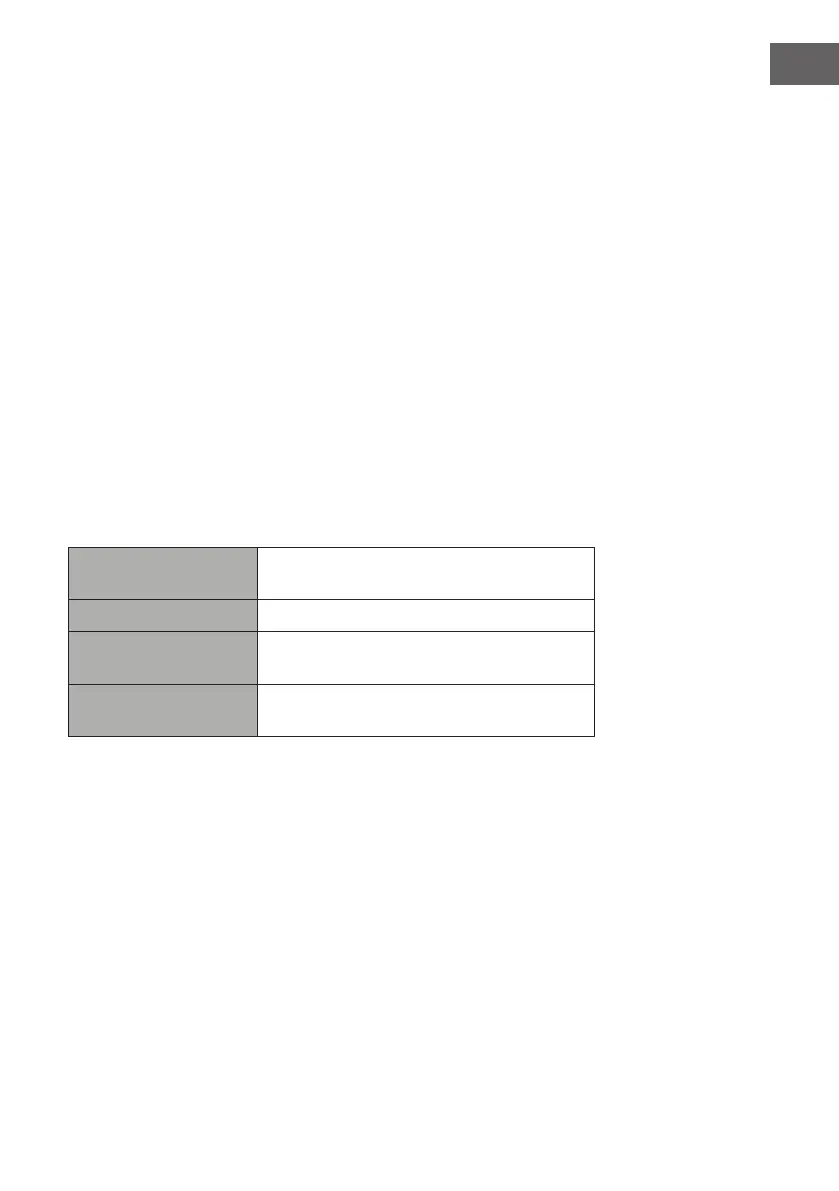
Auto update
Update from DAB / FM / Network or No
update.
Set format 12 / 24 hour format.
Set timezone
Select a time zone. (Only available when
Auto update from Network is on.)
Daylight savings
Select daylight savings. (Only available
when Auto update from Network is on.)
The default auto time update setting is “Update from Network”. If you would
like to manually set the time, it is recommended to turn the Auto update
function o.
Inactive Standby
Use the Inactive Standby to turn o the unit after a certain time in play
mode.
7. During System settings mode, press the PRESET
∧/∨ buttons to select
Inactive Standby and then press the SELECT button to conrm.
8. The display will show : O > 2 hours > 4 hours > 5 hours > 6 hours
9. Press the PRESET ∧/∨ buttons to select and then press the SELECT
button to conrm


 To Next Page
 Loading...