91
Completes editing and saves the file.
9.1 Vehicle History
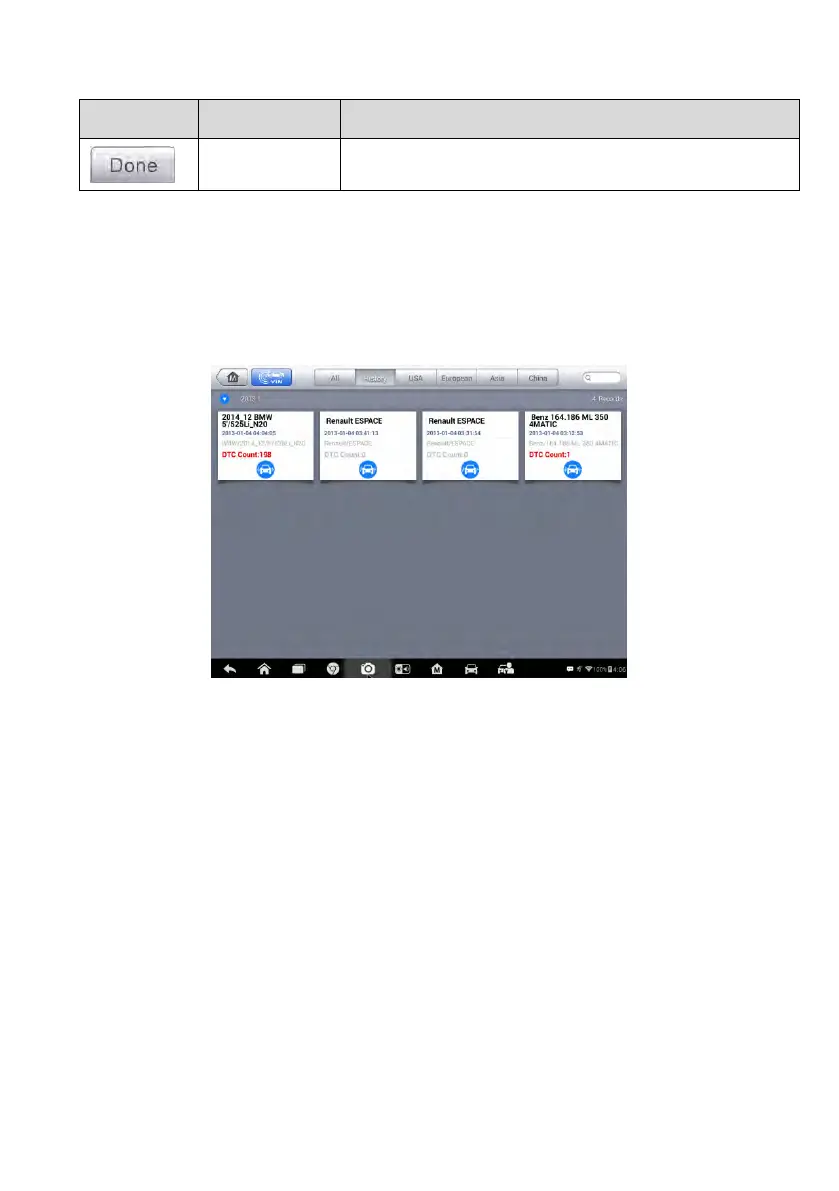
This function stores test vehicle history records, including vehicle information
and the retrieved DTCs from previous diagnostic sessions. All information is
displayed in summarized details. Tap on a record to resume a diagnostic
session on a “stored vehicle”.
Figure 9-1 Sample Vehicle History Screen
To activate a test session for the recorded vehicle
1. Tap the Shop Manager application on the MaxiCOM Job Menu.
2. Select Vehicle History
3. Tap the Diagnostics button at the bottom of the thumbnail of a
vehicle record item. Or,
4. Or, tap the vehicle record thumbnail to view record.
5. A Historical Test record sheet displays, check the recorded
information of the recorded test vehicle, and tap the Diagnostics
button on the upper right corner.
6. The vehicle’s Diagnostics screen displays, now a new diagnostic
session is activated, see Diagnosis on page 26 for detailed
instructions on vehicle diagnostic operations.



 To Next Page